Social Single Sign-On (SSO) removes the need to remember a separate password, verifies your email automatically when you sign up and lets you keep multiple ways to access your account.
Contents
- Supported providers
- Signing in with a social provider
- Creating an account with a social provider
- When an account already exists for your email
- Adding and removing social sign-in methods
- If your organization enforces SSO
- Troubleshooting
- Related resources
Supported providers
Fliplet Studio supports three social sign-in providers:
- Google: personal Google accounts and Google Workspace accounts.
- Microsoft: personal Microsoft accounts and Microsoft 365 / Entra ID accounts.
- Apple: any Apple ID.
Each provider returns a verified email address to Fliplet. That address is used to match or create your Fliplet account.
Social SSO is different from your organization’s enterprise SSO. If your organization uses SAML2, see Configure SAML2 SSO for your organization.
Signing in with a social provider
- Go to studio.fliplet.com/signin.
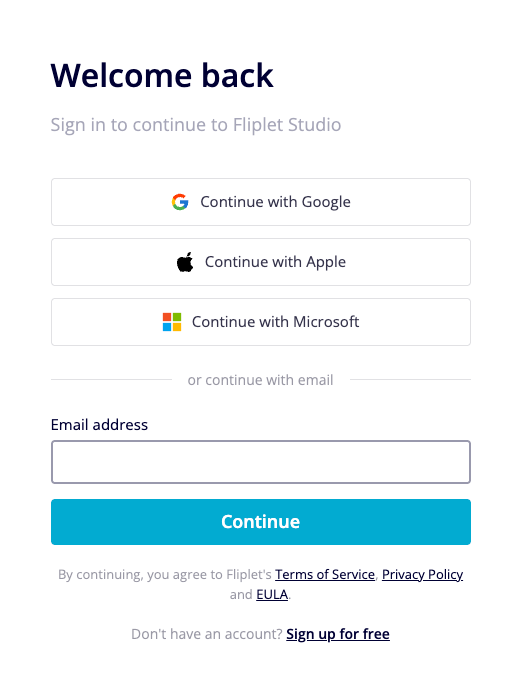
- Click Continue with Google, Continue with Microsoft or Continue with Apple.
- Fliplet redirects you to the provider’s sign-in page. Complete sign-in there.
- The provider sends you back to Fliplet Studio, signed in.
The button you choose must be linked to an existing Fliplet account, or it must match an email that no Fliplet account exists for yet. See When an account already exists for your email for the cases in between.
Creating an account with a social provider
- Go to studio.fliplet.com/signup.
- Click Continue with Google, Continue with Microsoft or Continue with Apple.
- Authenticate with the provider in the page that opens.
- Fliplet creates your account using the email address the provider returns and signs you in.
Accounts created this way are verified automatically. There’s no separate email verification step and no 24-hour grace period. You can use Fliplet Studio immediately, including features like publishing apps and managing billing.
When an account already exists for your email
The most common social sign-in case is when your email already has a Fliplet account but the social provider you clicked isn’t linked to it yet. Fliplet returns you to the sign-in page with an error explaining that an account with that email already exists. To use the social provider going forward:
- Sign in with your existing method (password, or another provider that’s already linked).
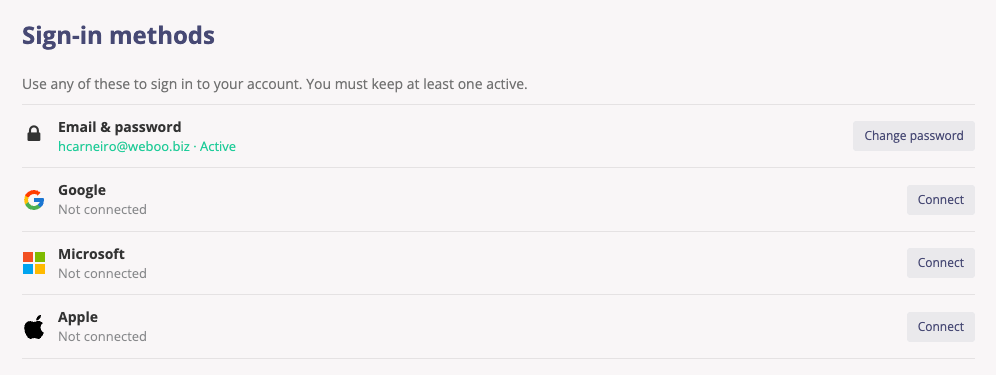
- Open Account settings > Details and find the Sign-in methods section.
- Click Connect next to the provider you want to add.
For the other “account already exists” cases (signing in with a provider that’s already linked, signing up with a taken email, organizations that enforce SSO), see When an account already exists for your email in the main sign-in article.
Adding and removing social sign-in methods
The procedure for connecting and disconnecting Google, Microsoft and Apple is the same as for any sign-in method. See Linking sign-in methods to your account in the main sign-in article for the full walkthrough, including how to find the Sign-in methods section, what each row’s status means, and the rule that you must keep at least one method active.
One detail specific to social providers: the provider’s verified email must match the email on your Fliplet account. If they don’t match, Fliplet doesn’t link the provider and shows an error at the top of the page explaining what went wrong. The most common cause of a mismatch is choosing “Hide My Email” with Apple (see Troubleshooting).
If your organization enforces SSO
When your organization enforces SSO, the Connect buttons for Google, Microsoft and Apple are hidden for providers you haven’t already linked. This prevents adding a personal social account that bypasses your organization’s centralized identity policy. Previously connected social providers stay visible so you can disconnect them and clean up your account.
Organization admins are an exception. They can still add alternate sign-in methods so that an outage at the identity provider doesn’t lock them out of administrative access.
For the broader policy (which organizations enforce SSO, what enforcement means at sign-in, and how multi-organization membership interacts with it), see You belong to an organization that enforces SSO in the main sign-in article.
Troubleshooting
“Hide My Email” with Apple
When connecting with Apple, choose “Share My Email” rather than “Hide My Email”. Apple’s “Hide My Email” generates a private relay address that doesn’t match your Fliplet account email, so Fliplet can’t link the provider.
Email mismatch
If the email returned by the provider doesn’t match the email on your Fliplet account, the provider isn’t linked. Sign in to the provider with the email that matches your Fliplet account, or change the email on your Fliplet account first.
Pop-up blockers
Sign-in with a social provider redirects the whole window to the provider. There’s no pop-up. Pop-up blockers don’t affect this flow.
The provider button isn’t showing
If a provider button is missing from the sign-in page or from Sign-in methods, your organization enforces SSO and personal social providers are hidden. Contact your organization administrator if you need access to additional sign-in methods.
Related resources
- Signing in to Fliplet Studio
- How to set up SAML2 (SSO) for Fliplet Studio
- Single sign-on (SSO) with SAML2 (Drag & Drop builder)