Manage your profile and, for admins, manage all event participants.
This section covers how attendees edit their own profiles and how admins manage the full user base. Admin tools include browsing all users, importing users in bulk, editing individual records, creating user groups for personalized agenda access, uploading data, and exporting information as CSV files.
Contents
- Edit Profile
- User List
- Manage Users
- Import Users
- User Groups
- Manage User Groups
- Bulk Upload Data
- CSV Download
Edit Profile
Role: All Users
The edit profile screen lets you update your personal and professional information. All fields are pre-populated from your existing record, so you only need to change what is outdated. First-time users who have not confirmed their profile are prompted to complete it before continuing.
- Edit your name, bio, job title, company, and other profile details
- Upload or change your profile photo
- First-time users must confirm their profile before navigating away
- Changes are saved immediately to your user record
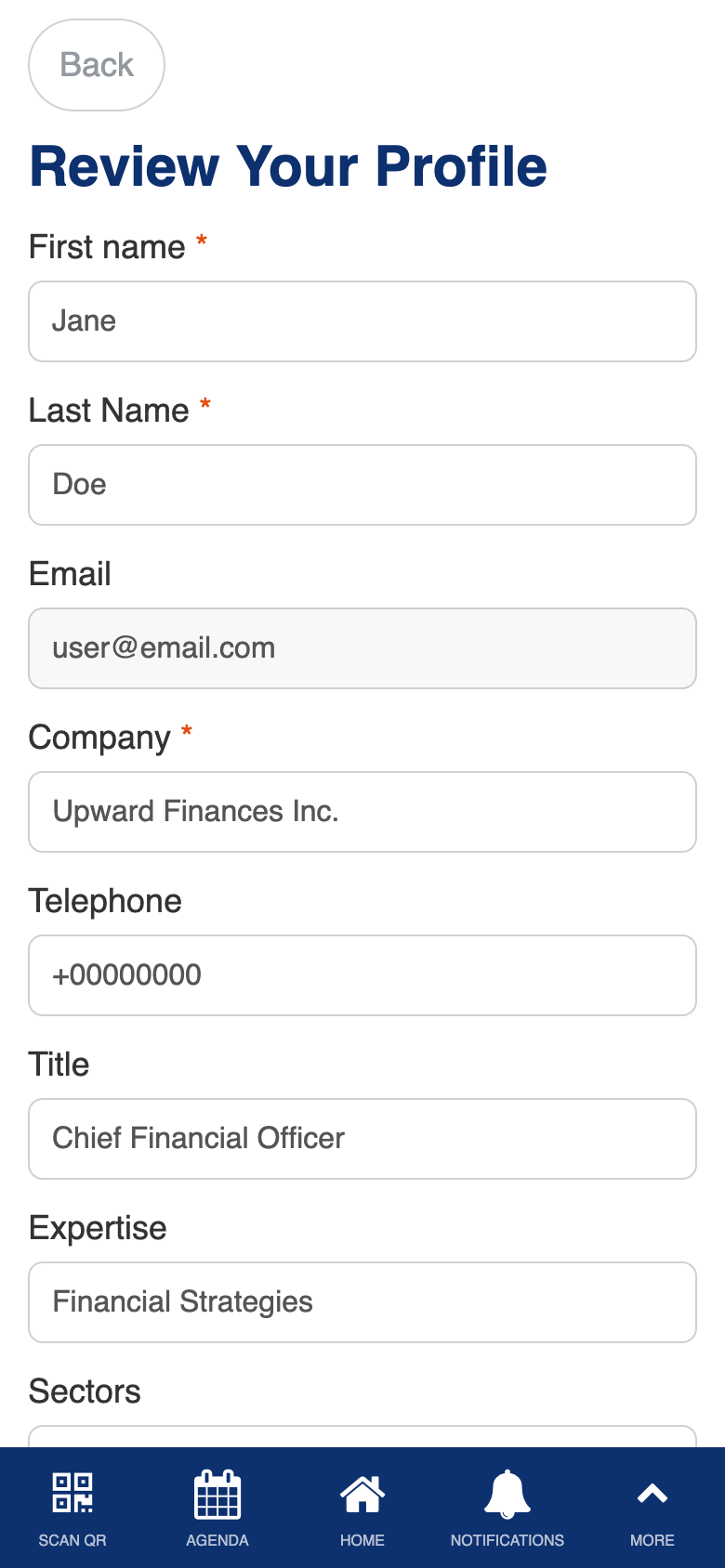
Uses the standard Form Builder component. Custom profile confirmation flow.
User List
Role: Admin
The user list gives admins a searchable directory of all registered event participants. You can browse, search, and filter users by name, email, company, or role, and navigate to individual user management from any entry.
- View all registered attendees, speakers, exhibitors, and admins
- Search and filter users by name, email, company, or other fields
- Tap any user to view their full profile details
- Navigate to user management actions directly from the list
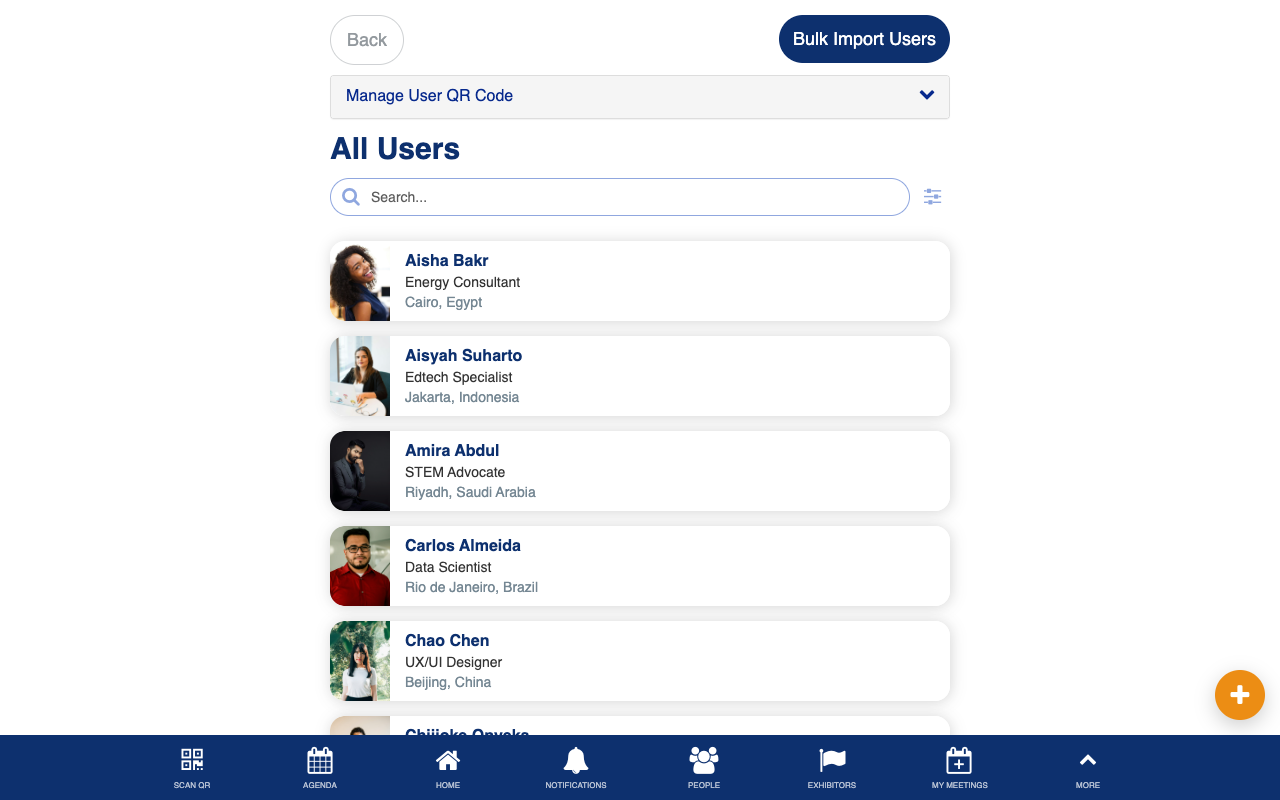
Uses the standard List from Data Source component.
Manage Users
Role: Admin
The manage users screen lets admins edit individual user records, change roles, and manage account access. You can update any profile field, toggle admin privileges, and send password reset emails.
- Edit user profile fields including name, company, and bio
- Change a user’s role or grant admin privileges
- Send a password reset email to the user
- View and update the user’s account status
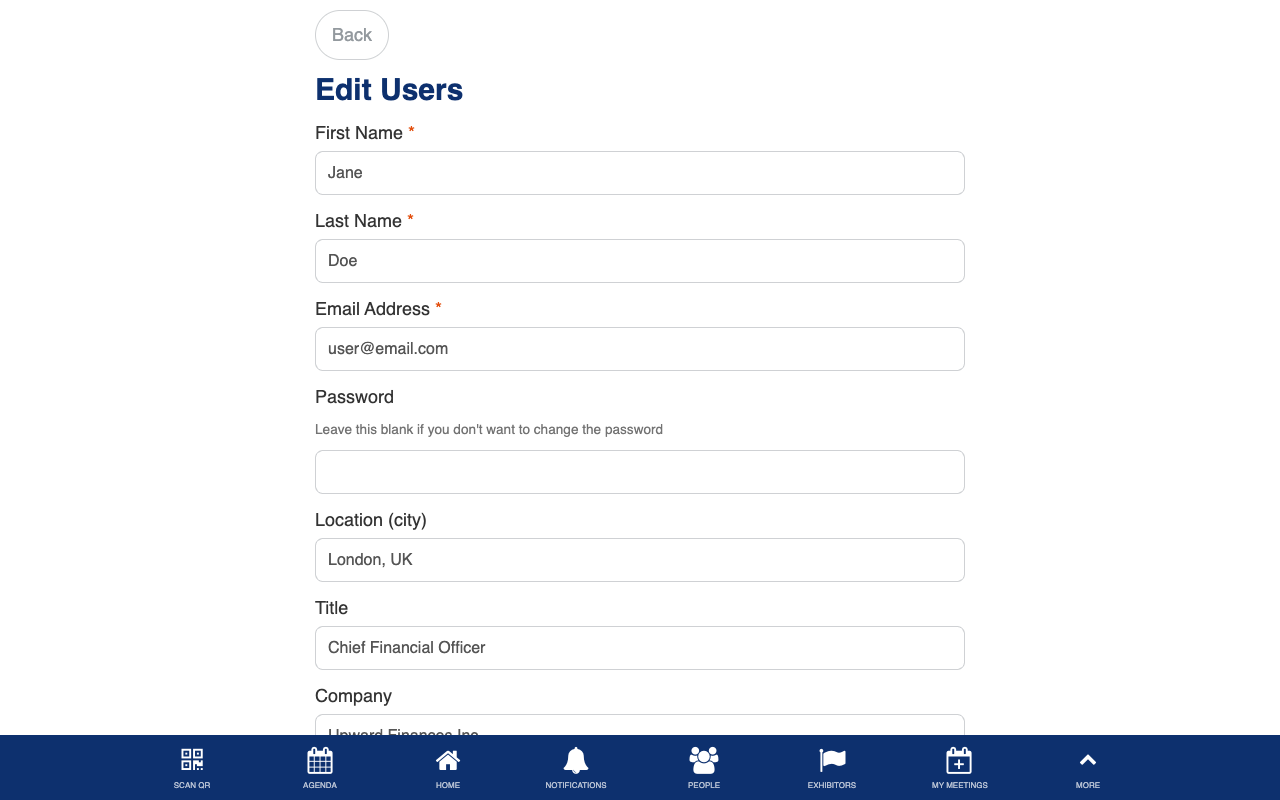
Uses the standard Form Builder component. Custom admin toggle and password email.
Import Users
Role: Admin
The import users screen lets admins add multiple users at once by uploading a CSV file. The import process matches records by email address, so existing users are updated rather than duplicated, and new users are added automatically.
- Upload a CSV file containing user data
- Map CSV columns to the correct user fields
- Preview the import before executing
- Existing users are matched by email and updated; new emails create new accounts
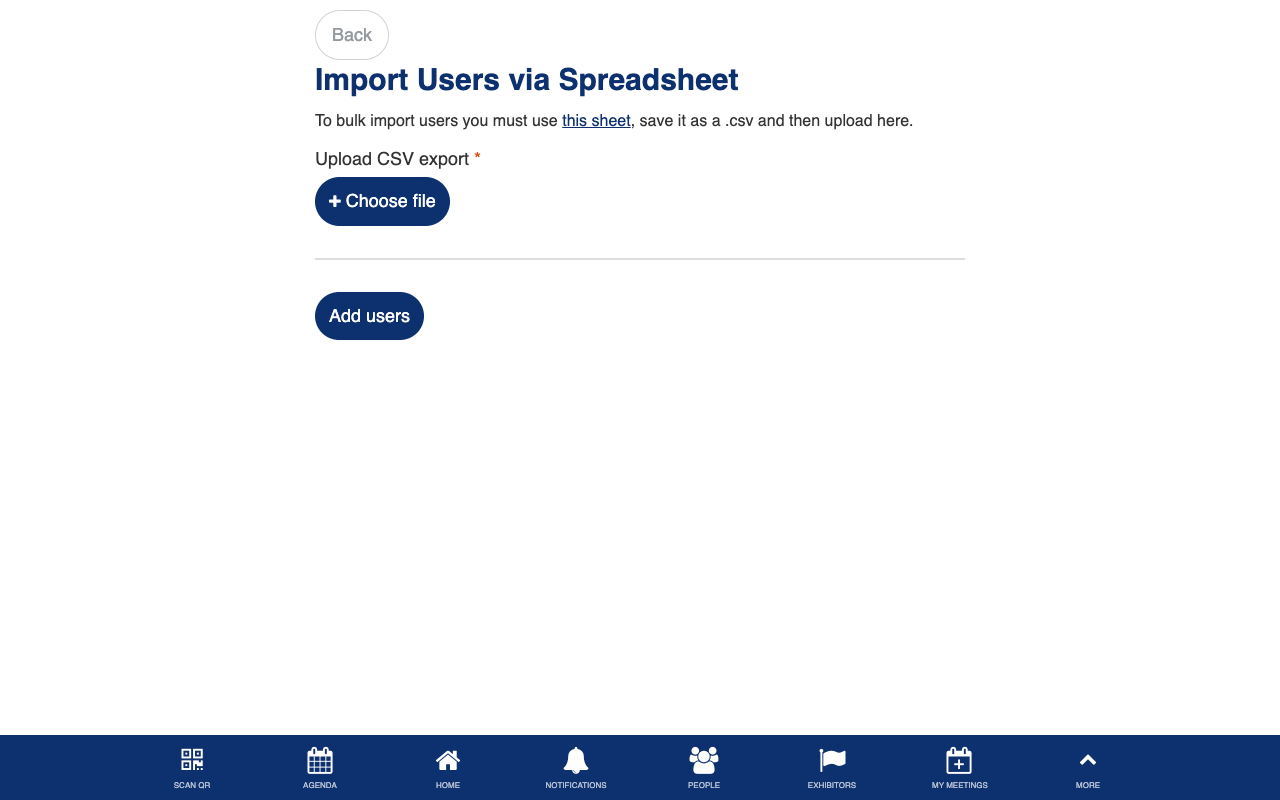
Custom CSV parsing with email-based merge and automatic password generation.
User Groups
Role: Admin
The user groups screen lets admins create and manage groups of attendees for personalized agenda filtering. Each group is displayed as a card showing the group name and member count. Tapping a group reveals the full member list with profile details, and you can edit or delete groups directly from the detail view.
- View all user groups with member counts
- Search and filter groups by name
- Tap a group to see its members with names, titles, and companies
- Create new groups using the add button
- Edit or delete groups from the detail view
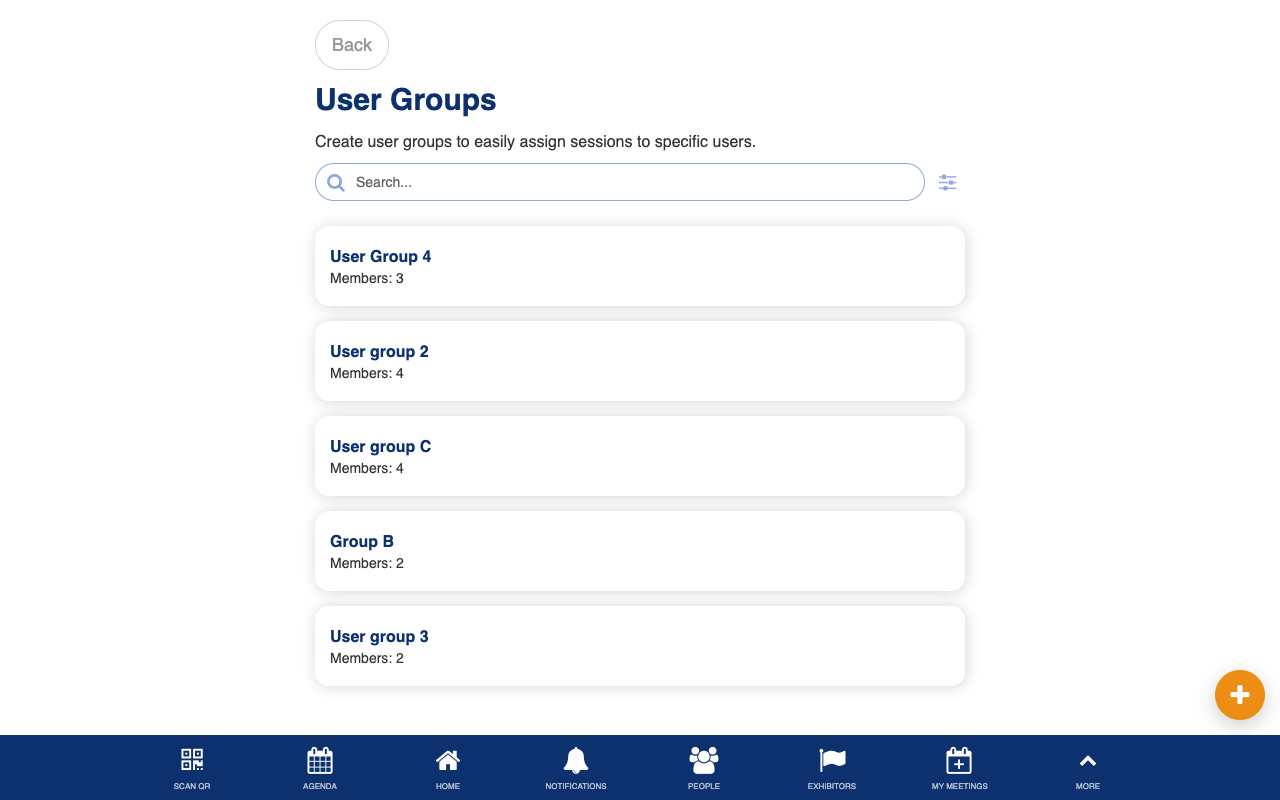
Uses the standard List from Data Source component. Custom member profile display.
Manage User Groups
Role: Admin
The manage user groups form lets admins create a new group or edit an existing one. Name the group and add members by typing email addresses directly or by selecting users from the full attendee list using the multi-select picker.
- Enter a group name
- Add members by typing their email addresses
- Use Select from User List to pick members from a searchable list of all attendees
- Save the group to make it available for agenda session assignment
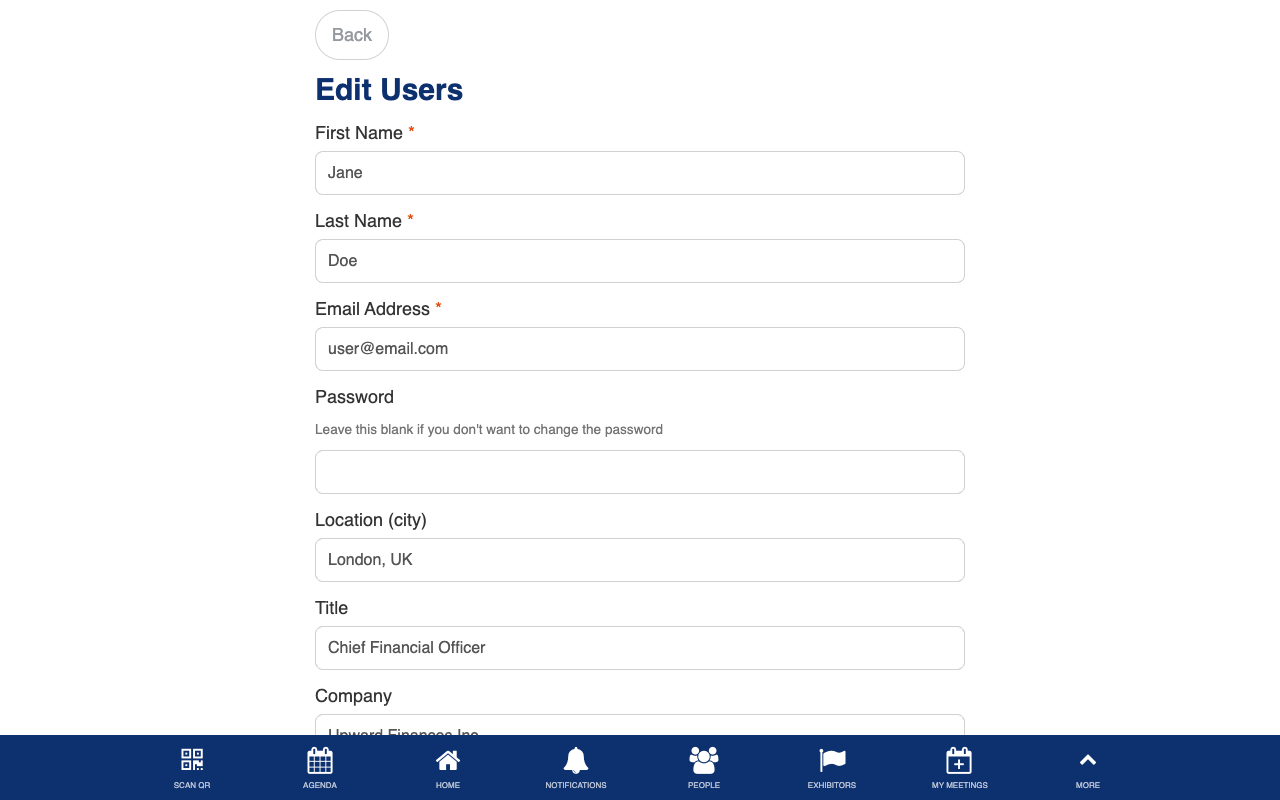
Uses the standard Form Builder component. Custom multi-select user picker.
Bulk Upload Data
Role: Admin
The bulk upload screen provides a generic data uploader that works with multiple data types beyond just users. You can select which data source to upload to, choose between update and append modes, and upload CSV files to populate agenda items, exhibitors, or other event data.
- Select the target data type from a dropdown
- Upload a CSV file with the data to import
- Choose between updating existing records or appending new ones
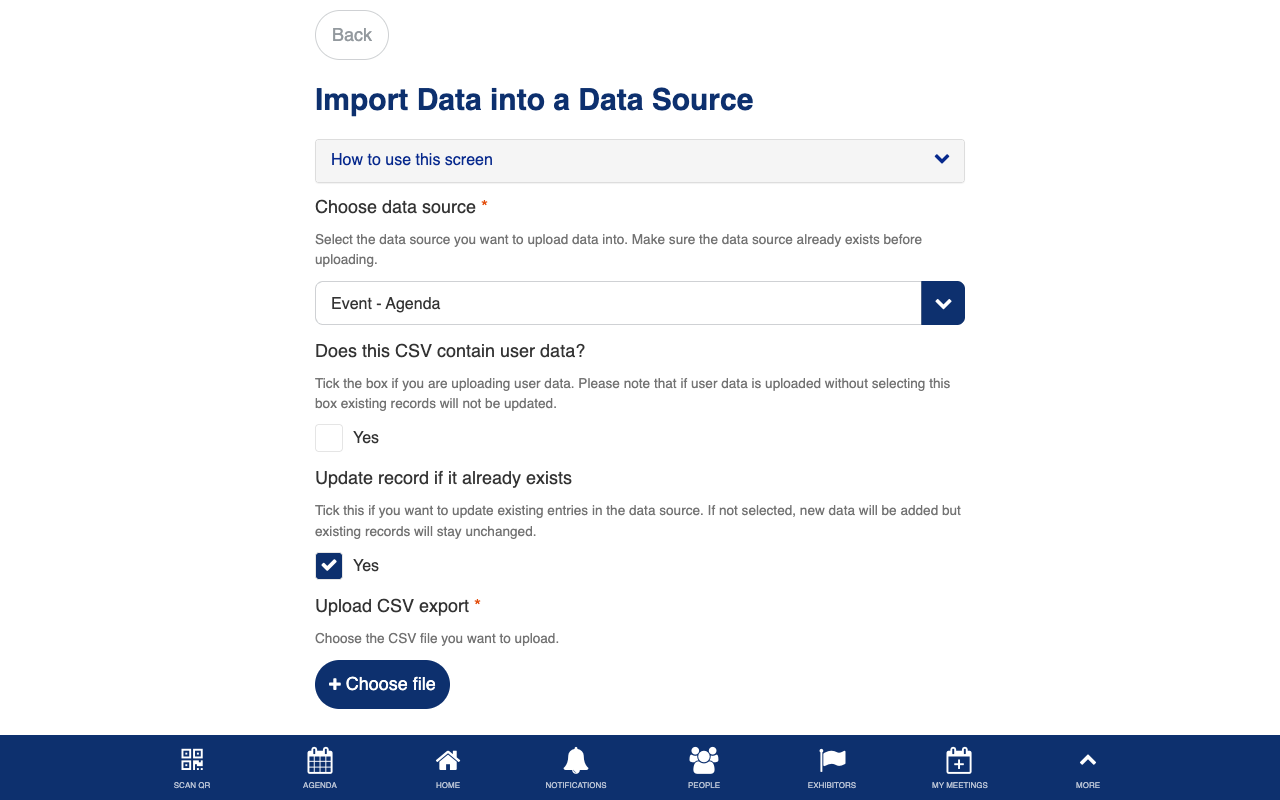
Custom generic data uploader supporting multiple data sources with merge logic.
CSV Download
Role: Admin
The CSV download screen lets admins export data from any event data source as a downloadable CSV file. You can select which data source to export, and the system generates a structured file with ordered columns ready for reporting or external processing.
- Select the data source to export from a dropdown
- Download the data as a CSV file with ordered columns
- Use exported data for offline reporting, analysis, or external tools
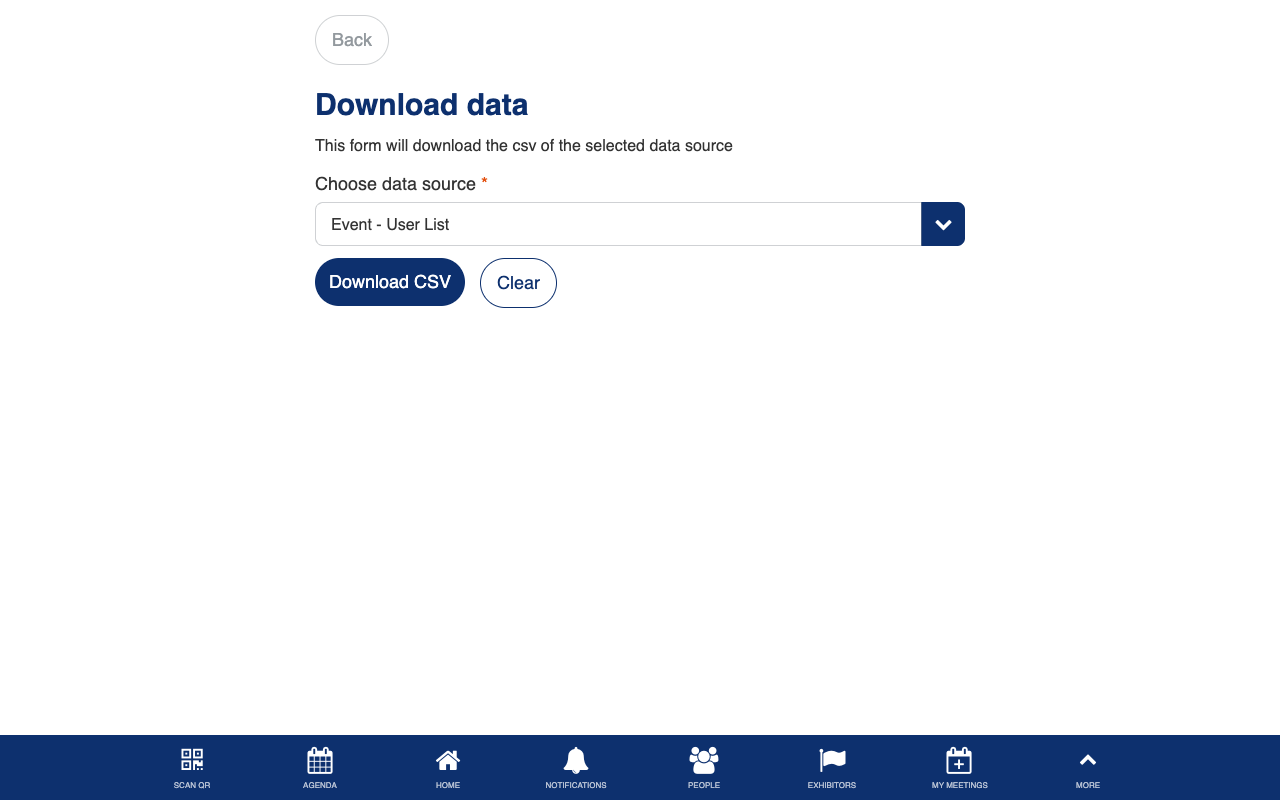
Custom data export with dynamic data source selection and column ordering.