The Data Powered List Directory and Detail screen templates provides a powerful way to create searchable directories with dynamic profile views. Ideal for staff directories, service listings, or contact databases, these templates are powered by Fliplet’s Data Powered list component
Get started
- Add the screen templates
- Connect the screens
- Connect or change your data source
- Match your data source columns to the template
- Preview and test
Step 1 – Add the screen templates
- Add the Data Powered List – Directory list and the Data Powered List – Directory profile screen templates to your app by clicking the “add screens” button inside your app
- Select both screens and choose “add 2 new screens”
- This creates your Directory screen (list view) and your Detail screen (profile view)

Step 2 – Connect the screens
- First, open the Directory screen
- Select the Data container component to open the Settings panel on the right-hand side
- Under Click Action, select “display another screen” and chose the Detail Screen (e.g., “Data Powered List – Directory profile”)
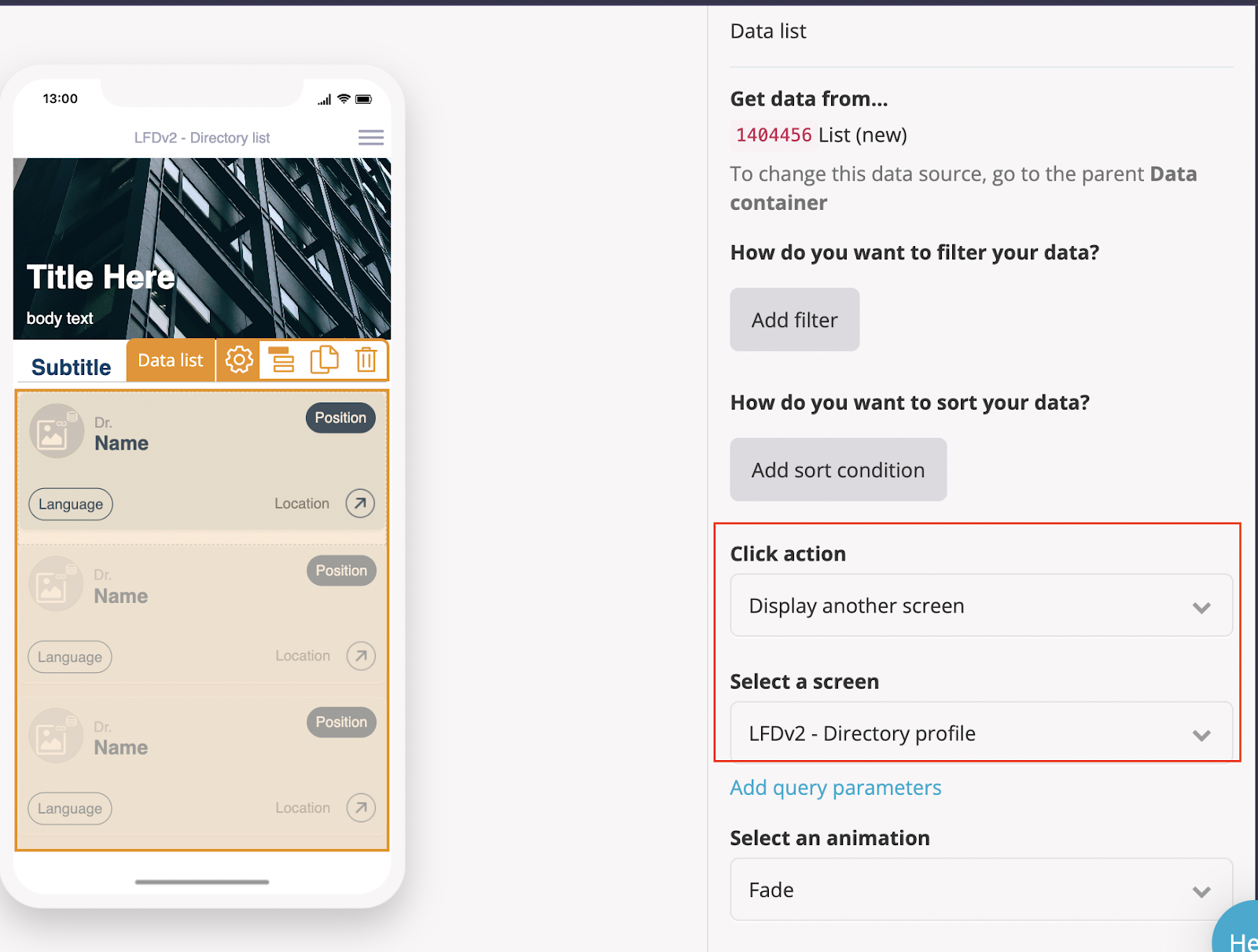
- This allows tapping a record in the Directory Screen to open its corresponding Detail Screen.
Step 3 – Connect or change your data source
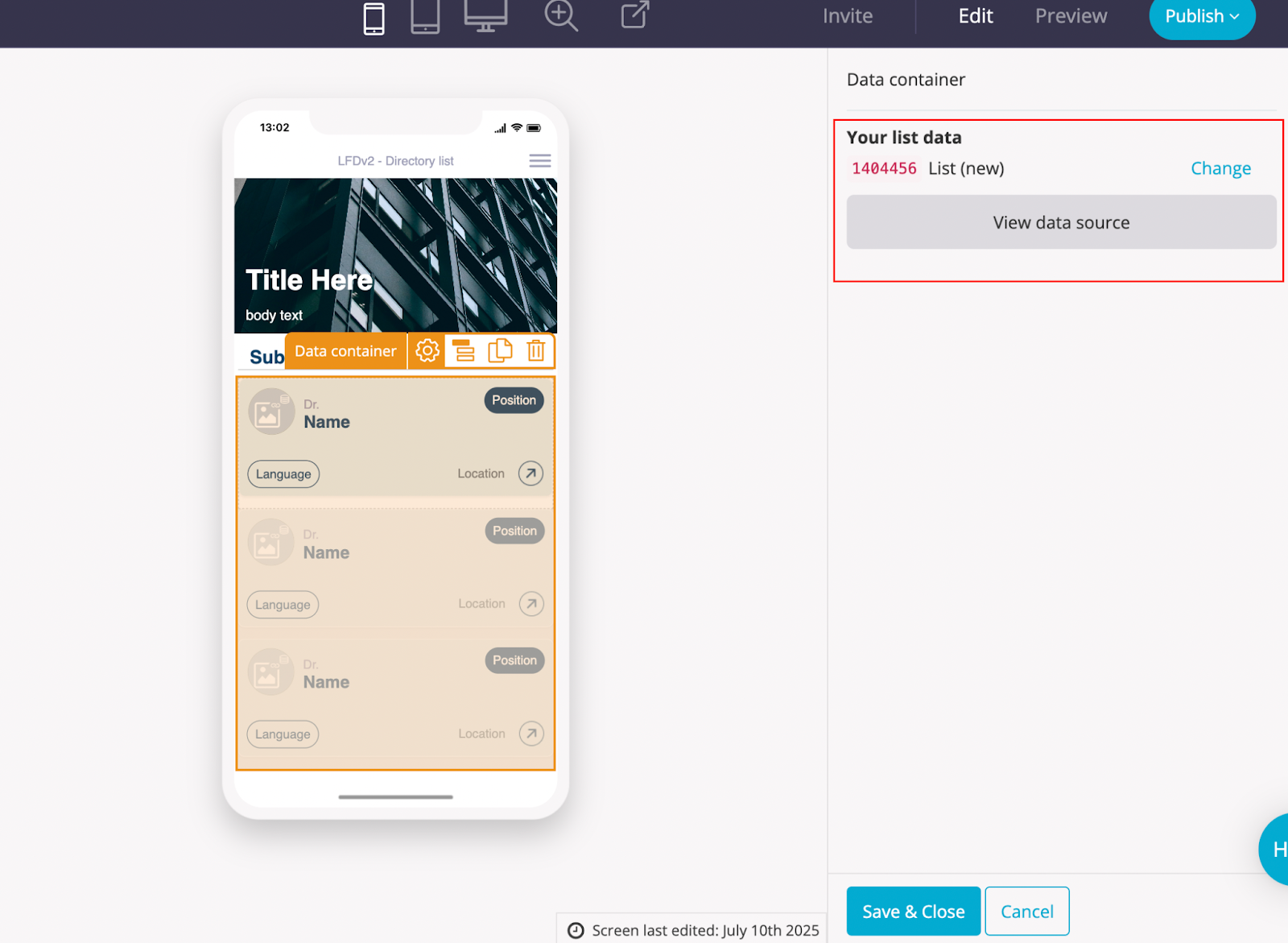
- Click the Data Container on each screen to open the Settings panel
- Use the dropdown to select your desired data source
Note: If you’re using your own data source, be sure to use the same one for both screens.
Step 4 – Match your data source columns to the template
If you’re using a custom data source, ensure your column names match what the templates expect.
Data Image Components
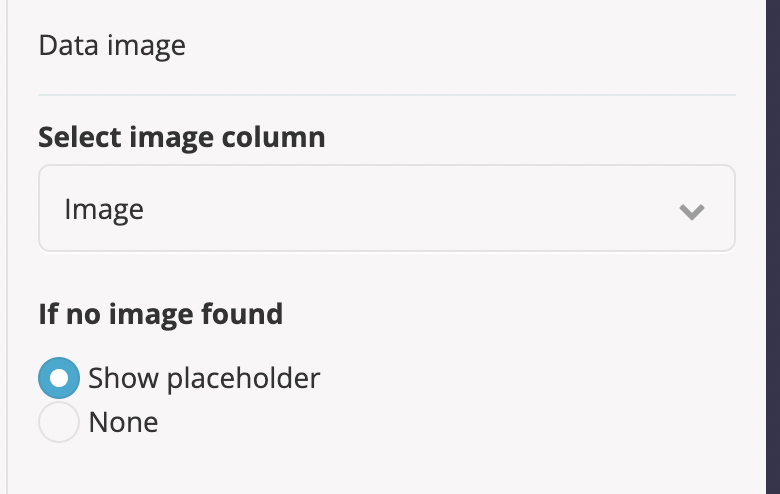
- Click on an image component
- Open the Settings panel
- Check the column it’s connected to (e.g., “Image”)
Update this if your column uses a different name (e.g., “ProfilePhoto”)
Data Text Components (e.g., First Name, Role)
- Click on the text component to open the Settings panel on the right hand side
- Confirm the column name (e.g., “first name”)
- Update the reference if your column uses a different name (e.g., “FullName”)
Step 5 – Preview and test
- To test and preview your list, switch to preview mode by selecting Preview in the top right hand corner
- Tap a record in the directory Screen to confirm it opens the correct detail Screen
- Review all dynamic content (images, text, contact info)
- Test on various devices (mobile, tablet, desktop) to confirm responsiveness
✅ When to use this template
The Data Powered List Directory and Detail screen templates are ideal for:
- Staff directories
- Healthcare professionals
- Event speakers
- Support team listings
- Facility directories
- Location-based service providers
Want more flexibility? You can also use Data Powered List components individually to build fully customized screens.
Related Articles