Participate in polls, discussions, chats, and the social wall.
This section covers the interactive features that keep attendees engaged throughout the event. You can vote in live polls, join discussion threads, chat directly with other participants, and share posts on the social wall.
Contents
Poll
Role: All Users
The poll feature lets you vote on live audience questions during sessions. Questions are loaded dynamically based on the session context, and results are displayed as column charts that update in real time after you vote. Speakers and admins can control when results are visible, share the poll URL, and clear responses to reset a poll.
- Vote on session-specific poll questions presented as multiple choice
- View live results as column charts that update after each vote
- Multiple poll questions can be active during a single session
- Speakers and admins control poll activation, result visibility, and response clearing
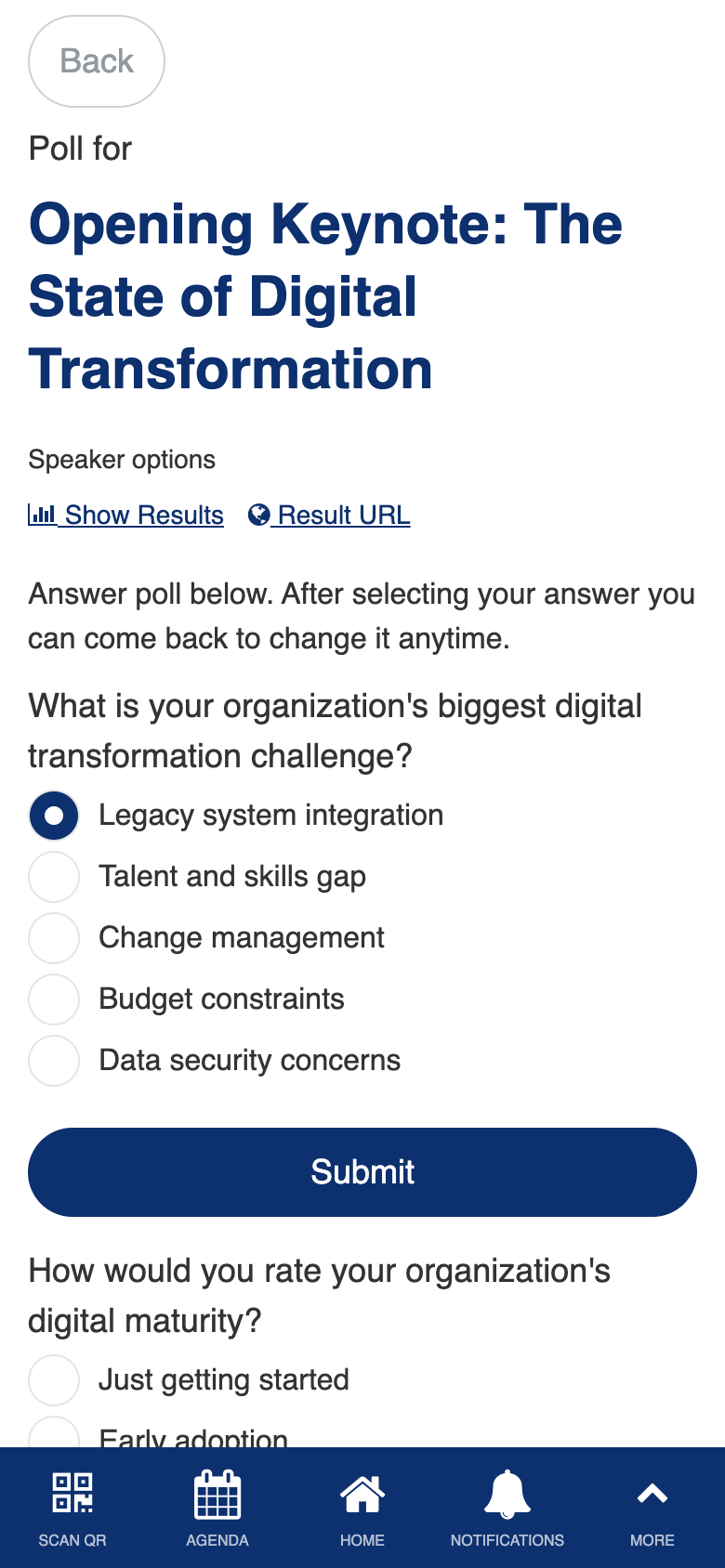
Uses the standard Form Builder and Charts components. Custom dynamic question loading and speaker controls.
Discussion
Role: All Users
The discussion feature provides threaded forums where attendees can post questions, share thoughts, and engage in conversations around event topics. You can browse discussion threads, post new messages, and report inappropriate content to moderators.
- Browse discussion threads organized by topic
- Post new messages and reply to existing threads
- Like and bookmark discussions
- Report inappropriate content for moderator review
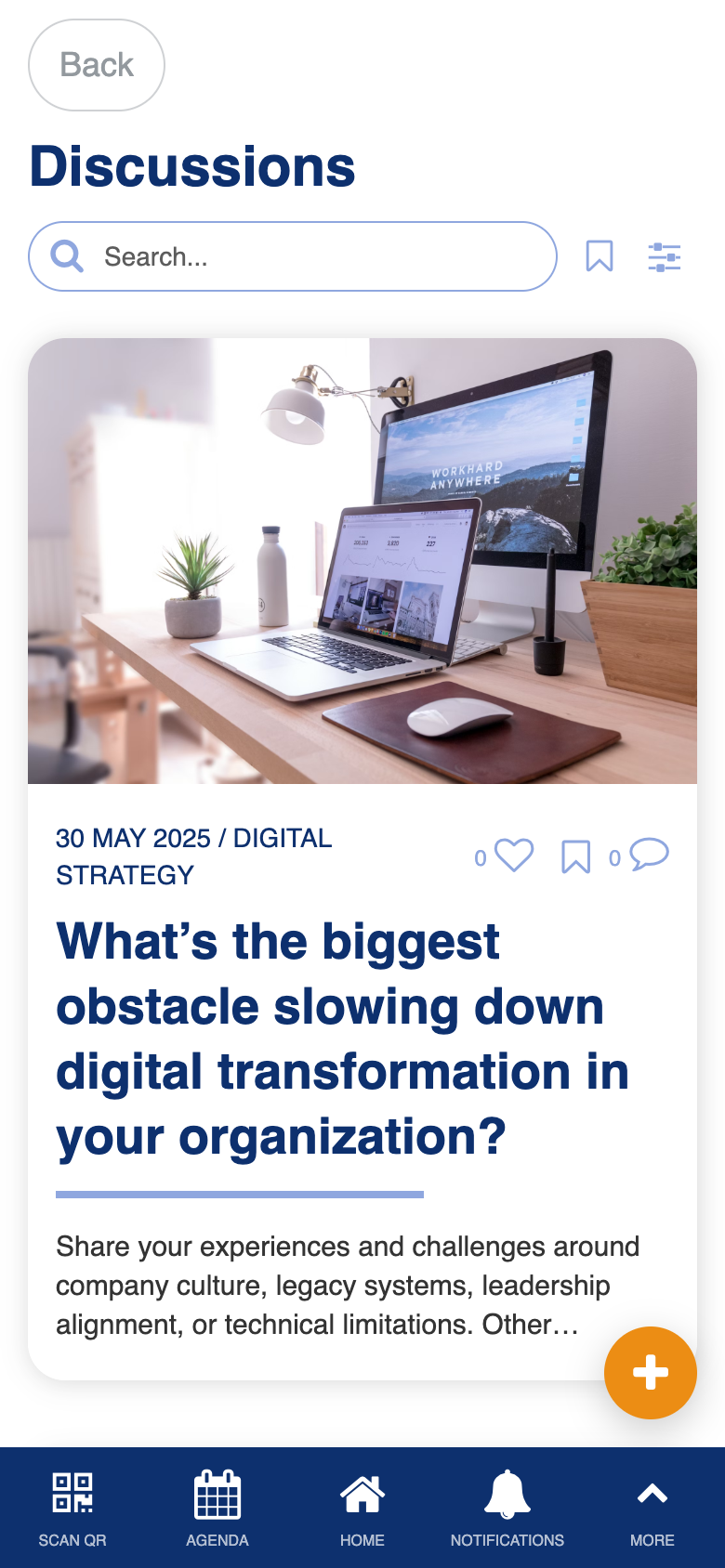
Uses the standard List from Data Source component. Custom comment reporting.
Manage Discussion
Role: Admin, Speaker
The manage discussion screen gives admins and speakers moderation tools for the discussion forums. You can review reported content, delete inappropriate messages, and manage comments across any discussion data source to maintain a productive conversation environment.
- Review and moderate discussion content
- Delete inappropriate or reported messages
- Select which discussion data source to moderate
- Manage comments across all forum threads
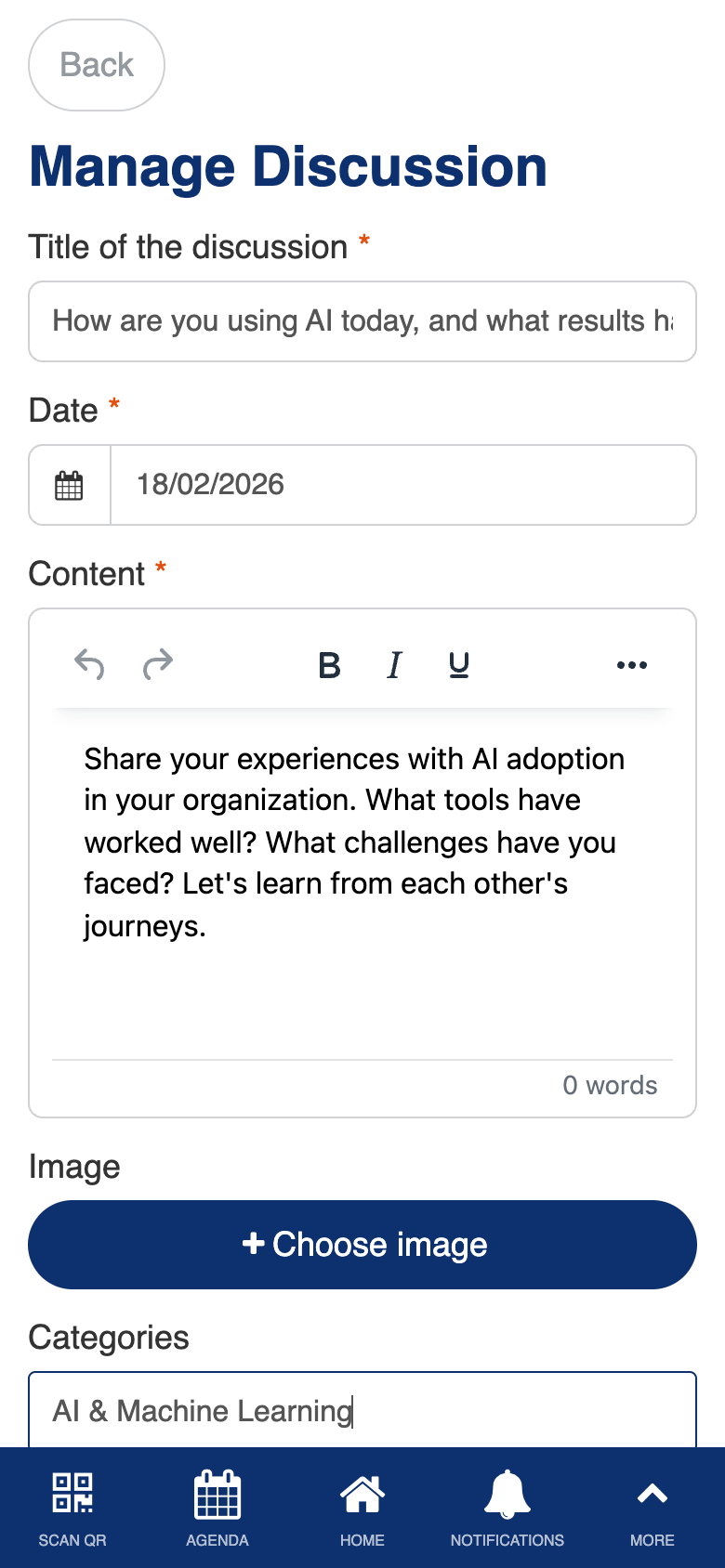
Custom data source selection for moderating discussions across multiple forums.
Chat
Role: All Users
Chat enables private, direct messaging between any two event participants. You can start conversations from attendee profiles, exhibitor profiles, or the chat screen itself. Messages are delivered in real time, making it easy to coordinate plans or follow up after a session.
- Send and receive private messages with other attendees, speakers, and exhibitors
- Start a conversation from any person’s profile or the exhibitor directory
- Real-time message delivery keeps conversations flowing
- View your chat history and continue previous conversations
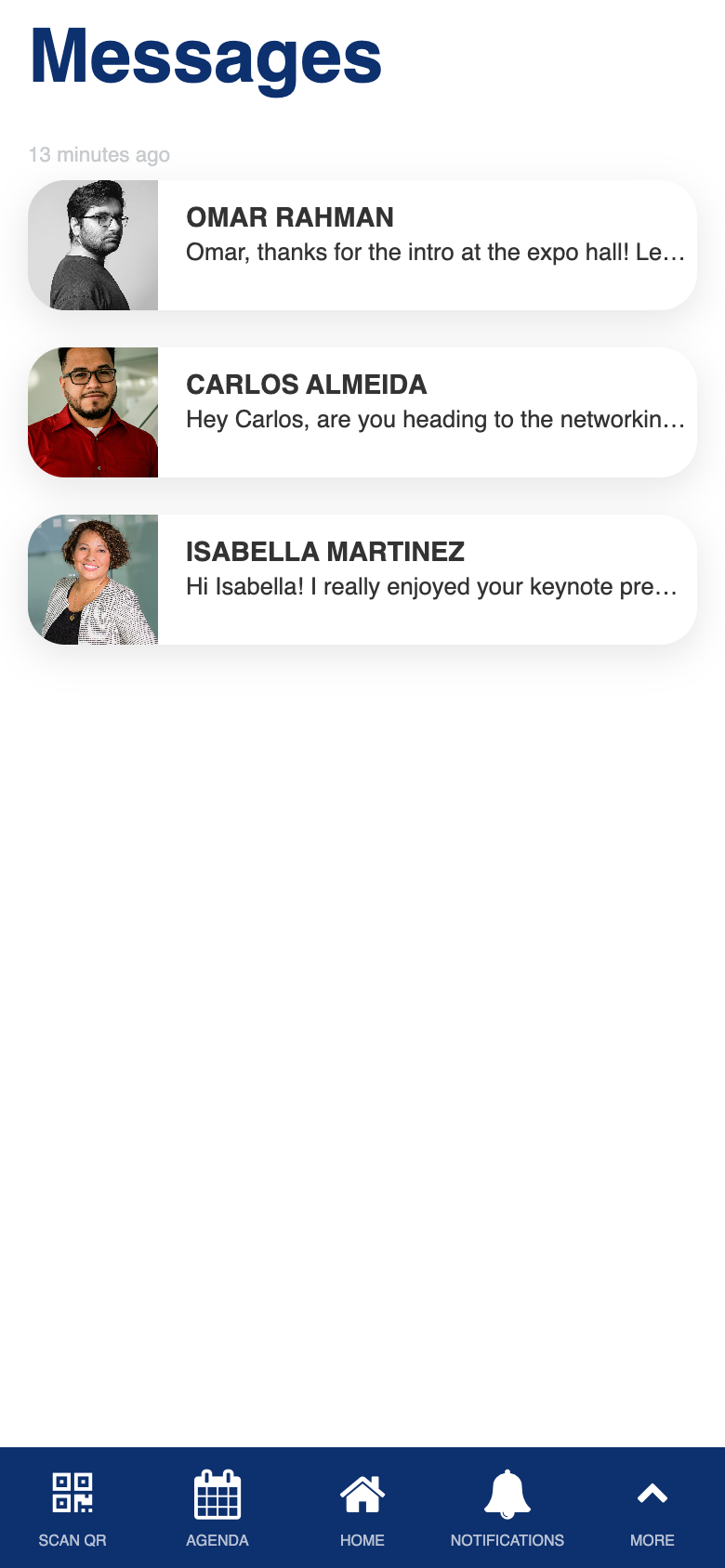
Uses the standard Fliplet Chat component.
Social Wall
Role: All Users
The social wall is a shared feed where attendees can see posts, photos, and updates from everyone at the event. You can browse through what others have shared, like and bookmark posts, and add comments to join the conversation. Activity on the social wall contributes to the gamification awards system.
- Browse a shared feed of posts, photos, and updates from all attendees
- Like, bookmark, and comment on posts
- View posts chronologically with author information and timestamps
- Social activity (posts, comments, likes) contributes to gamification awards
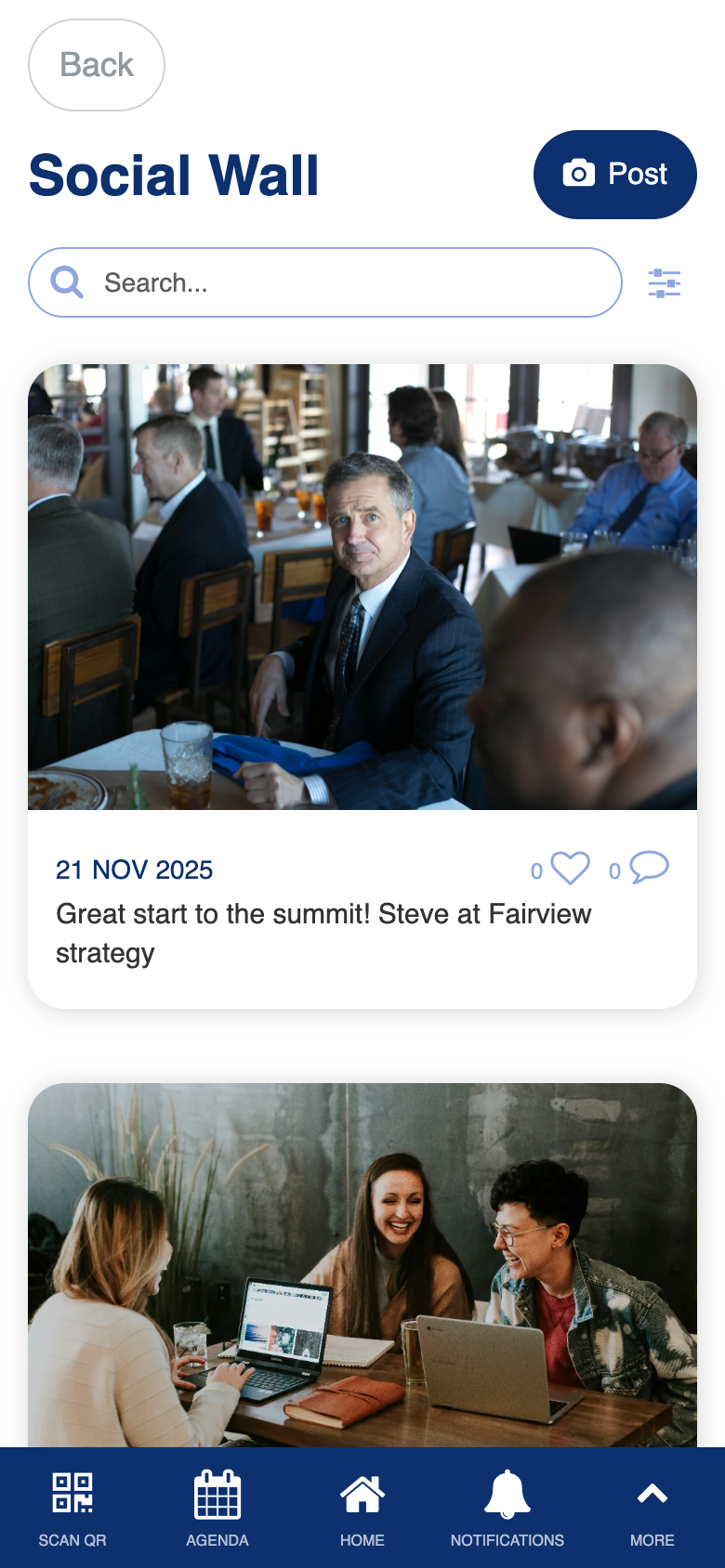
Uses the standard List from Data Source component.
Post Social
Role: All Users
The post social screen lets you share a new post on the social wall. You can write a caption, attach a photo, and publish to the shared event feed where other attendees can see and interact with your content.
- Write a post with a text caption
- Attach a photo to your post
- Publish to the social wall where all attendees can see it
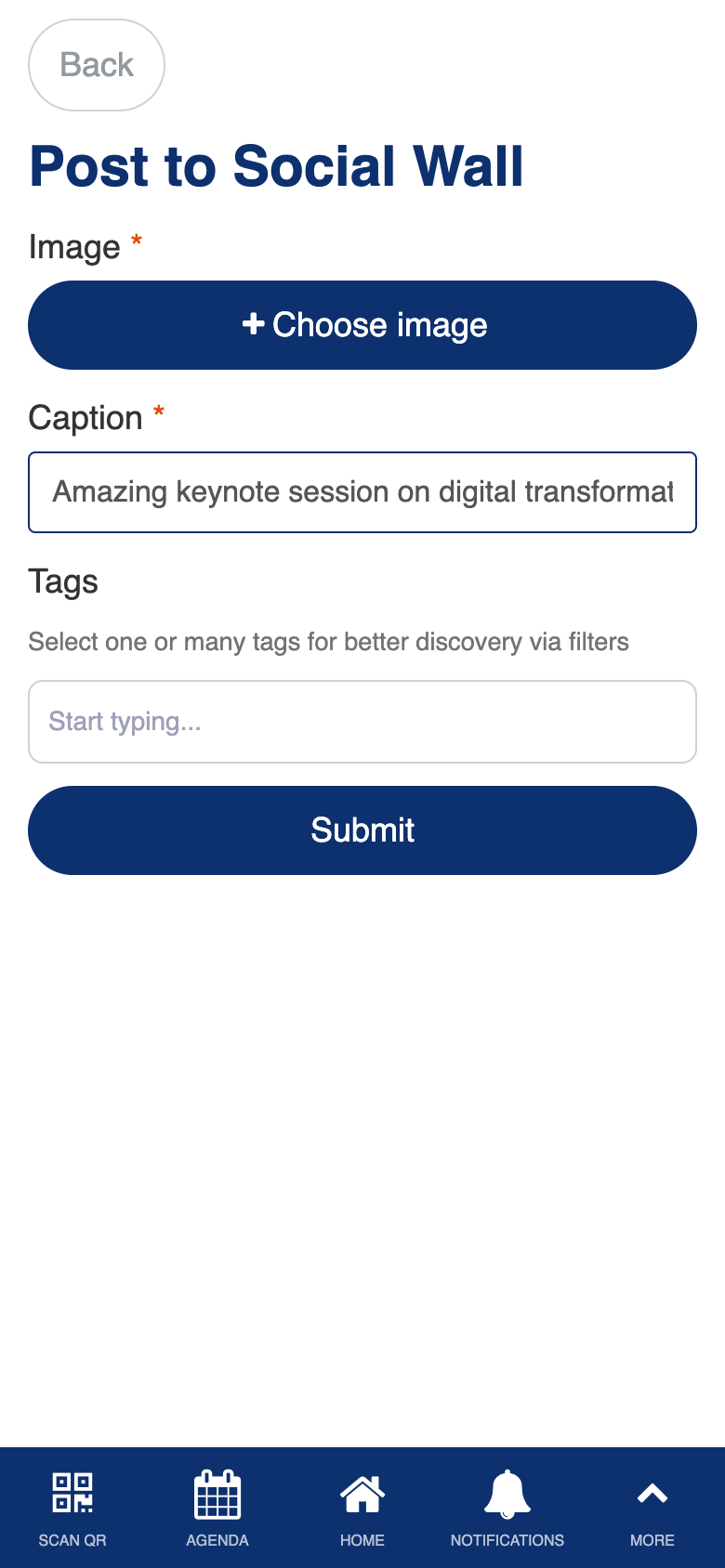
Uses the standard Form Builder component.