Drive the review pipeline: move abstracts through the lifecycle, weigh reviewer feedback, and notify speakers of decisions.
The Admin Dashboard is the command center for the abstract portal. From here you can see every submission, filter and search the pipeline, open an abstract to read it alongside reviewer scores, and set the final decision. Status changes automatically email the speaker.
Contents
- Admin Dashboard
- Filtering and searching submissions
- Status flow primer
- Admin Submission Details
- Setting decision (Accept / Reject / Request Changes)
- Status-change email notifications
- Resetting Update Confirmation on a new Change Requested cycle
Admin Dashboard
Role: Admin
The Admin Dashboard shows every abstract in the portal in a single sortable table, with a stat bar at the top breaking down the pipeline by status. Each row shows the submitter’s name (resolved from the Users data source), category, average reviewer score (out of 5 stars with the number of reviews), and current status. Click a row to open the detail view.
- Stat bar: total submissions plus per-status counts (Submitted, In Review, Change Requested, Accepted, Rejected)
- Click any stat tile to filter the table to that status
- Sort the table by title, submitter, category, score, or status
- Search for an abstract by title or submitter
- Average reviewer score shown per row with the number of reviews
- Click a row to open the Admin Submission Details
- Built-in instructions accordion explains the review process for new admins
- Buttons link out to Submission Settings, Send Communications, and User List
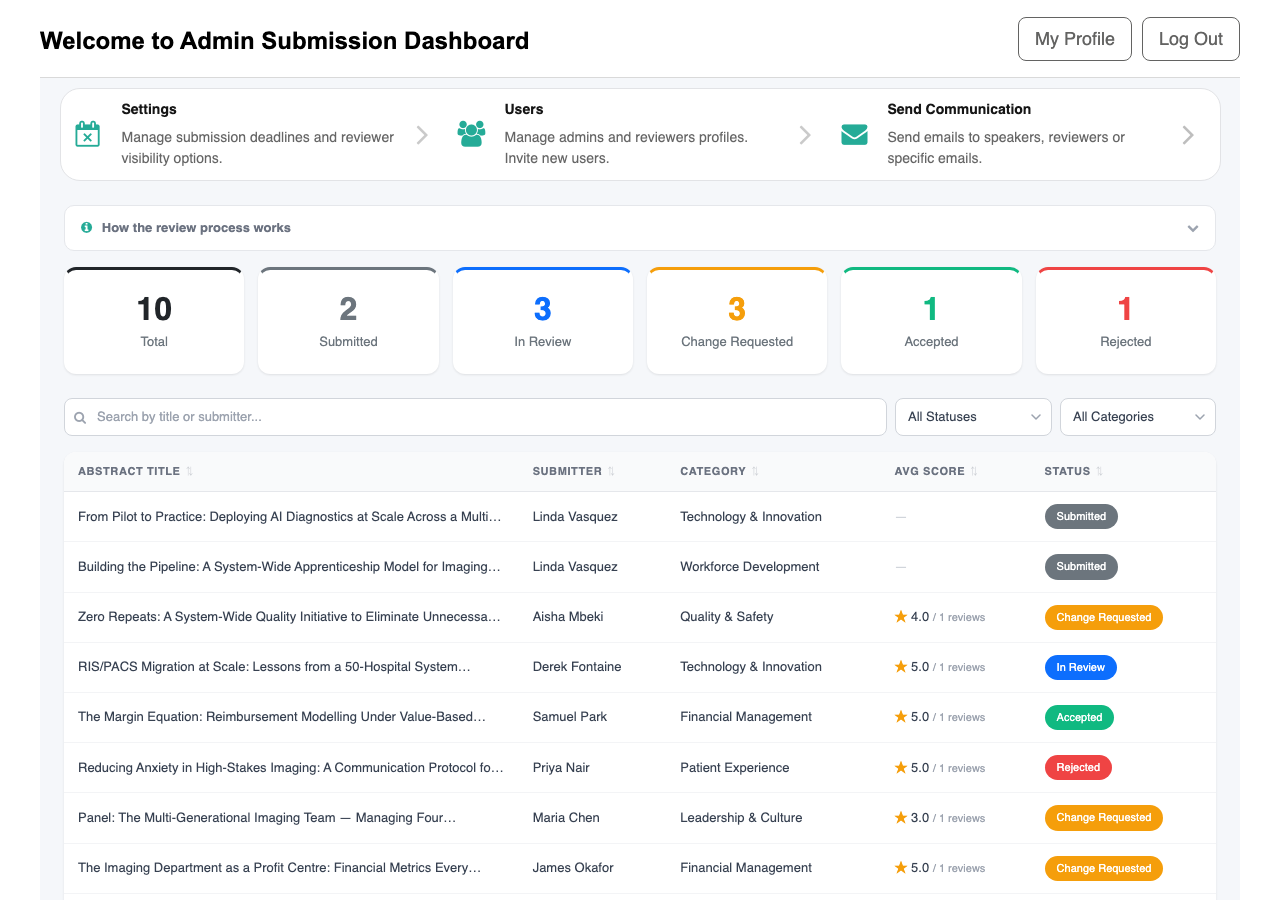
Custom dashboard with stat bar, sortable / filterable table, reviewer score averaging, and submitter name resolution.
Workflow: For the complete admin decision process, see How to review and decide on submissions.
Filtering and searching submissions
Role: Admin
Above the submissions table, two dropdowns and a search box let you narrow the list quickly. The status dropdown shows only abstracts in a single state. The category dropdown narrows to one abstract category. The search box matches against title or submitter name. Click any stat tile in the bar to apply that status as a filter in one click.
- Status filter dropdown
- Category filter dropdown
- Search by title or submitter (debounced so you can type fluidly)
- Click a stat tile to apply that status as the table filter
- Sort by clicking any column header
Status flow primer
Role: Admin
Every abstract moves through the same lifecycle. As an admin you control most of the transitions, with one important automatic transition triggered by speakers.
| Status | Set by | What happens next | |—|—|—| | Submitted | Speaker (automatic on save in Step 2) | Awaits admin to release for review. | | In Review | Admin | Visible to reviewers in their pending queue; they can submit scores. | | Change Requested | Admin | Speaker is emailed; abstract becomes editable on their dashboard. Reviewers see it again after the speaker resubmits. | | Accepted | Admin | Final decision. Speaker is emailed. | | Rejected | Admin | Final decision. Speaker is emailed. |
When a speaker resubmits an abstract that was in Change Requested, the status automatically returns to Submitted and the cycle continues from there.
Admin Submission Details
Role: Admin
The Admin Submission Details screen is where you make the call on an abstract. It shows a status progress trail (Submitted -> In Review -> Decision), the full abstract content with attachments, the speaker’s profile, every reviewer’s score and notes (with an average), and a form to set the new status and add notes. Attachments are served through authenticated links so reviewer files stay protected.
- Progress trail visualises where the abstract is in the lifecycle
- See the full abstract content, speaker, and co-presenters
- See every reviewer’s score (with stars) and notes in a single table, plus the average
- Set the new status from the decision form
- Add notes for the speaker (included in the email) and internal notes for organizers
- Attachments are downloaded through authenticated links so files remain access-controlled

Uses the standard Form Builder component for the decision form. Custom layout with status progress trail, aggregated reviewer scores, authenticated attachment downloads, and concurrency-safe save (the screen re-checks the latest record before applying your change).
Workflow: For the complete admin decision process, see How to review and decide on submissions.
Setting decision (Accept / Reject / Request Changes)
Role: Admin
The decision form at the bottom of the details screen accepts any of the five statuses, but in practice your active decisions are In Review (release for reviewers), Change Requested (ask the speaker for revisions), Accepted, or Rejected. Write any notes you want to share with the speaker; they will appear in the email that goes out when you save. Save the form to apply the change.
- In Review: opens the abstract to reviewers (no email is sent)
- Change Requested: emails the speaker your notes and lets them edit the abstract
- Accepted: emails the speaker their abstract has been accepted, with optional notes
- Rejected: emails the speaker their abstract has not been accepted, with optional notes
- Add internal notes that stay visible to admins only
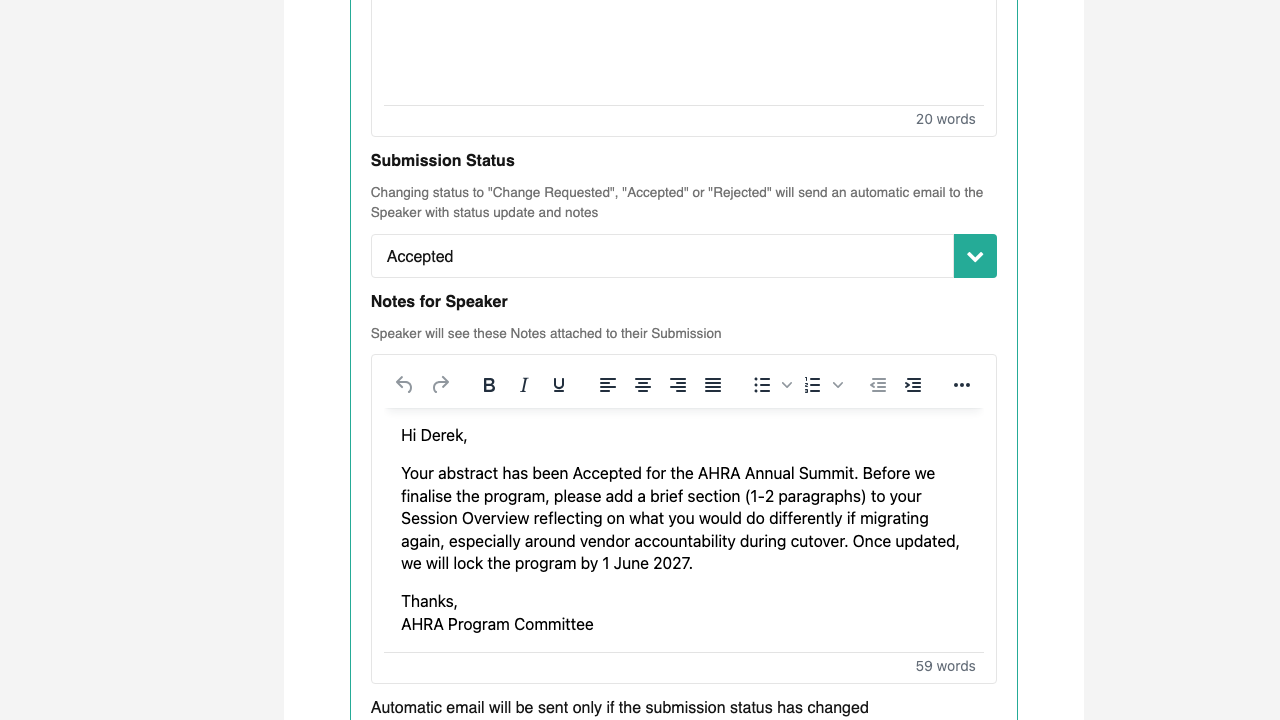
Status-change email notifications
Role: Admin
When you save the decision form and the new status is Accepted, Rejected, or Change Requested, the portal automatically emails the speaker. The email subject and body include the abstract title and any Notes for Speaker you entered. Setting a status to In Review or Submitted does not send an email; only the three speaker-facing decision states do.
- Email triggered automatically on Accepted, Rejected, and Change Requested decisions
- Email body includes any Notes for Speaker from the decision form
- No email is sent when moving an abstract to In Review or back to Submitted
- Speakers can also reach you through the Contact Administrator form at any time
Resetting Update Confirmation on a new Change Requested cycle
Role: Admin
If an abstract has already been through one round of Change Requested and Update Confirmation, and you decide a second round of changes is needed, the portal clears the previous confirmation flag and resets the reviewers’ revision flags automatically when you save. The cycle restarts cleanly: the speaker is asked to confirm their new revisions, and reviewers see the abstract back in their Pending Review queue.
- Automatic on save: no extra step for the admin
- Speaker is asked to confirm the new revisions before resubmitting
- Reviewers’ previous “I reviewed this” status is cleared so they re-evaluate