Walk through the admin decision flow: pick an abstract, weigh reviewer feedback, and set the final status.
This guide walks through the admin decision process from the dashboard to a saved decision. It covers picking an abstract, reading the aggregated reviewer feedback on the detail screen, and setting the new status. Speakers are emailed automatically when you move an abstract to Accepted, Rejected, or Change Requested.
Role: Admin | Screens: 3 | Estimated steps: 3
Before you start
- Be signed in as an admin
- The abstracts you want to decide on should already have been moved to In Review so reviewers have had a chance to score them
- Be ready to write notes for the speaker (included in the decision email) and internal notes for organizers
Step 1: Pick an abstract from the Admin Dashboard
Open the Admin Dashboard. The stat bar at the top shows the pipeline broken down by status. Click the In Review tile to filter the table to abstracts that have reviewer scores ready to act on, or use the search box to find a specific abstract by title or submitter.
- Click the In Review stat tile to filter the table to reviewed abstracts
- Use the search box to find an abstract by title or submitter
- Sort by score to surface the highest- or lowest-rated abstracts first
- Click the row of the abstract you want to decide on
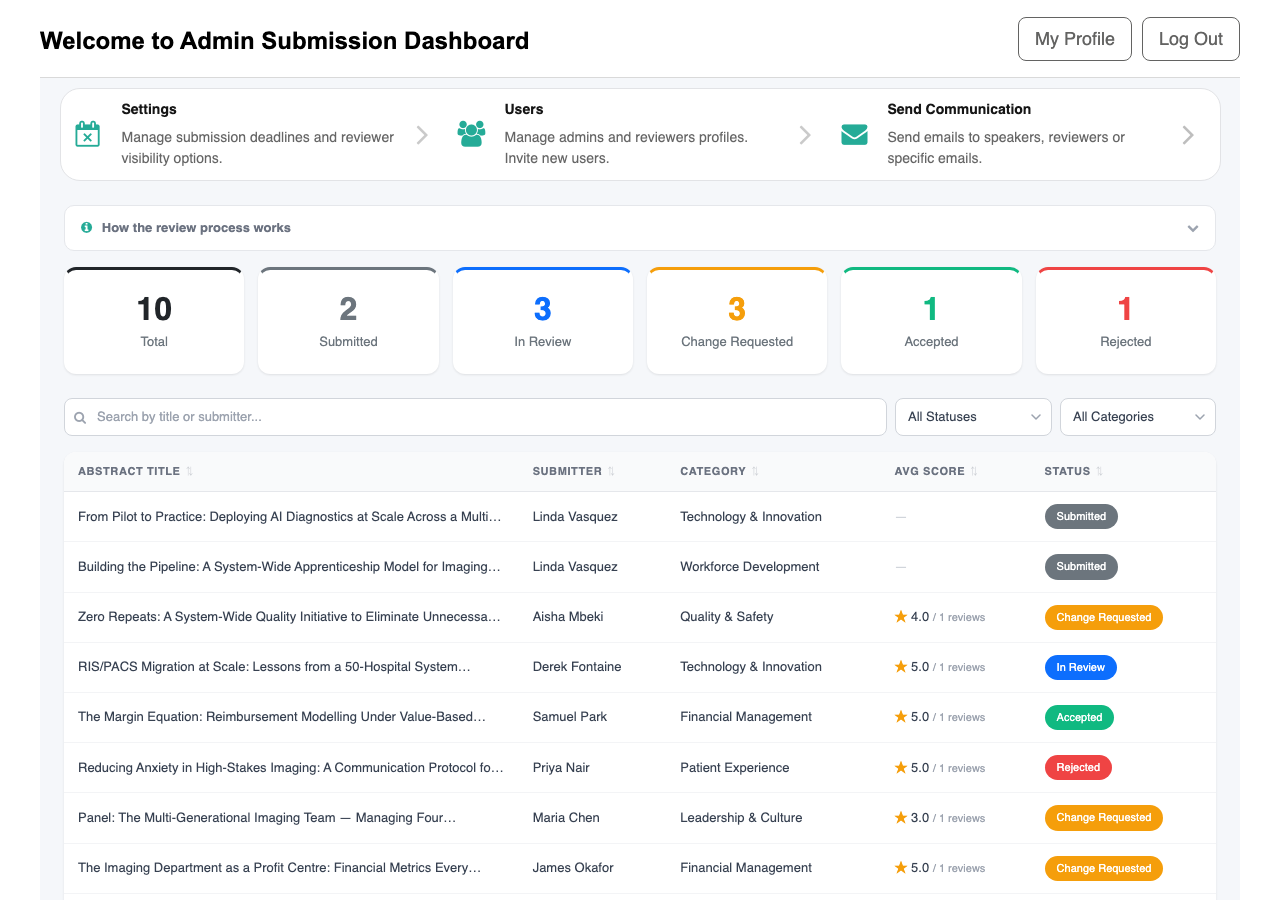
Part of Administering the Portal: see Admin Dashboard and Filtering and searching submissions for full feature details.
Step 2: Read the abstract and reviewer feedback
The Admin Submission Details screen shows the abstract content alongside the aggregated reviewer feedback. The status progress trail at the top shows where the abstract is in the lifecycle. Below it, you can read the full abstract, see the speaker and co-presenters, download any attachments through authenticated links, and review every reviewer’s score and notes with the average displayed.
- Read the full abstract and download any attachments
- Review every reviewer’s score (with stars) and their notes
- Check the average score across all reviewers
- Read any internal notes left by reviewers for organizers

Part of Administering the Portal: see Admin Submission Details for full feature details.
Step 3: Set the decision and save
Scroll to the decision form at the bottom of the screen. Choose the new status:
- Accepted: the abstract has been accepted for the event
- Rejected: the abstract has not been accepted
- Change Requested: ask the speaker to revise and resubmit
- In Review: release the abstract for reviewers (no email is sent)
Add any notes you want to share with the speaker (these are included in the decision email) and any internal notes for organizers. Click Save. The speaker receives an email automatically when you set Accepted, Rejected, or Change Requested. If you set Change Requested on an abstract that has already been through one revision cycle, the previous Update Confirmation is cleared and reviewers’ revision flags reset so the cycle restarts cleanly.
- Pick the new status from the dropdown
- Write notes for the speaker (included in the decision email)
- Write internal notes for organizers if needed
- Click Save to apply the decision
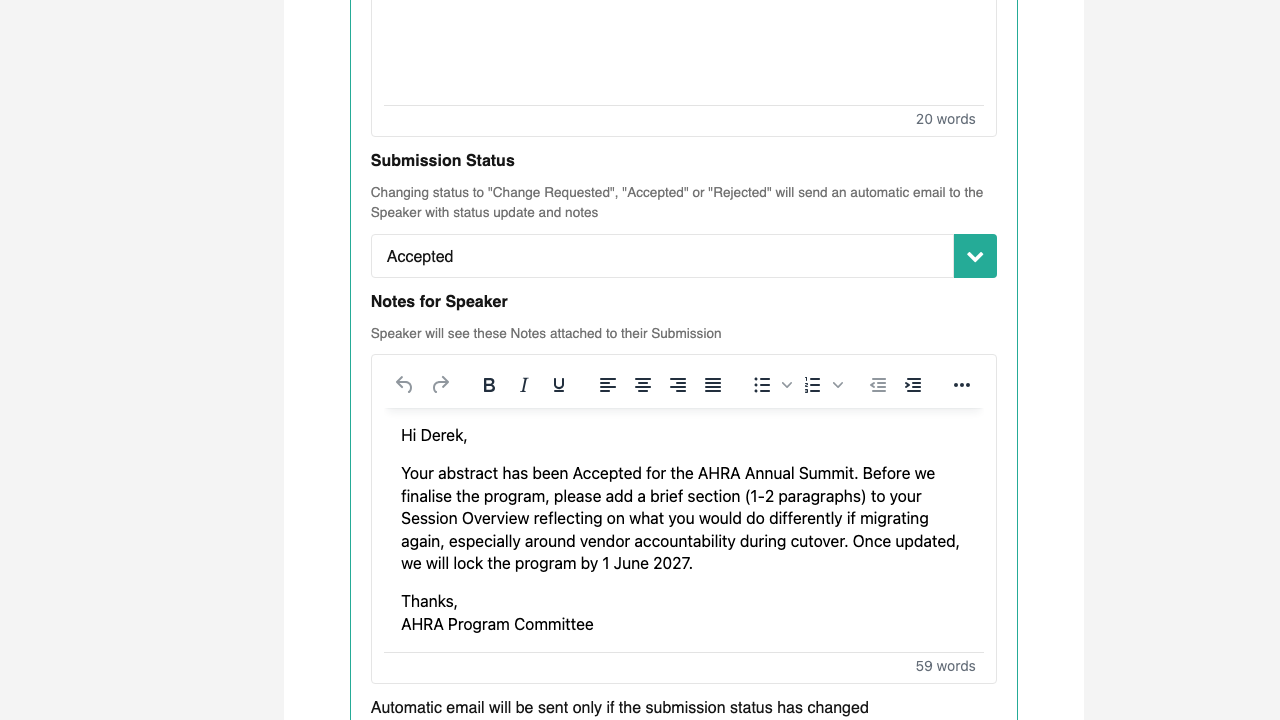
Part of Administering the Portal: see Setting decision, Status-change email notifications, and Resetting Update Confirmation on a new Change Requested cycle for full feature details.
What’s next
- The speaker receives the decision email immediately (for Accepted, Rejected, and Change Requested).
- If you requested changes, the speaker will edit and resubmit the abstract. When they do, it returns to Submitted status and reviewers see it again in their Pending Review queue.
- Final Accepted and Rejected decisions are permanent; the abstract still appears in the dashboard so you can search and review past decisions.