Track your abstracts, edit your profile, and respond when admins request changes.
The Speaker Submissions dashboard is your home base after signing in. From here you can see every abstract you have submitted, watch its status change as it moves through review, update your profile, and edit or resubmit abstracts when needed.
Contents
- Speaker Submissions dashboard
- Profile details accordion
- Editing an abstract
- Re-submitting after Change Requested
- Status badges
- Contact Administrator form
Speaker Submissions dashboard
Role: Speaker
The Speaker Submissions screen lists every abstract attached to your email address, with the current status next to each one. A profile accordion at the top shows your saved details. The dashboard also shows the submission deadline and gives you direct buttons to start a new abstract or edit your profile.
- See all your abstracts in one list, each with a colored status badge
- Submit a new abstract with the Submit Abstract button (jumps straight to Step 2 because your profile already exists)
- Edit your profile with the Edit Profile button (opens Step 1 in edit mode)
- See the current submission deadline or a “submissions closed” notice
- An edit indicator appears on rows you can still change (status is Change Requested, or Submitted while the submission window is open)
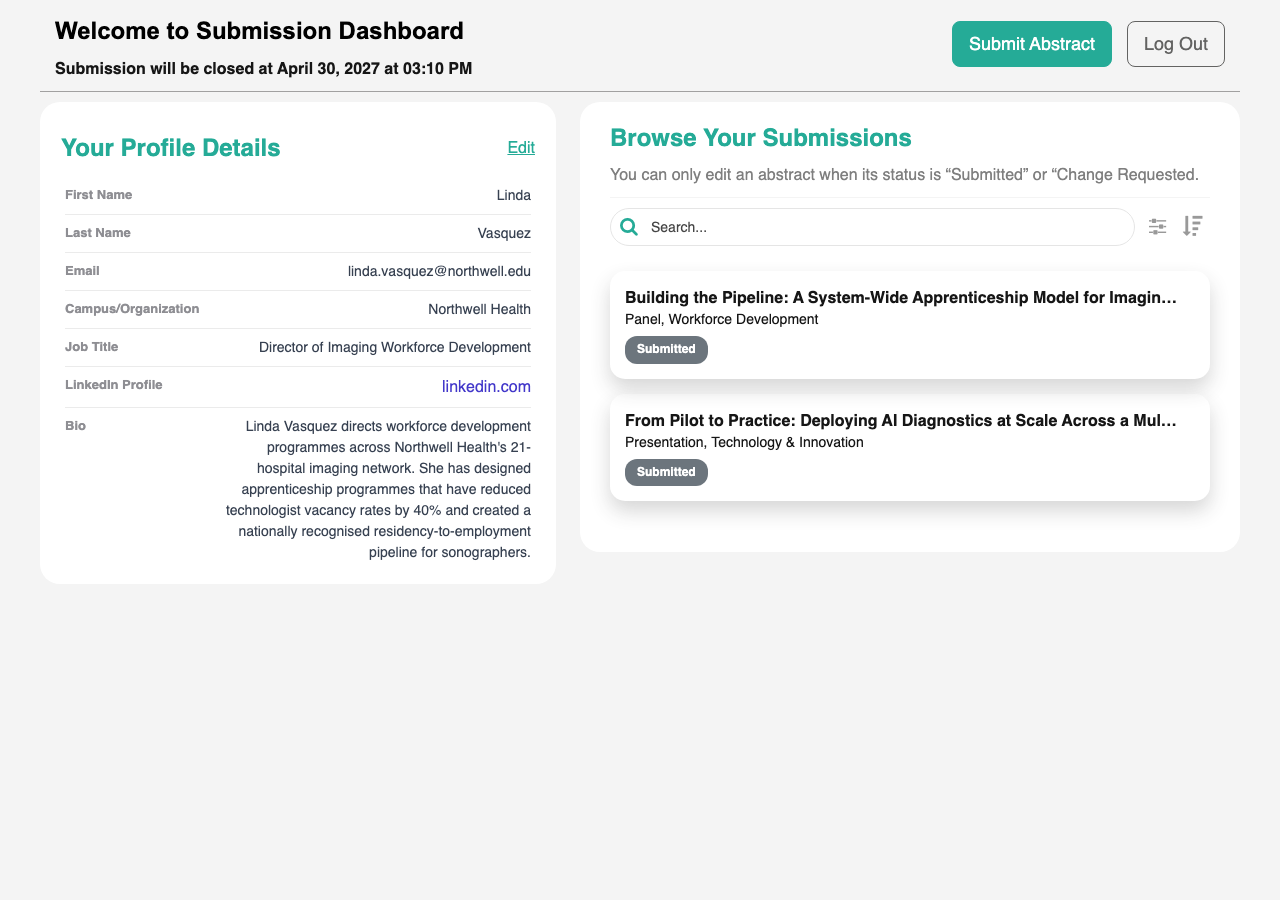
Uses the standard List from Data Source component. Custom filtering so you only see your own abstracts, plus a computed “Can Edit” indicator driven by status and submission window.
Workflow: For the complete speaker journey from first visit to confirmation, see How to submit an abstract.
Profile details accordion
Role: Speaker
Your saved profile (name, organization, job title, LinkedIn, bio) is shown at the top of the dashboard in a responsive accordion. On desktop the panel is always visible inline; on mobile it starts collapsed so you can focus on your abstract list, and you can tap to expand it.
- Always-visible profile panel on desktop
- Collapsible panel on mobile so the abstract list stays in focus
- Click Edit Profile to update any of the saved details
Custom responsive profile panel with mobile-first collapse and desktop inline layout.
Editing an abstract
Role: Speaker
You can edit an abstract directly from your dashboard whenever its status allows. Abstracts in Change Requested status can always be edited because the admin team has asked you to revise them. Abstracts in Submitted status can be edited until the submission deadline passes. Once an abstract moves to In Review, Accepted, or Rejected, the edit affordance is hidden.
- Edit affordance appears only when editing is allowed
- Submitted abstracts: editable while the submission window is open
- Change Requested abstracts: editable so you can address the admin feedback
- Other statuses (In Review, Accepted, Rejected): not editable from your dashboard
- Need to amend a co-presenter on a locked abstract? Use the Contact Administrator form
Re-submitting after Change Requested
Role: Speaker
When an admin moves your abstract to Change Requested, you receive an email with the requested edits. Open the abstract from your dashboard and Step 2 loads with all your previous content. An extra Update Confirmation field appears at the bottom of the form. Tick it to confirm that you have addressed the feedback. When you save, the status flips back to Submitted and the reviewer team is prompted to look at your revised abstract.
- Open the abstract from your dashboard to load it pre-filled in Step 2
- Read the admin’s notes (also delivered by email)
- Make your changes
- Tick Update Confirmation to confirm the revision
- Save to send the abstract back to Submitted status so reviewers see it again
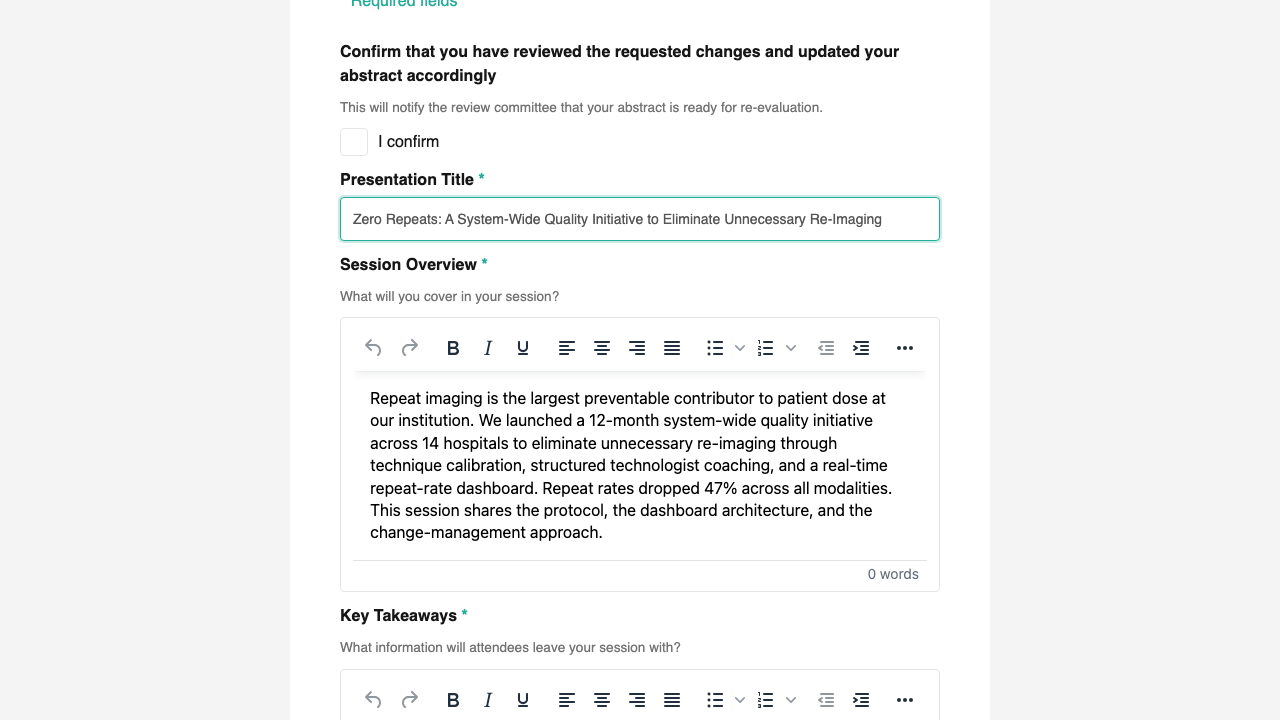
Custom status-aware field that appears only when an abstract is being resubmitted after changes were requested.
Status badges
Role: All users
Every abstract carries a status badge that shows where it sits in the review lifecycle. The same five statuses are used throughout the portal, in your speaker dashboard, the reviewer queue, and the admin dashboard.
| Status | What it means | |—|—| | Submitted | The abstract has been received and is waiting for the admin team to release it for review. | | In Review | The admin has moved the abstract to reviewers. Reviewers can now score it. | | Change Requested | The admin team has asked you to revise the abstract before a final decision. | | Accepted | Your abstract has been accepted for the event. | | Rejected | The abstract has not been accepted. |
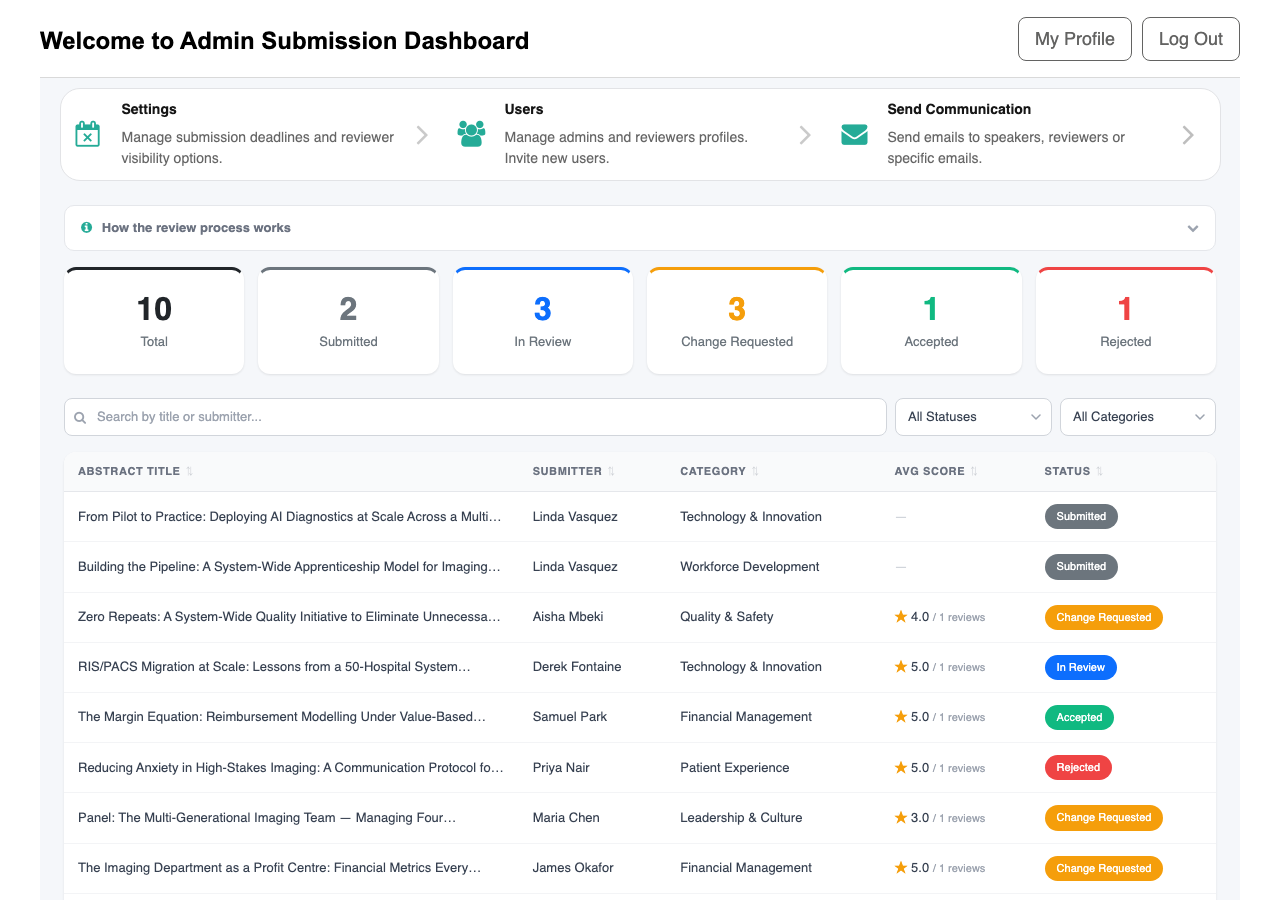
Contact Administrator form
Role: All users
If you need help with something the portal does not let you change yourself, such as updating a co-presenter on an abstract that is already locked, use the Contact Administrator form to email the organizing team directly. Your message is sent to every admin on the portal, with your email address set as the reply-to.
- Send a message that reaches every portal admin at once
- Compose your message with rich text formatting
- Admins reply directly to your email address
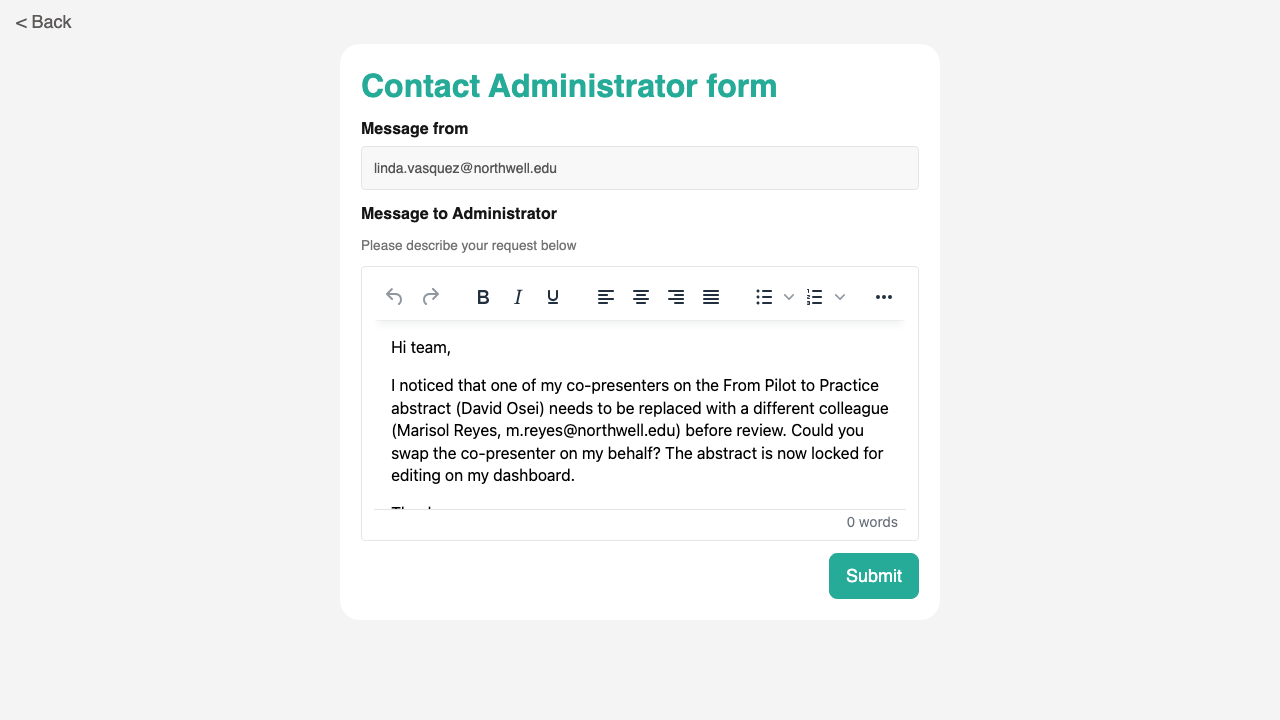
Uses the standard Form Builder component. Custom auto-discovery of admin recipients and reply-to handling so admins can respond directly to you.