Request meetings, share your QR code, and manage exhibitor networking.
This section covers the networking features that help attendees, speakers, and exhibitors connect. You can request meetings, generate personal QR codes for quick contact sharing, and exhibitors can view their scheduled meetings.
Contents
Request a Meeting
Role: All Users
The request a meeting screen lets you send a meeting request to an exhibitor or another attendee you want to connect with. The recipient is pre-selected when you navigate from a person’s profile or an exhibitor detail view. You can select a preferred time slot and include a message explaining the purpose of the meeting.
- Select a time slot that works for your schedule
- Add a subject and optional message to the meeting request
- The recipient is pre-populated when navigating from a profile or exhibitor screen
- The recipient is notified and can respond from their My Meetings screen
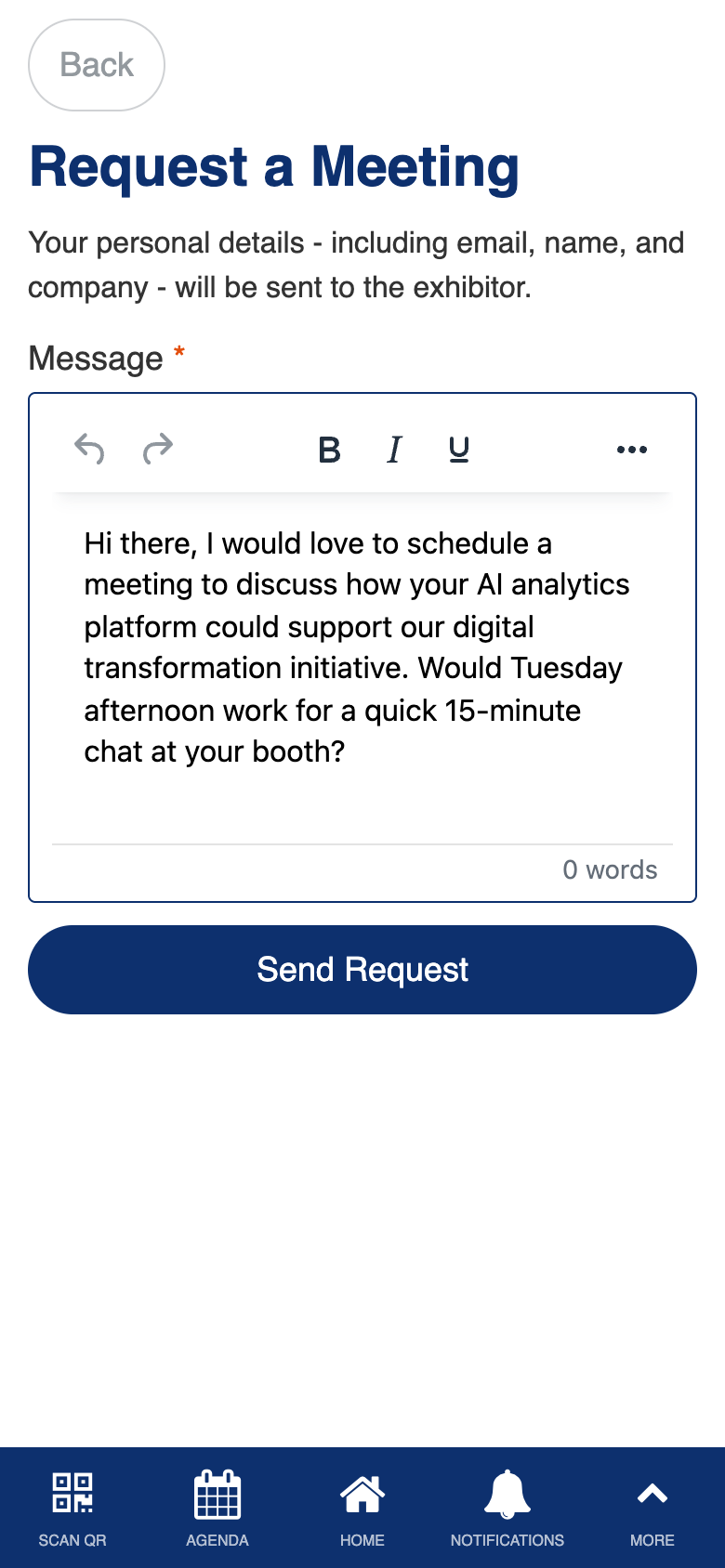
Uses the standard Form Builder component. Custom meeting request routing.
Meeting Settings
Role: Admin
See Meeting Settings in Agenda & Sessions for full details. This feature configures the meeting system parameters used across the networking features.
Exhibitor Meeting List
Role: Exhibitor
The exhibitor meeting list shows all meetings scheduled between attendees and your exhibitor team. You can see who has requested meetings, view meeting details with timezone-adjusted times, and manage your team’s meeting schedule throughout the event.
- View all meetings booked with your exhibitor team
- See meeting details including attendee name, time, and subject
- Track meeting status (pending, accepted, rejected)
- Filter meetings by date or status
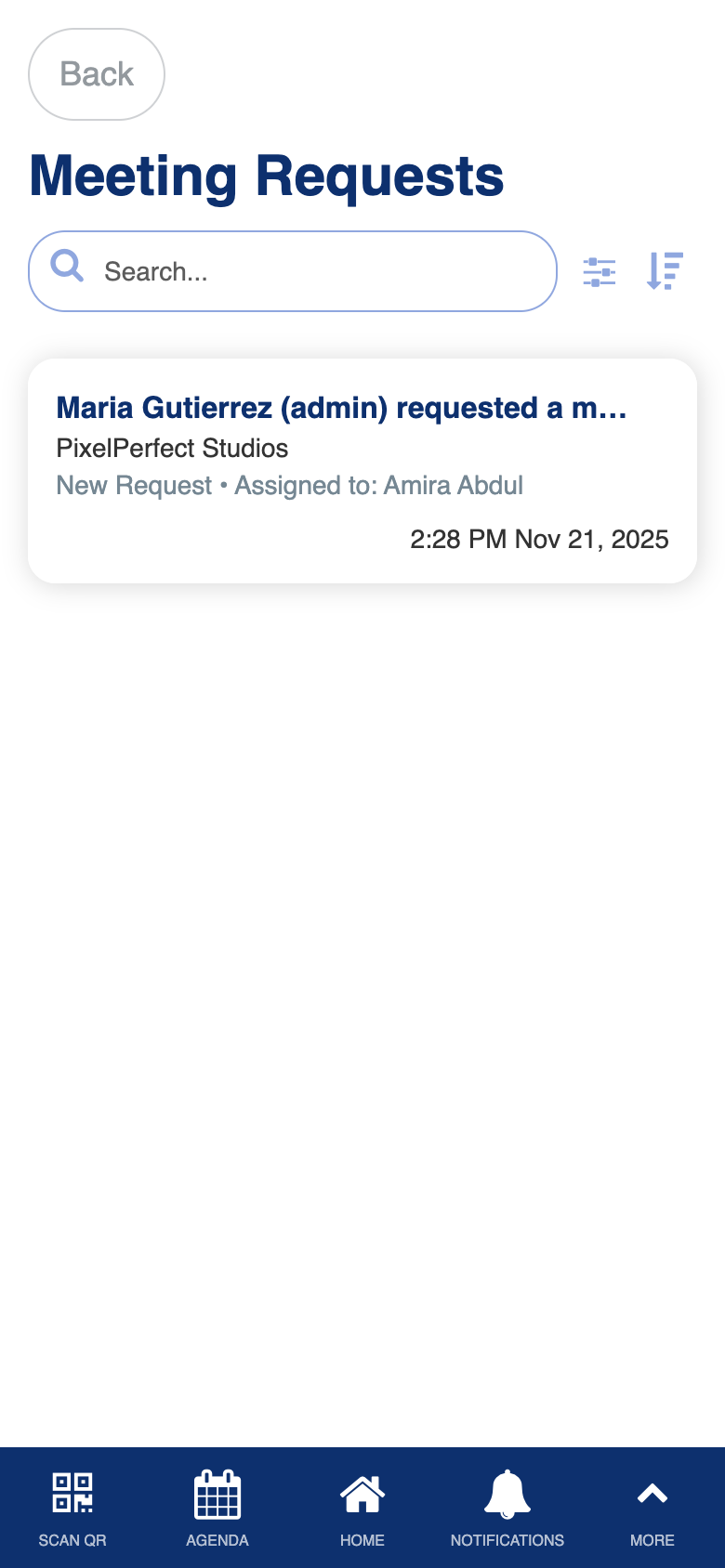
Uses the standard List from Data Source component.
Generate QR Code
Role: All Users
The generate QR code screen displays a QR code that can be used for multiple purposes: networking contact exchange, exhibitor bingo stamps, session check-in, and scavenger hunt items. You can download the QR code as a PDF, email it to yourself for printing, and see the manual entry code as a fallback.
- Display your QR code for others to scan
- Download the QR code as a PDF file for printing
- Email the QR code as an attachment to yourself or others
- A manual entry code is shown below the QR code as a fallback for scanning issues
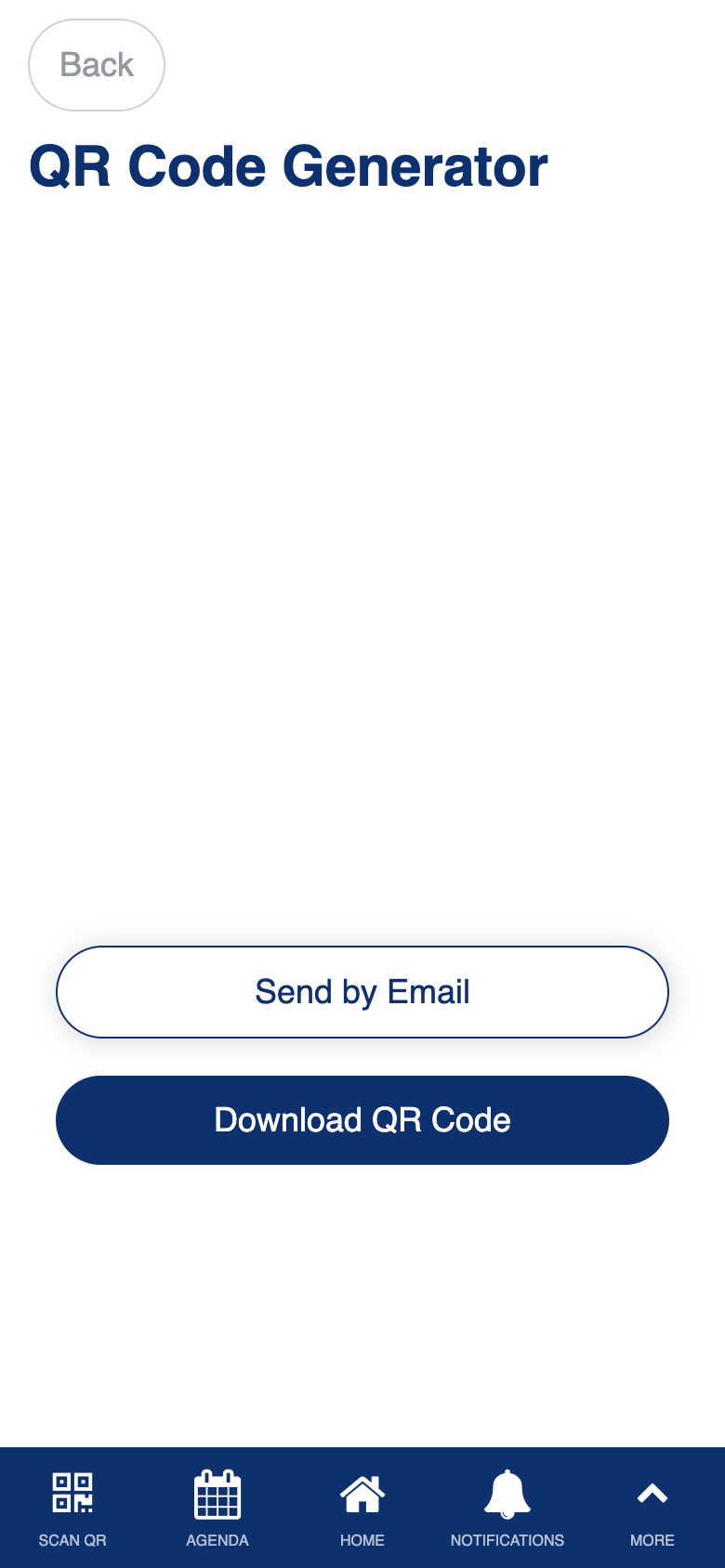
Custom multi-purpose QR code generation with PDF download and email sharing.