Browse sessions, manage your schedule, book meetings, and participate in session Q&A and surveys.
This section covers the event agenda from every angle: browsing and filtering sessions, RSVP and personalized agenda, meeting booking, and post-session feedback. Admins have full control over agenda management, session settings, and meeting configuration.
Contents
- Agenda
- Manage Agenda
- Agenda Settings
- Meeting Settings
- Set Meeting Times
- My Meetings
- Book a Meeting
- Session Survey
- Session Questions
Agenda
Role: All Users
The agenda is the central schedule for the entire event, showing all sessions with their times, locations, and speakers. All times are automatically converted to your timezone, and you can filter to see only sessions relevant to your group membership through the personalized agenda feature. RSVP directly from the agenda to secure your spot in sessions with limited capacity.
- Browse all sessions organized by date with timezone-adjusted start and end times
- Filter sessions by track, date, type, or your personalized agenda based on group membership
- RSVP to sessions directly from the list to confirm your attendance
- View session details including title, location, speakers, and full description
- See your personalized agenda showing only sessions available to your user group
- Navigate to any session’s detail view for full information and speaker profiles
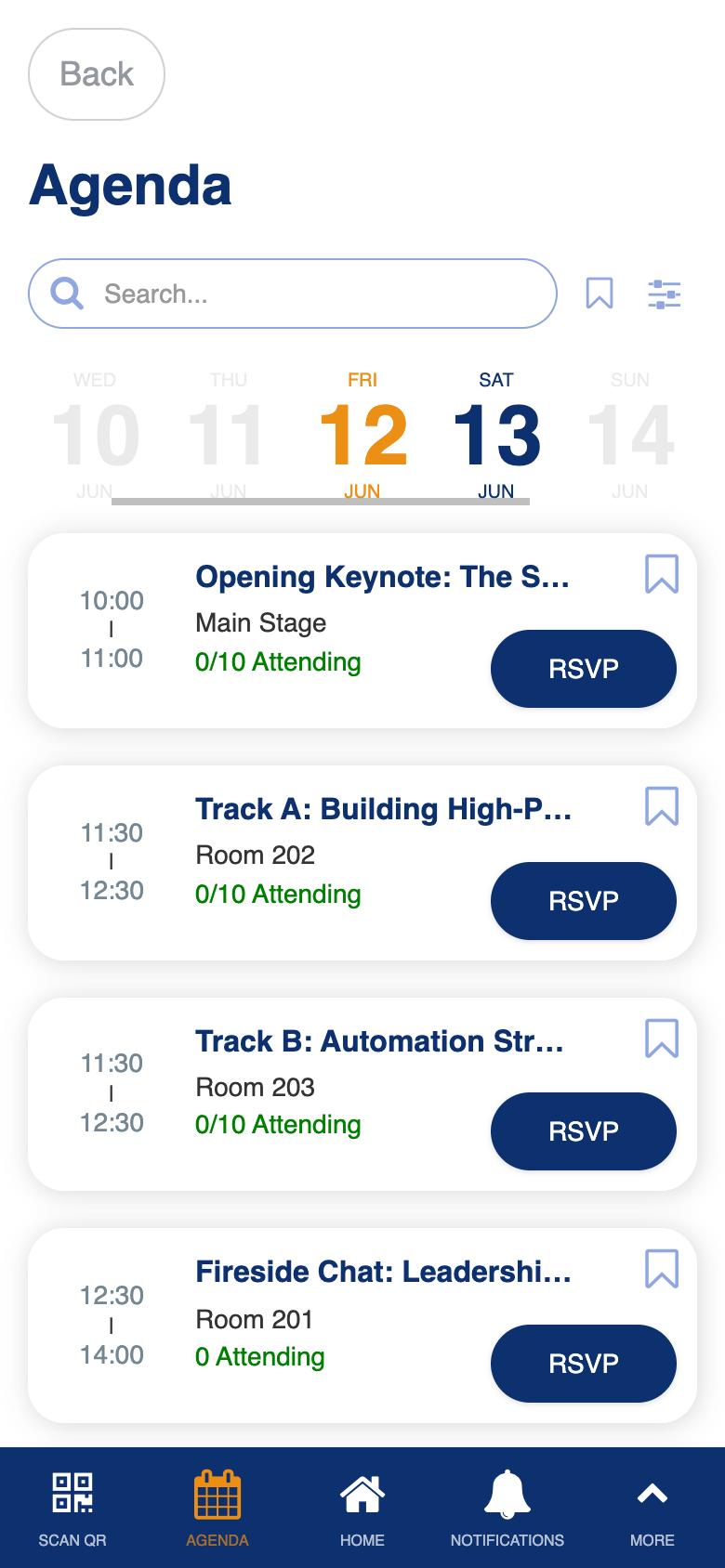
Custom personalized agenda filtering, timezone conversion, and RSVP integration with capacity tracking.
Manage Agenda
Role: Admin
The manage agenda screen gives admins full control over session creation and editing. You can view all sessions with RSVP capacity tracking and check-in status, create and edit session details, and generate bulk QR codes for session check-in. The session editing form supports optional sessions restricted to specific user groups, speaker assignment, and per-session check-in modes.
- View all sessions with RSVP counts, capacity tracking, and check-in status
- Create new sessions with title, date, time, location, speakers, and description
- Mark sessions as optional and restrict access to specific user groups
- Assign speakers to sessions from the user directory
- Enable session-level check-in with QR code support and manual entry codes
- Generate bulk QR code PDFs for all sessions
- Save drafts when working with complex multi-select fields
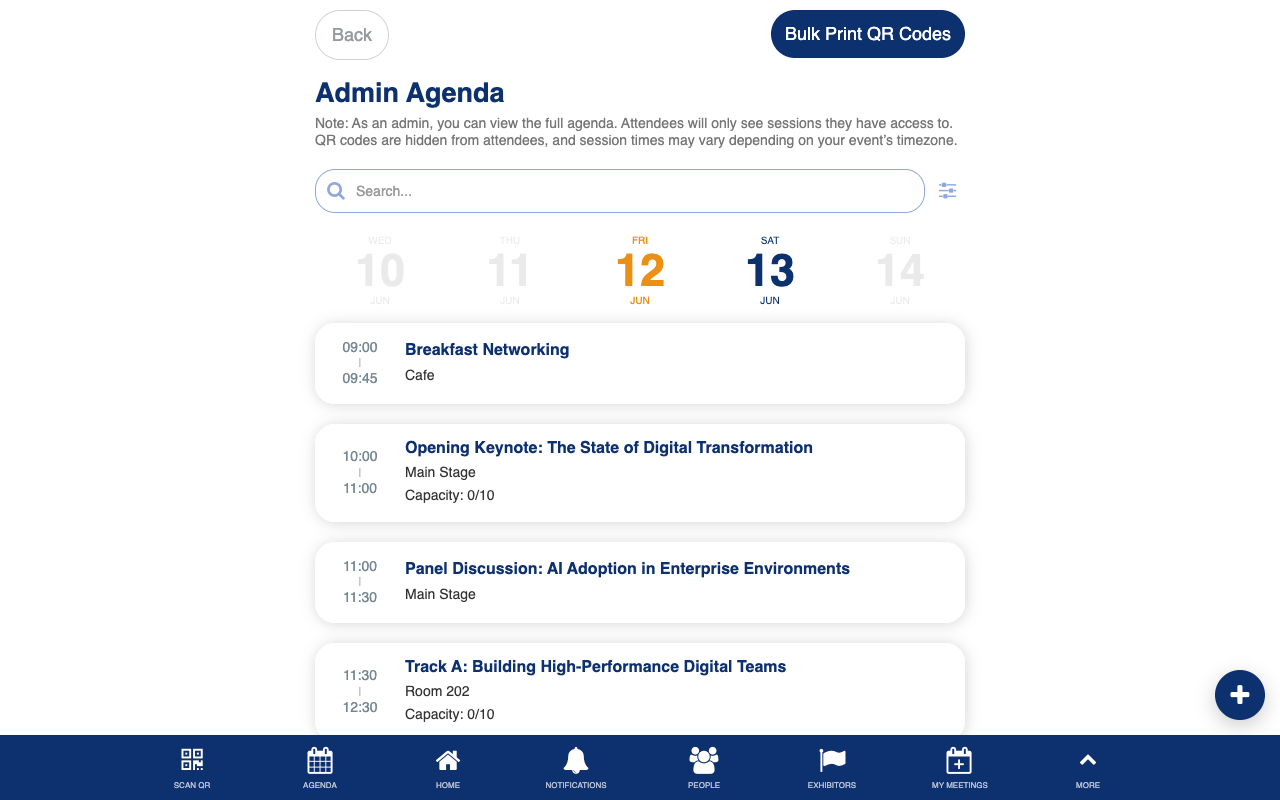
Custom session management with personalized access, RSVP capacity tracking, speaker assignment, check-in modes, bulk QR generation, and form draft save/restore.
Agenda Settings
Role: Admin
The agenda settings screen lets admins configure event-wide settings that affect how the agenda and other time-sensitive features behave. You can set the event timezone, configure lead capture availability windows with specific date and time ranges, and toggle feature flags.
- Set the event timezone for all date and time displays throughout the app
- Configure lead capture availability with specific start and end dates and times
- Toggle feature flags for personalized agenda, RSVP, check-in, and meeting timeslots
- Adjust agenda display and behavior preferences
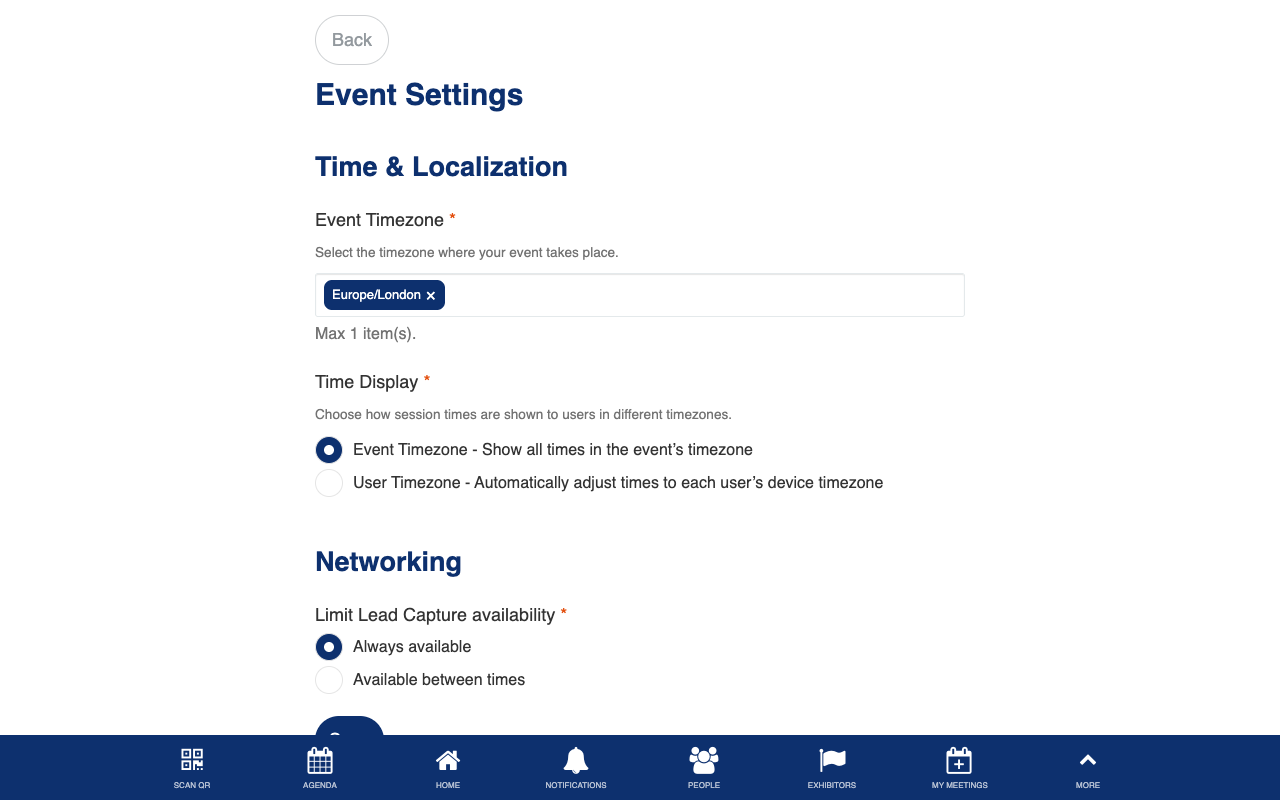
Custom timezone selector and feature flag configuration for event-wide settings.
Meeting Settings
Role: Admin
The meeting settings screen lets admins configure how the meeting booking system works, including meeting duration, location options, and availability mode. These settings apply to all meeting bookings across the event.
- Set the default meeting duration
- Configure meeting location options
- Choose between universal and individual availability modes
- Adjust meeting notification preferences
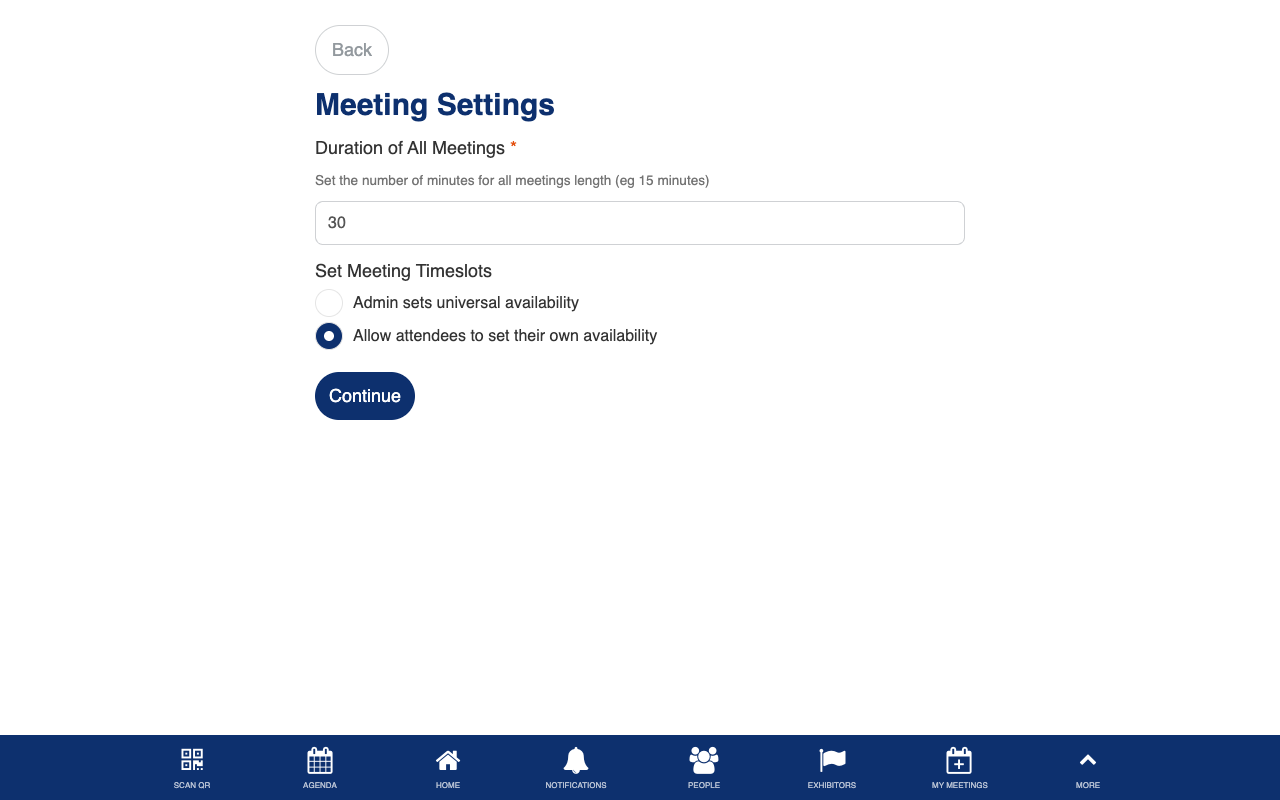
Custom meeting duration, location, and availability mode configuration.
Set Meeting Times
Role: Admin
The set meeting times screen lets admins define the available time slots for meeting bookings. You can configure individual time slots per day or set universal slots that apply across all event days, with built-in overlap detection and duration validation to prevent scheduling conflicts.
- Add and manage meeting time slots for each event day
- Choose between individual (per-day) and universal (all-day) time slot modes
- Built-in overlap detection prevents conflicting time slots
- Duration divisibility checks ensure time slots align with the configured meeting length
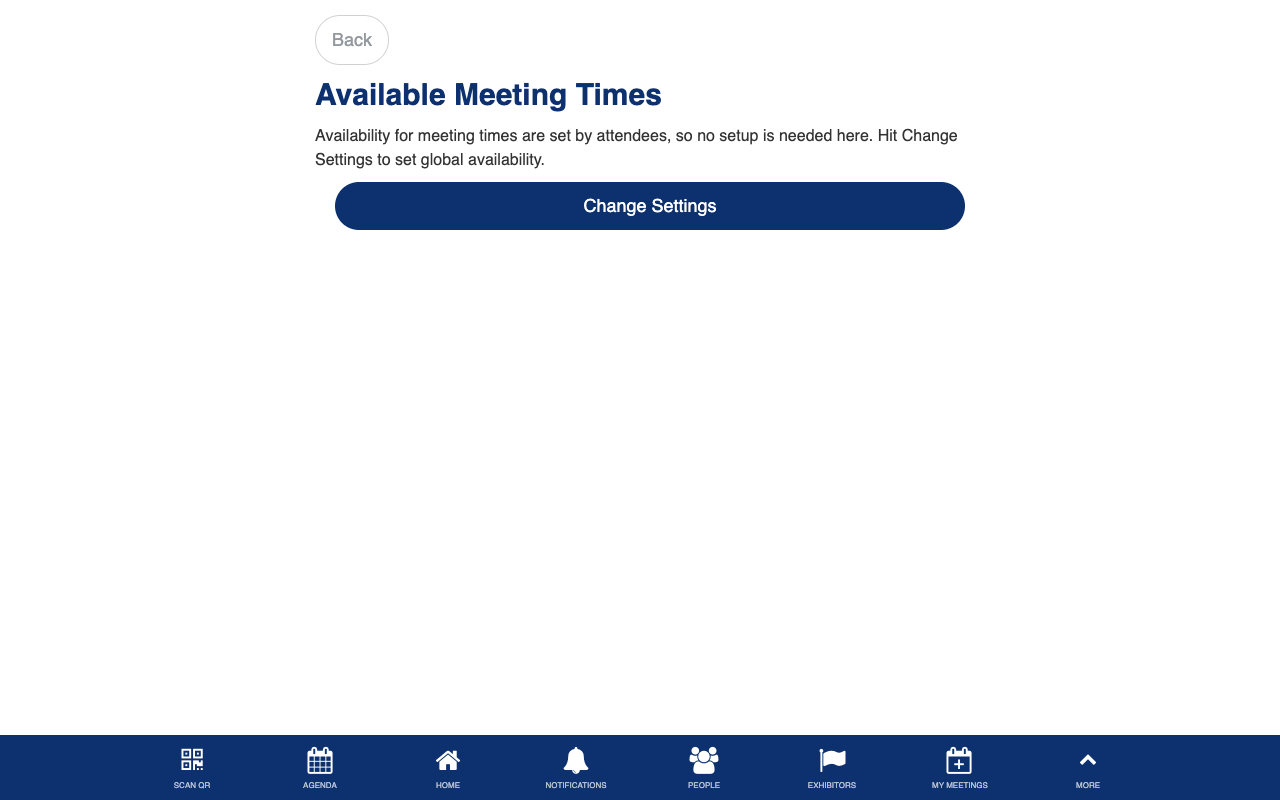
Custom time slot management with overlap validation and dual scheduling modes.
My Meetings
Role: All Users
The my meetings screen shows all meetings you have booked or that have been booked with you. You can accept or reject pending meeting requests, view meeting details with timezone-adjusted times, and manage your meeting schedule. When you accept or reject a meeting, the other person is notified through email (with ICS calendar attachment), push notification, and in-app messaging.
- View all your meetings including pending, accepted, and rejected requests
- Accept pending meeting requests with a single tap
- Reject meetings and provide a reason through the rejection form
- Filter meetings by status to see only pending, accepted, or all meetings
- Accepted meetings include calendar file attachments in email notifications
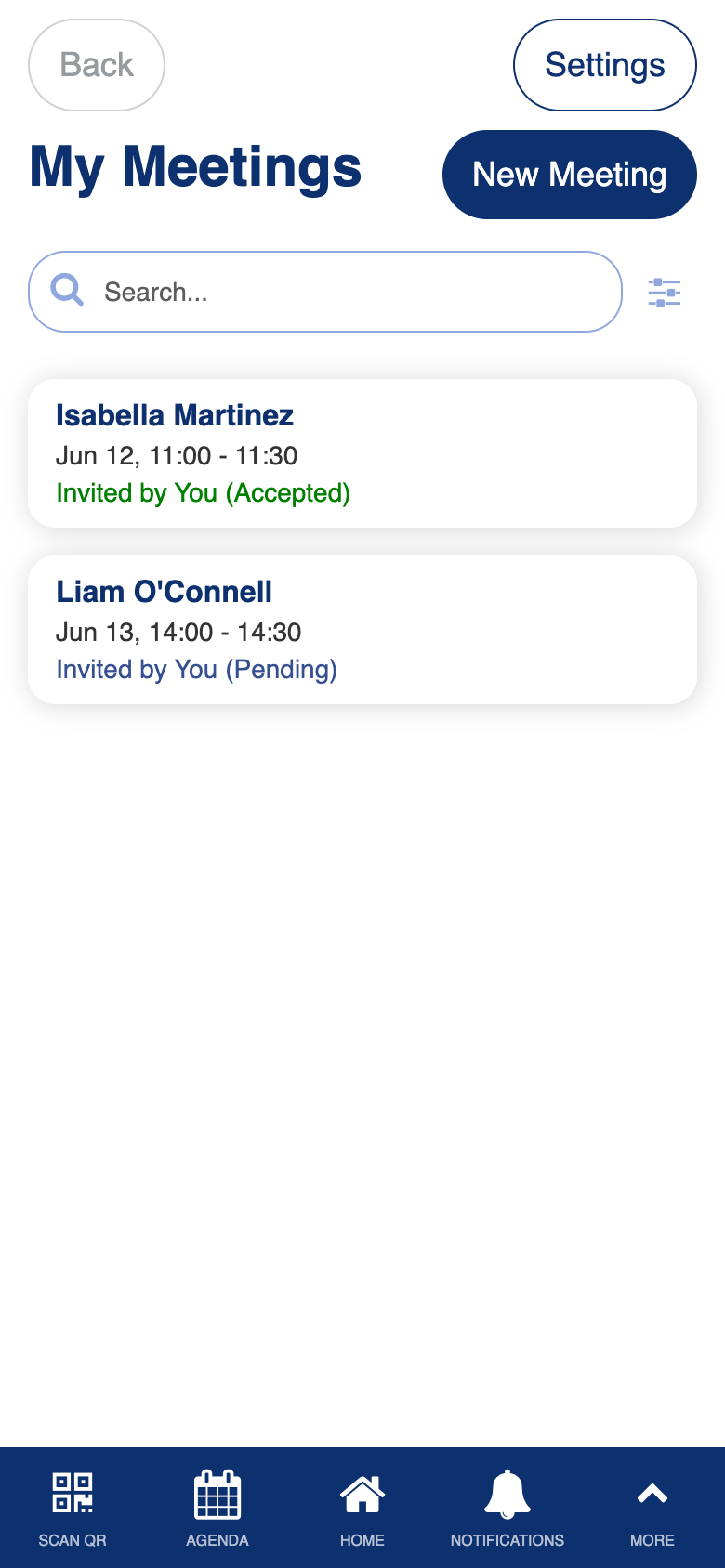
Custom accept/reject workflow with multi-channel notifications, ICS calendar integration, and timezone conversion.
Book a Meeting
Role: All Users
The book a meeting screen lets you schedule a one-on-one meeting with another attendee, speaker, or exhibitor. The system calculates available time slots based on both participants’ schedules, detects overlaps with existing bookings, and supports rescheduling existing meetings. Exhibitor admins can also book meetings on behalf of their team members.
- Select a date and time slot from available options calculated from both participants’ schedules
- View real-time availability based on mutual free time minus existing bookings
- Add a subject and optional notes to the meeting request
- Reschedule existing meetings by selecting a new time slot
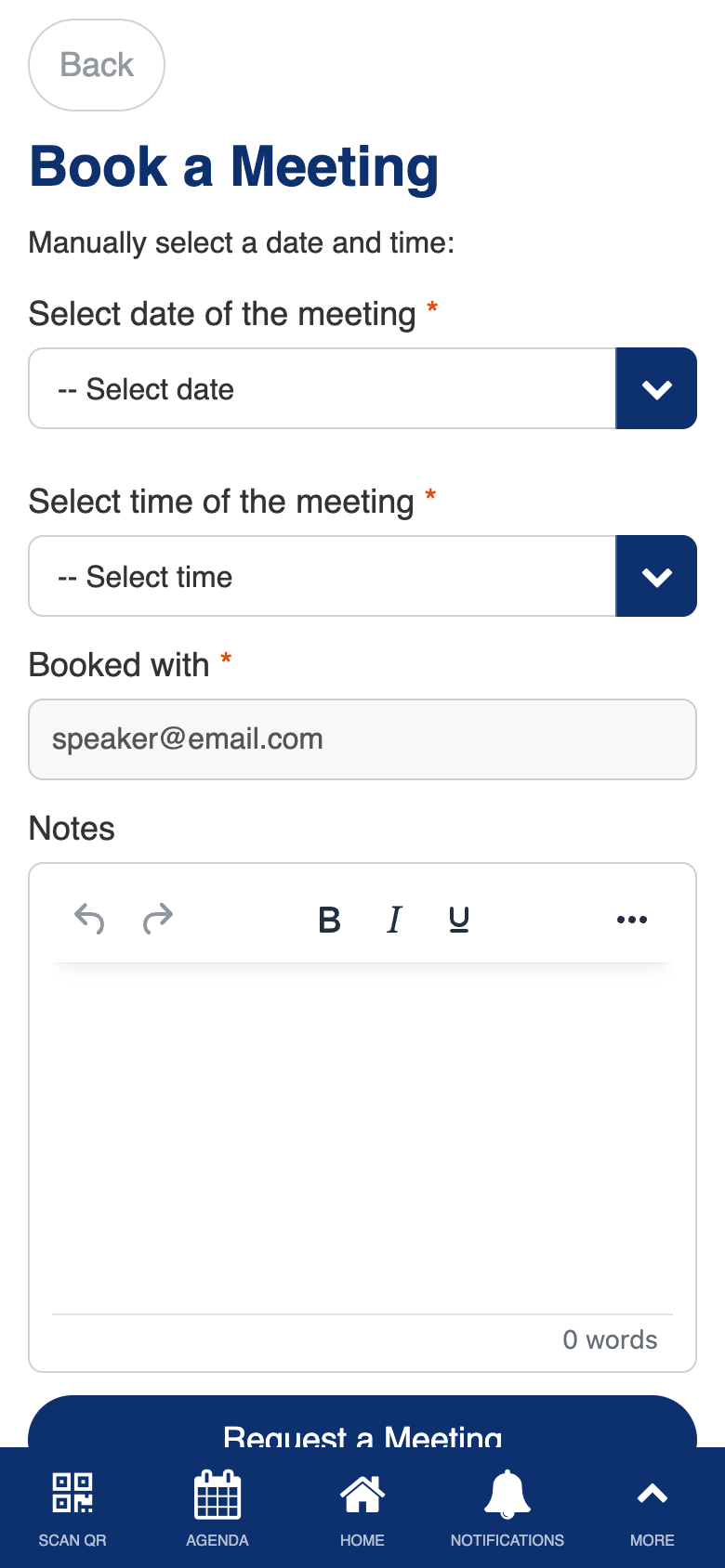
Custom availability calculation with overlap detection, exhibitor booking support, and rescheduling.
Session Survey
Role: All Users
The session survey lets you provide feedback on a session you attended. The form is pre-populated with the session name, so you know exactly which session your feedback applies to. After a session ends, you can rate the content and speaker, and share comments.
- Complete a feedback form after attending a session
- The session name is pre-populated automatically from the agenda
- Rate session content and speaker quality
- Provide open-ended comments and suggestions
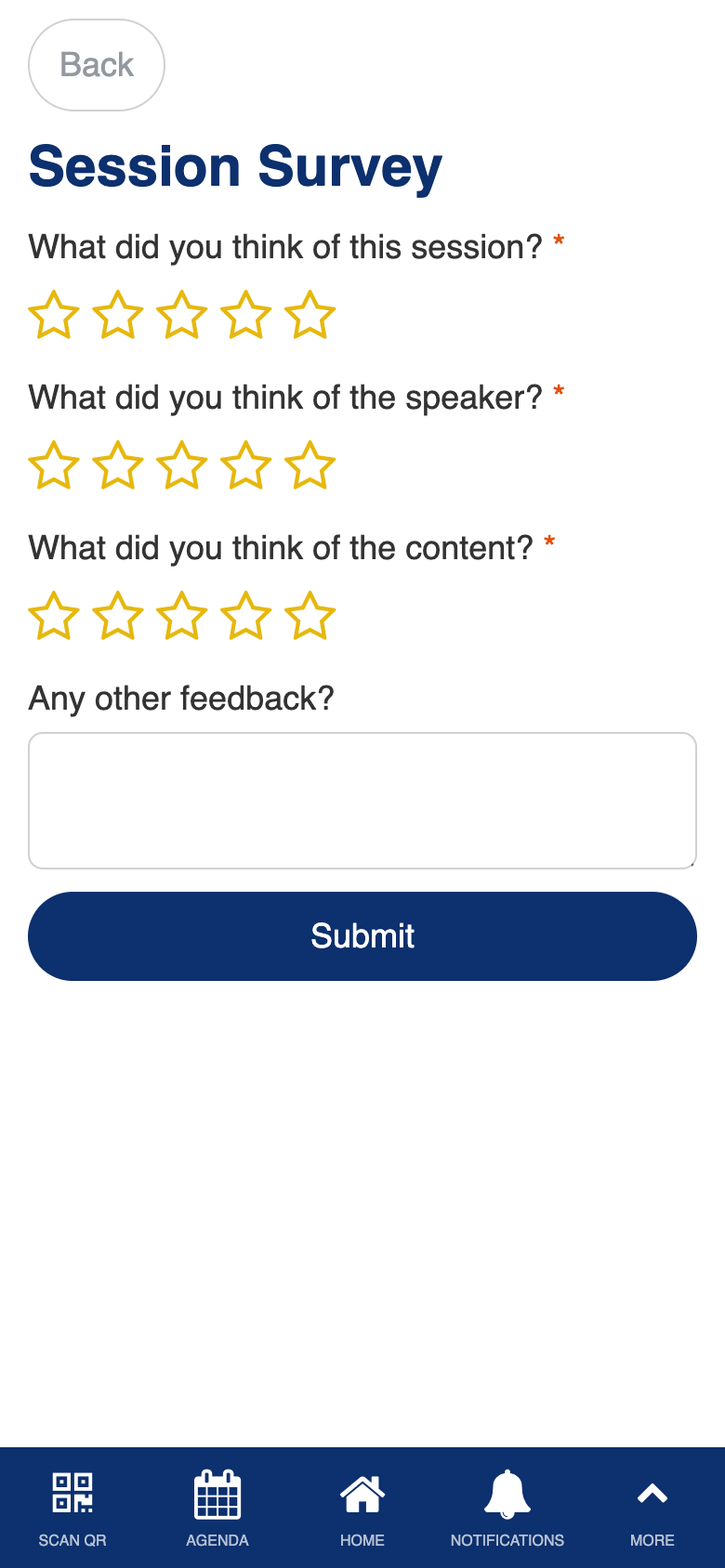
Uses the standard Form Builder component.
Session Questions
Role: All Users
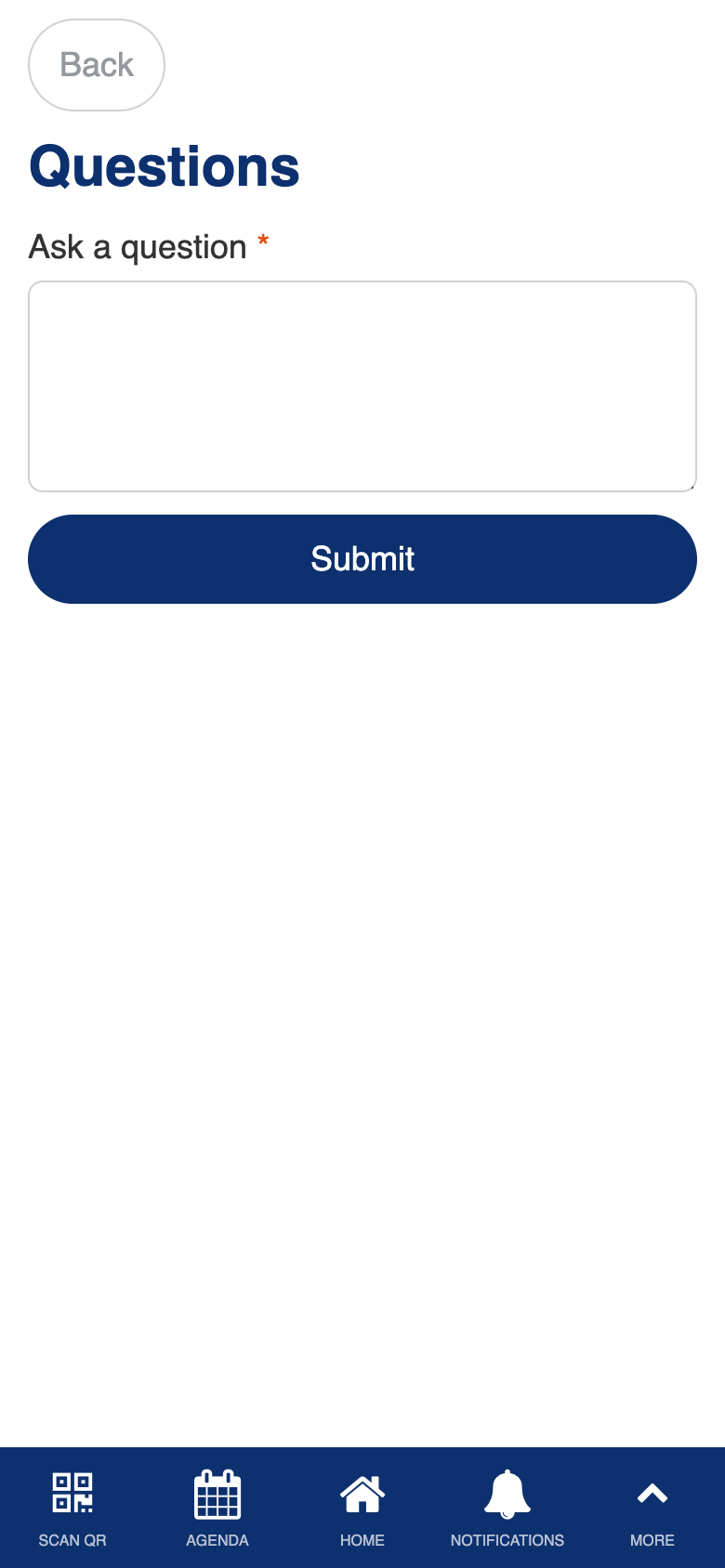
The session questions feature lets you submit questions during a live session. Your questions are visible to the speaker and session moderators, enabling interactive Q&A without disrupting the presentation flow. The form automatically identifies which session the question is for.
- Submit questions during a live session
- Questions are delivered to the speaker and moderators in real time
- The session context is pre-populated automatically
Uses the standard Form Builder component.