Score the abstracts in your queue on a 1-5 scale, add notes, and update your review after a speaker resubmits.
Reviewers see only the abstracts the admin team has moved to In Review. From your dashboard you pick an abstract from the Pending Review queue, read it, and submit a score with optional notes. Admins can hide speaker identities or other reviewers’ scores from your view through the portal’s visibility settings.
Contents
- Reviewer Submission Dashboard
- Filtering pending vs reviewed
- Reviewer Submission Details
- Submitting a 1-5 score with notes
- Editing your previous review
- Other reviewers’ scores visibility
- Speaker information visibility
Reviewer Submission Dashboard
Role: Reviewer
The Reviewer Submission Dashboard is your starting point. It lists every abstract that is currently In Review and shows two counters at the top: Pending Review (abstracts you still need to score) and Reviewed (abstracts you have already scored). When you sign in, the dashboard opens pre-filtered to Pending Review so the work that needs your attention is front and center.
- See your pending vs reviewed totals at a glance
- Open pre-filtered to your pending queue every time you sign in
- Click any row to open the abstract for scoring
- Only abstracts currently In Review appear: drafts, accepted, and rejected abstracts are excluded from your queue
- When a speaker resubmits after the admin requests changes, the abstract reappears in your Pending Review count automatically
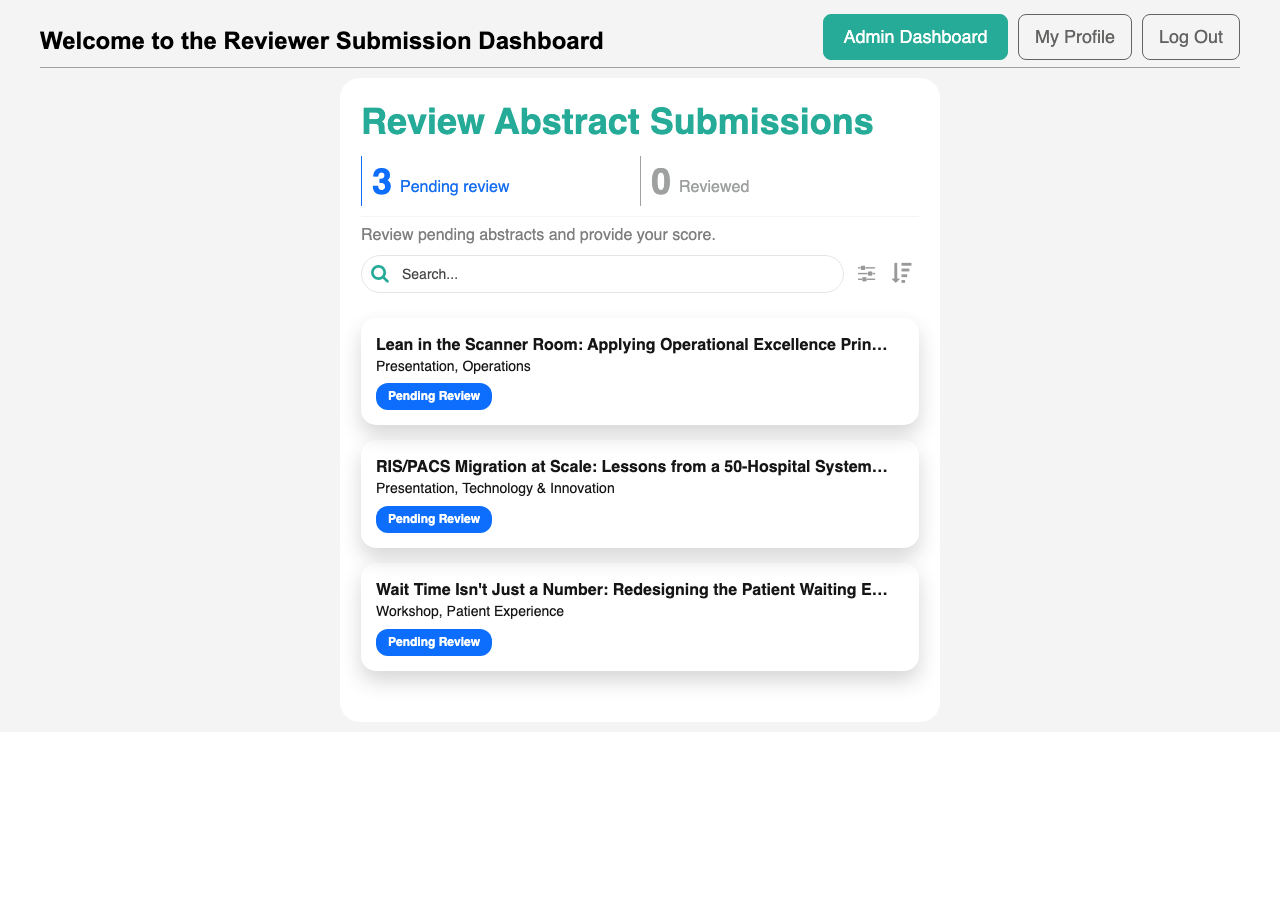
Uses the standard List from Data Source component. Custom counters, default filter on arrival, and a per-row reviewer status that knows whether you have already reviewed an abstract (and whether the speaker resubmitted afterwards).
Workflow: For the complete review process, see How to review an abstract.
Filtering pending vs reviewed
Role: Reviewer
You can switch between Pending Review and Reviewed at any time using the filter at the top of the dashboard. Pending Review shows abstracts that need your score (including any that you previously reviewed but the speaker has since revised). Reviewed shows abstracts you have already scored and that have not changed since.
- Default view on sign-in: Pending Review
- Switch to Reviewed to see your completed work
- Counters update in sync with the filter
Reviewer Submission Details
Role: Reviewer
When you open an abstract from your queue, you see the full submission on one screen: title, type, category, audience level, overview, key takeaways, co-presenters, and any attached files. Below the abstract is the review form where you enter your score and notes. Depending on the portal’s settings, you may also see the speaker’s identity and the scores other reviewers have submitted.
- Read the full abstract on a single screen, including attachments
- Score the abstract with a 1-5 form below the content
- See speaker identity and co-presenters when admin settings allow it
- See other reviewers’ scores and notes when admin settings allow it
- The review form pre-loads with your existing score if you have already reviewed this abstract
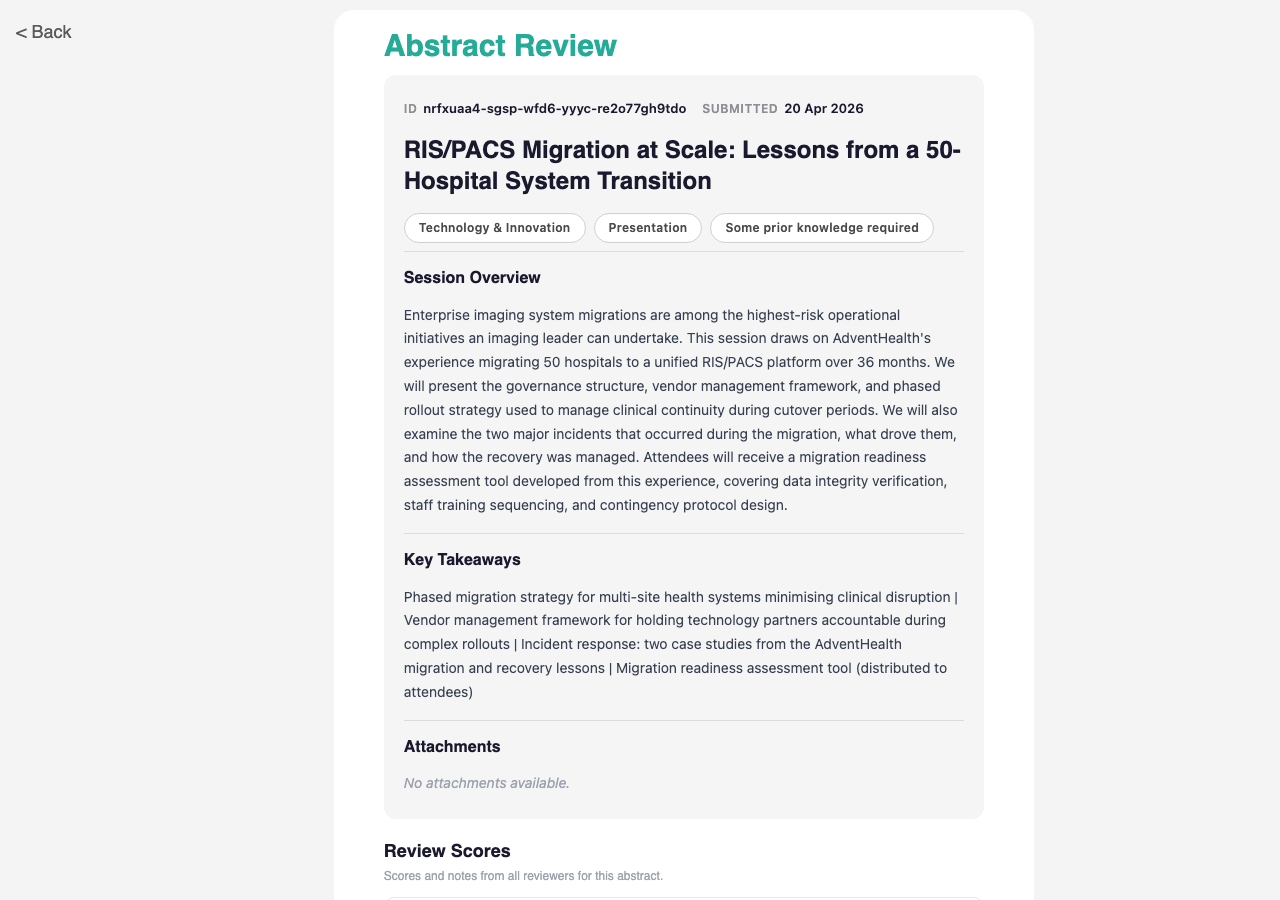
Uses the standard Form Builder component for the review form. Custom rendering of speaker information, other reviewers’ scores, and pre-fill of your previous review when editing.
Workflow: For the complete review process, see How to review an abstract.
Submitting a 1-5 score with notes
Role: Reviewer
The review form captures a numeric score from 1 to 5 plus optional notes. Notes can be written for the speaker (shared with them in the admin’s decision email) or kept internal (visible only to the admin team). Your email address and the abstract ID are filled in automatically; you do not need to type them.
- Enter a score from 1 to 5
- Add notes for the speaker (shared with them if admin includes them in the decision)
- Add internal notes for organizers only
- Scores below 1 or empty values are blocked with a clear validation message
- Your email and the abstract ID are recorded automatically
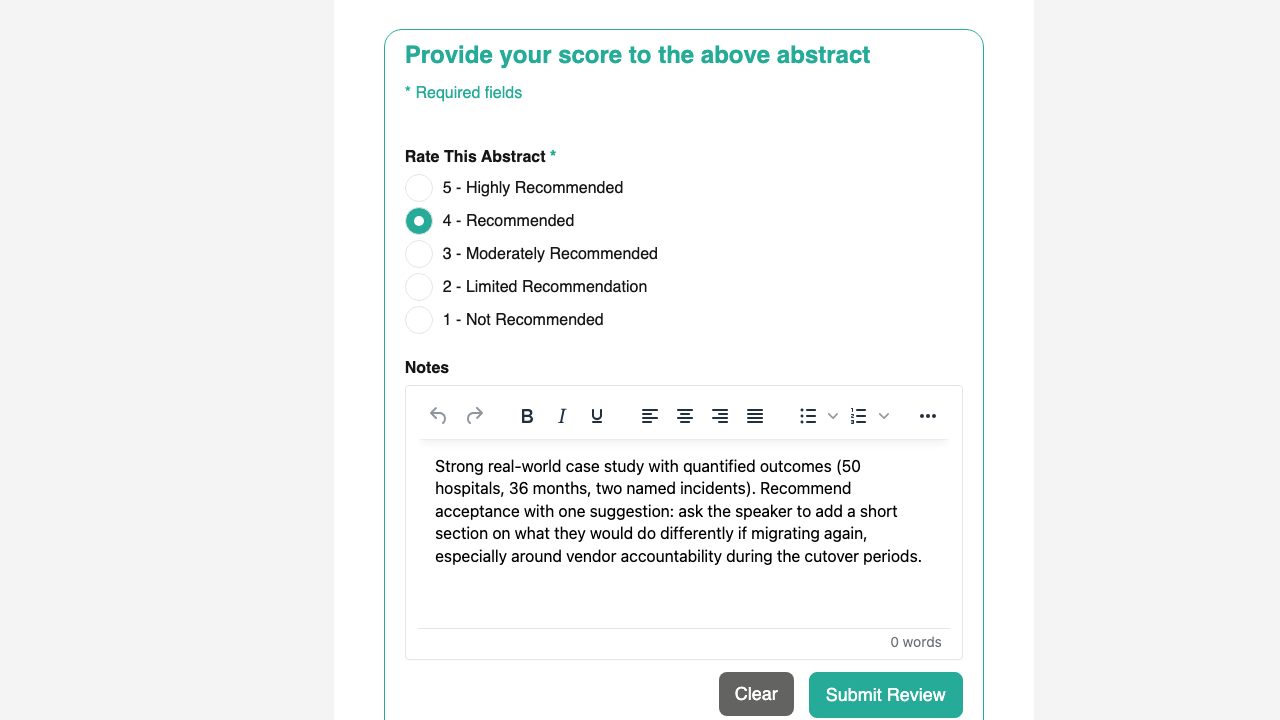
Editing your previous review
Role: Reviewer
If you have already reviewed an abstract, opening it again loads the form with your previous score and notes pre-filled. Edit any field and submit; the portal updates your existing review rather than adding a duplicate. A confirmation message tells you the review was updated.
- Pre-fills your previous score and notes when you open an abstract you have reviewed before
- Saving updates your existing review (no duplicates)
- Confirmation message tells you the review was updated, not newly created
When a speaker resubmits an abstract after the admin requests changes, your previous review is marked for revision and the abstract returns to your Pending Review count. Open it again and update your score in light of the revised content.
Other reviewers’ scores visibility
Role: Reviewer, Admin
Admins can choose whether reviewers see each other’s work. When Other reviewers’ scores is set to Visible in Submission Settings, the Reviewer Submission Details screen lists each reviewer’s score (with a 5-star display), their notes, and the average score so far. When it is set to Hidden, those details are removed from the screen so reviews are independent.
- Controlled by admins under Submission Settings
- When visible: see each reviewer’s score, notes, and the running average
- When hidden: only your own score and the abstract content are shown
- For the admin configuration side, see Reviewer visibility settings in Configuring the Portal
Speaker information visibility
Role: Reviewer, Admin
Admins can also hide the speaker’s identity from reviewers to support anonymized review. When Speaker information is set to Visible, the reviewer detail screen shows the speaker’s name, organization, bio, and co-presenters. When it is set to Hidden, all identifying details are removed so you score the abstract on its content alone.
- Controlled by admins under Submission Settings
- When visible: speaker name, organization, bio, and co-presenters are shown
- When hidden: identifying details are removed so review can stay anonymous
- For the admin configuration side, see Reviewer visibility settings in Configuring the Portal