Walk through the full speaker journey, from the welcome page to a confirmed submission.
This guide walks through submitting an abstract from start to finish. It covers the path for first-time submitters who do not have an account yet (the portal creates one for you as you go) as well as signed-in speakers.
Role: Speaker | Screens: 4 | Estimated steps: 4
Before you start
- Have your abstract content ready: title, type, category, audience level, overview, and key takeaways
- Have any supporting attachments ready to upload (such as figures or supporting documents)
- Have your co-presenters’ names, emails, and short bios ready if you are submitting with co-authors
- Check the submission deadline on the home page
First-time submitter? Start here. You do not need to register before you begin. The portal creates your Speaker profile as part of Step 1.
Step 1: Check the deadline on the home page
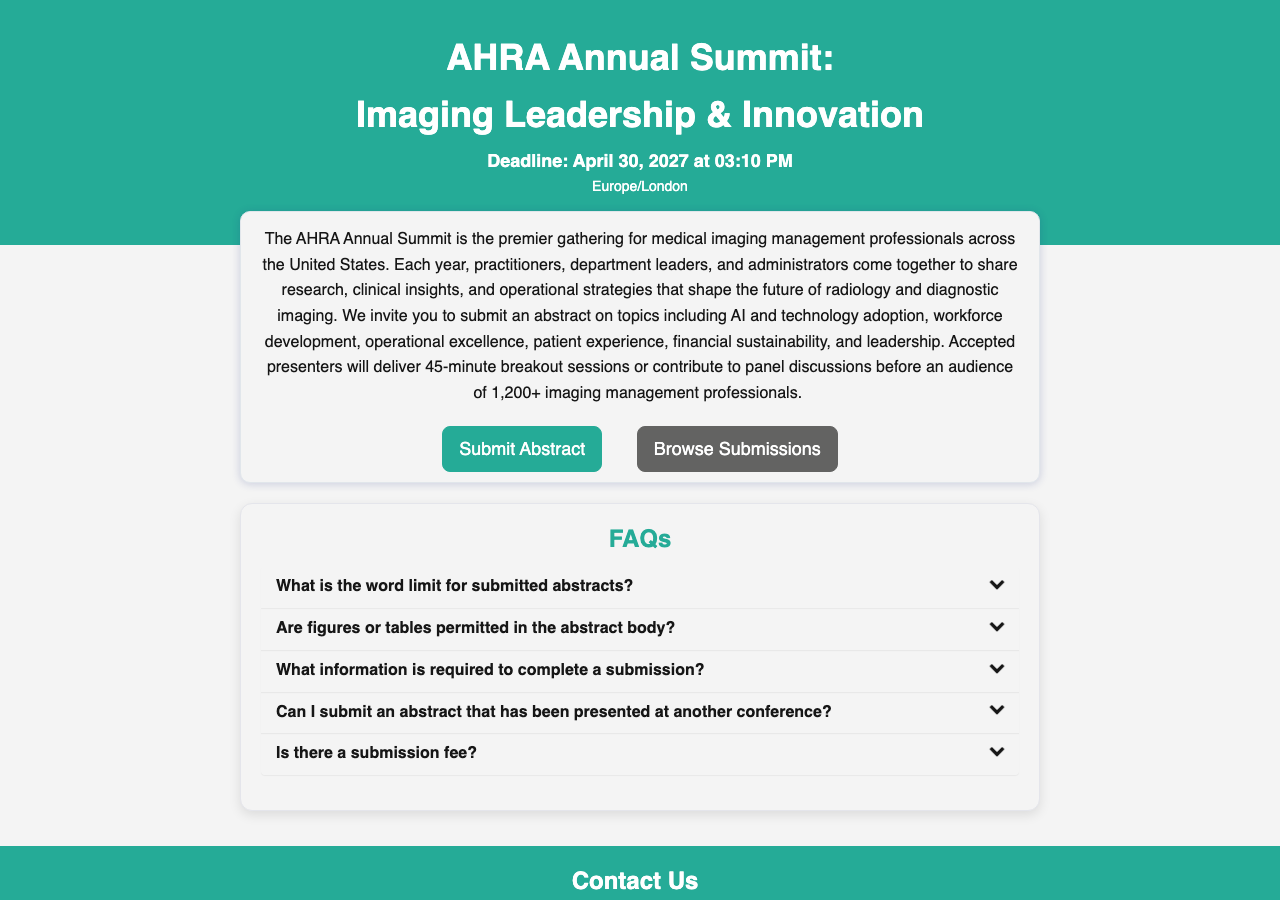
Open the portal. The home page shows the event title, the current submission deadline in your local timezone, and a Submit Abstract button. Click Submit Abstract to start.
- Confirm the deadline still allows time to submit
- Read the FAQ accordion if you have questions about format, length, or fees
- Click Submit Abstract to start the submission flow
Part of Getting Started: see Home / welcome page for full feature details.
Step 2: Enter your speaker details
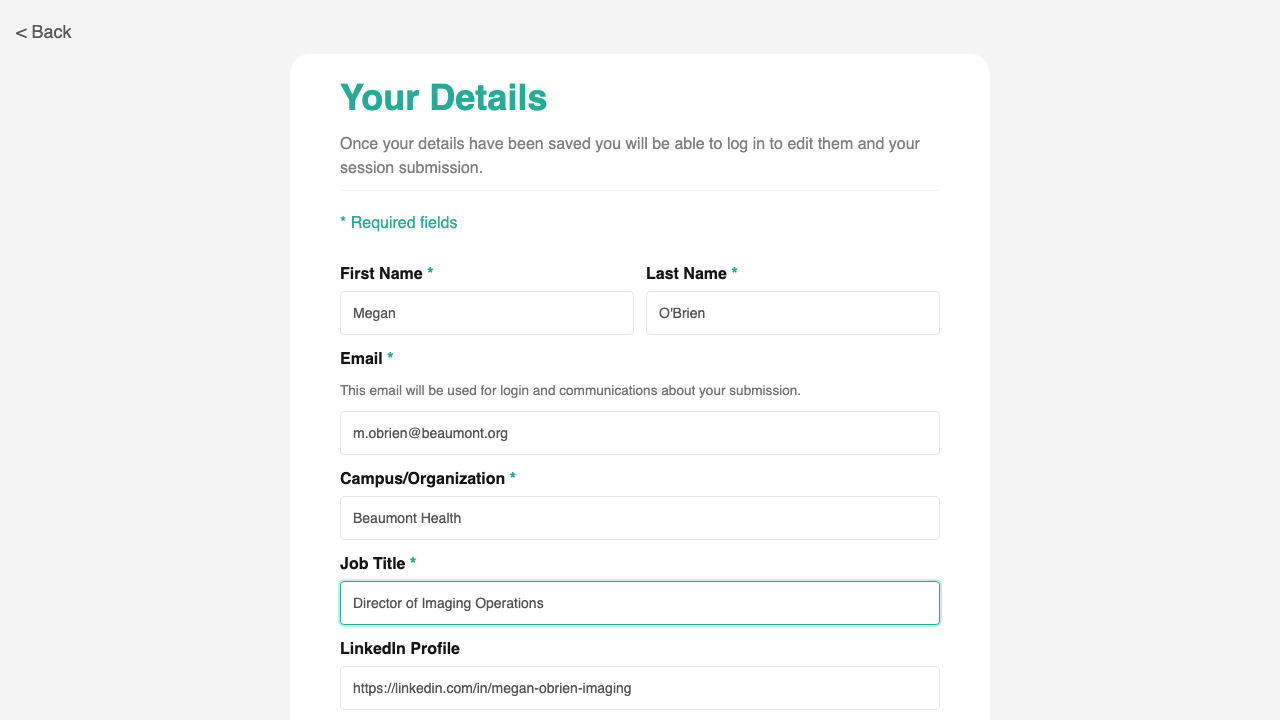
Step 1 of the submission flow asks for your speaker profile: first name, last name, email, organization, job title, LinkedIn URL, and a short bio. If you already have an account and are signed in, this step is skipped automatically. If your email already exists in the portal, you are prompted to sign in instead so a duplicate is not created.
- Fill in every required field
- If a duplicate-email warning appears, click the Log In link to sign in instead of continuing
- Click Next to save your profile and continue to the abstract content
Part of Submitting an Abstract: see Submit Abstract Step 1: Your details for full feature details.
Step 3: Write your abstract and add co-presenters
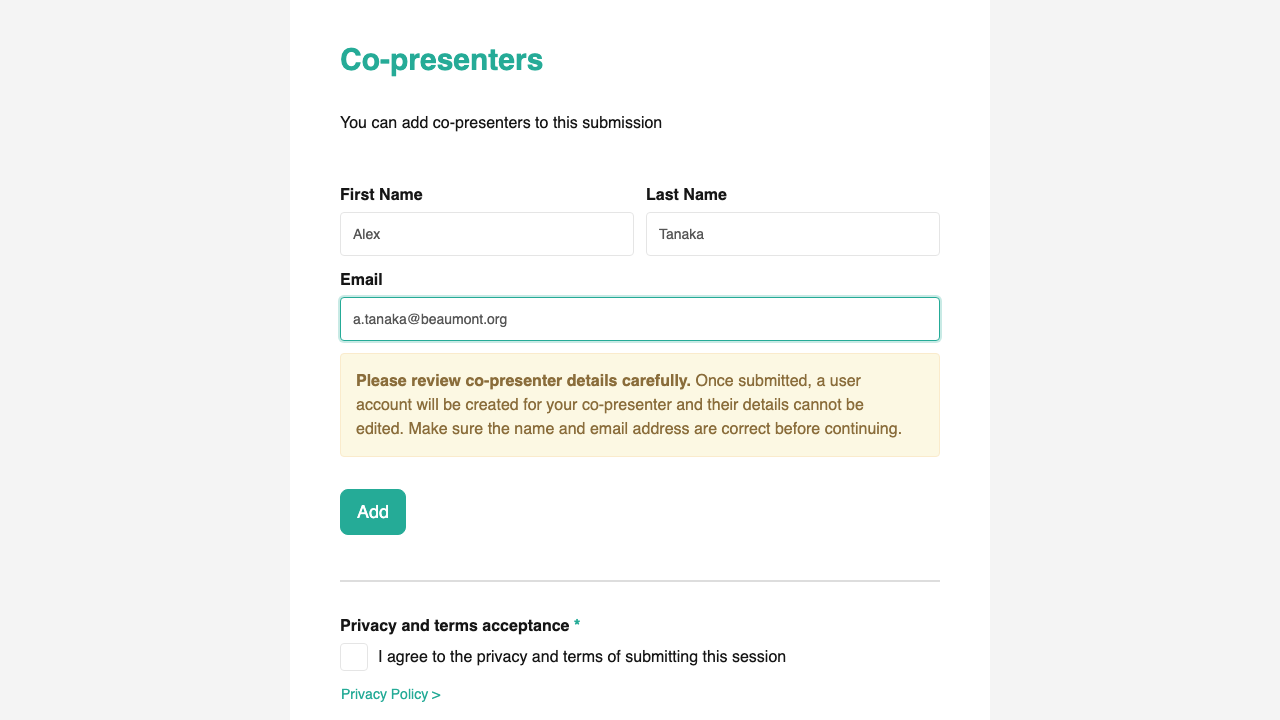
Step 2 captures the abstract itself. Fill in the title, type, category, audience level, overview, and key takeaways. Attach any supporting files and accept the terms and conditions. If you are presenting with co-authors, add them through the co-presenter subform: for each co-presenter, provide their name and email, and the portal creates an account for them automatically if they do not already have one.
- Complete every required abstract field
- Upload supporting attachments
- Click Add Co-Presenter for each additional author and fill in their details
- Accept the terms and conditions
- Click Submit to save the abstract
Part of Submitting an Abstract: see Submit Abstract Step 2: Abstract information and Adding co-presenters for full feature details.
Step 4: Confirm your submission
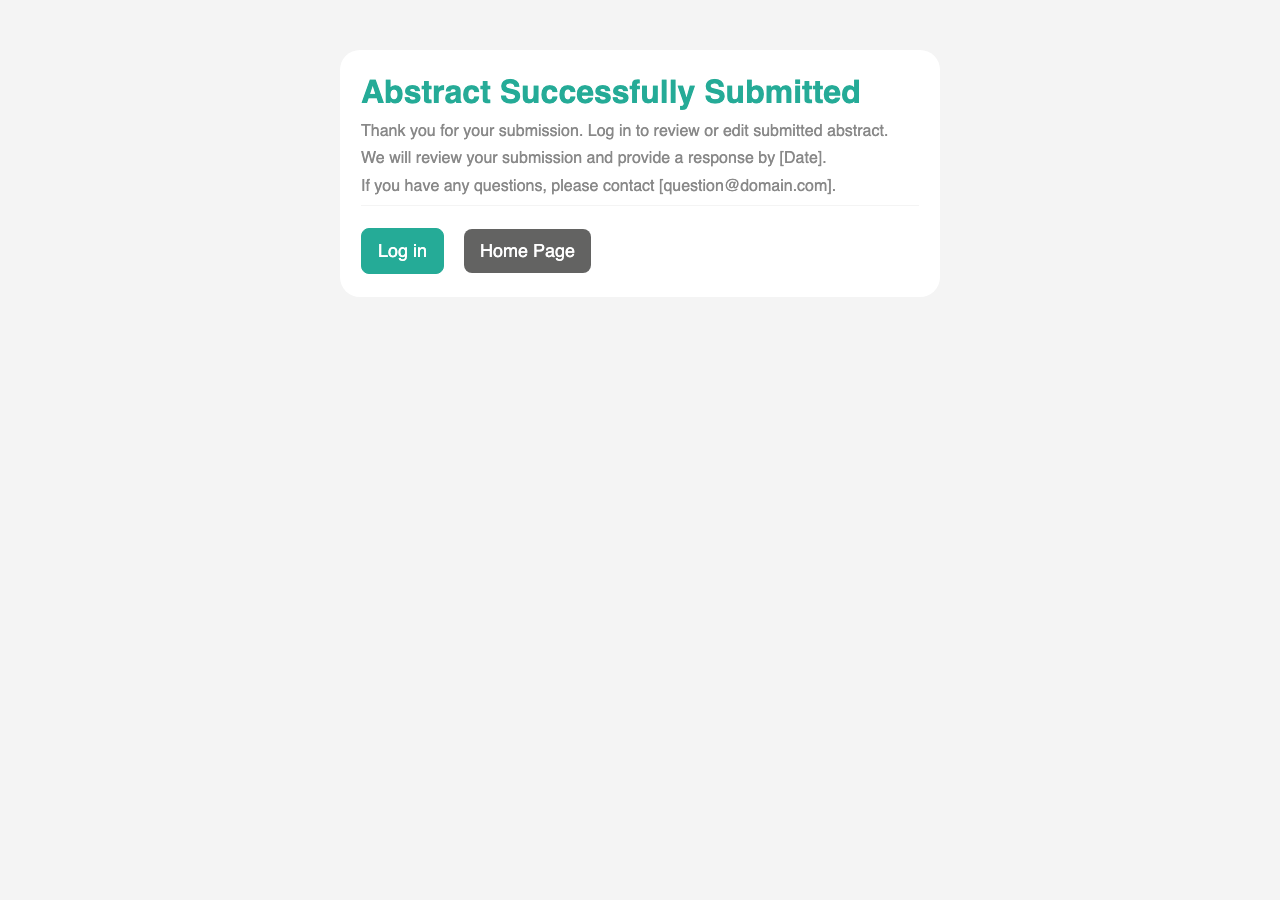
If you submitted without signing in, you land on a confirmation screen that tells you the abstract was received and offers to log in so you can come back and edit it. If you were already signed in, you go straight to your Speaker Submissions dashboard instead, where your new abstract appears in the list with a Submitted status badge.
- Read the confirmation message
- Click Log In to sign in and view your abstract on the speaker dashboard
- Or click Home to return to the welcome page
Part of Submitting an Abstract: see Submit Abstract Step 3: Submission confirmation for full feature details.
What’s next
- Watch for status updates by email. The admin team moves abstracts through Submitted -> In Review -> Accepted / Rejected / Change Requested.
- If your abstract enters Change Requested, you can sign in, edit it from your dashboard, and resubmit. See Re-submitting after Change Requested in Managing Your Submissions.
- To update your saved profile, sign in and use the Edit Profile button on your dashboard.