Congratulations! Your event app is live and ready to make an impact. Now it’s time to spread the word and make sure your audience knows where to find it.
To help you do that, we’ve created this Communication Kit, a collection of email templates, social media posts, visuals, and tips designed to make promoting your app quick and easy.
Whether your app is public or private, these examples will help you reach your attendees, partners, or internal teams with confidence.
Get started
Share Your App
The fastest way to drive adoption is to share your app link or QR code everywhere your audience is looking.
Best practice: Use one single QR code or link that makes it easy for users to access your app, regardless of their device.
- If your app is available on multiple platforms (App Store, Google Play, and web), link the QR code to a landing page such as app.yourdomain.com, where users can choose the right version for their device.
- This page can even be built in Fliplet, and you can use your own custom domain for a branded experience.
- If your app is web-only, a landing page isn’t needed as long as the first screen of your app clearly explains what it is and who it’s for (like an onboarding or welcome screen).
This keeps things simple for your users and ensures everyone ends up in the right place.
Here are some ways to share it:
- Send an email to your attendees or internal staff (see templates below)
- Post on social media using our ready-made examples
- Add your QR code to event signage, slides, or promotional materials
Create a Landing Page
💡 Pro tip: If your app is available on the App Store or Google Play, consider creating a simple landing page (for example: app.yourdomain.com) where visitors can choose how to access the app.
You can even build this page in Fliplet and use your own custom domain for a consistent branded experience.
A good landing page might include:
- A short description of your app
- Buttons for “Download on the App Store”, “Get it on Google Play”, and “Open Web App”
- Your event logo or hero image
Email Templates
Customize your emails
💡 These templates are examples to help you get started. You should adjust the content to highlight your app’s unique value and features.
Replace our examples (like agenda, connect with attendees, or real-time updates) with benefits specific to your app.
The more specific you make it, the more your users will feel the app was made for them.
Public Event App (no login required)
Hi [Name],
We’re excited to share that the official app for [Event Name] is now live.
How to access
[If web app available]
Open your mobile browser and visit [App URL].
[If native apps available]
Download the app from:
[App Store link] • [Google Play link]
Why use the app:
- Explore the full event agenda
- Connect with speakers and attendees
- Receive real-time updates and alerts
Start using the app today to make the most of your event experience.
Private / Internal App (with login)
Hi [Name],
Your [Event Name] app is ready!
You’ll soon receive an email invitation with your access details. Follow the instructions in that email to log in and unlock the full experience.
How to access
[If web app available]
Open your mobile browser and visit [App URL].
[If native apps available]
Download the app from:
[App Store link] • [Google Play link]
Or visit [app.yourdomain.com] for all download options in one place.
Why you’ll love it
- Access your personalized agenda and travel info
- Get real-time alerts
- Network with colleagues and other attendees
Pre-event Reminder
Hi [Name],
The [Event Name] app is your one-stop companion for the event.
Make sure you’ve downloaded the app before [event start date] so you’re ready to go!
Download the app
[App Store link] • [Google Play link]
Or open directly on your browser: [App URL]
✅ Check your agenda
✅ Connect with attendees
✅ Get live updates and alerts
Social Media Templates
LinkedIn / Facebook
The [Event Name] app is live! 🎉
Access schedules, connect with attendees, and get real-time updates, all from your mobile device.
Download here:
[App Store link]
[Google Play link]
Or visit [eventwebsite.com/app] for all download options.
#EventApp #EventTech #EventName #Fliplet
The [Event Name] app is here! 🙌
Check the agenda, connect with attendees, and get instant updates.
📱Find the app on the App Store or Google Play, links in bio!
#EventApp #EventName
X (Twitter)
The [Event Name] app is live!
Download now to access the schedule, connect with attendees, and get live updates.
[Apple App Store link] | [Google Play link]
#EventApp #EventTech #EventName
Promotional Assets
Below you’ll find ready-to-use visuals to help you promote your event app.
You can download individual assets or grab the full bundle at the bottom of this section.
Each file is provided in EPS format, so you can edit colors and text to match your brand.
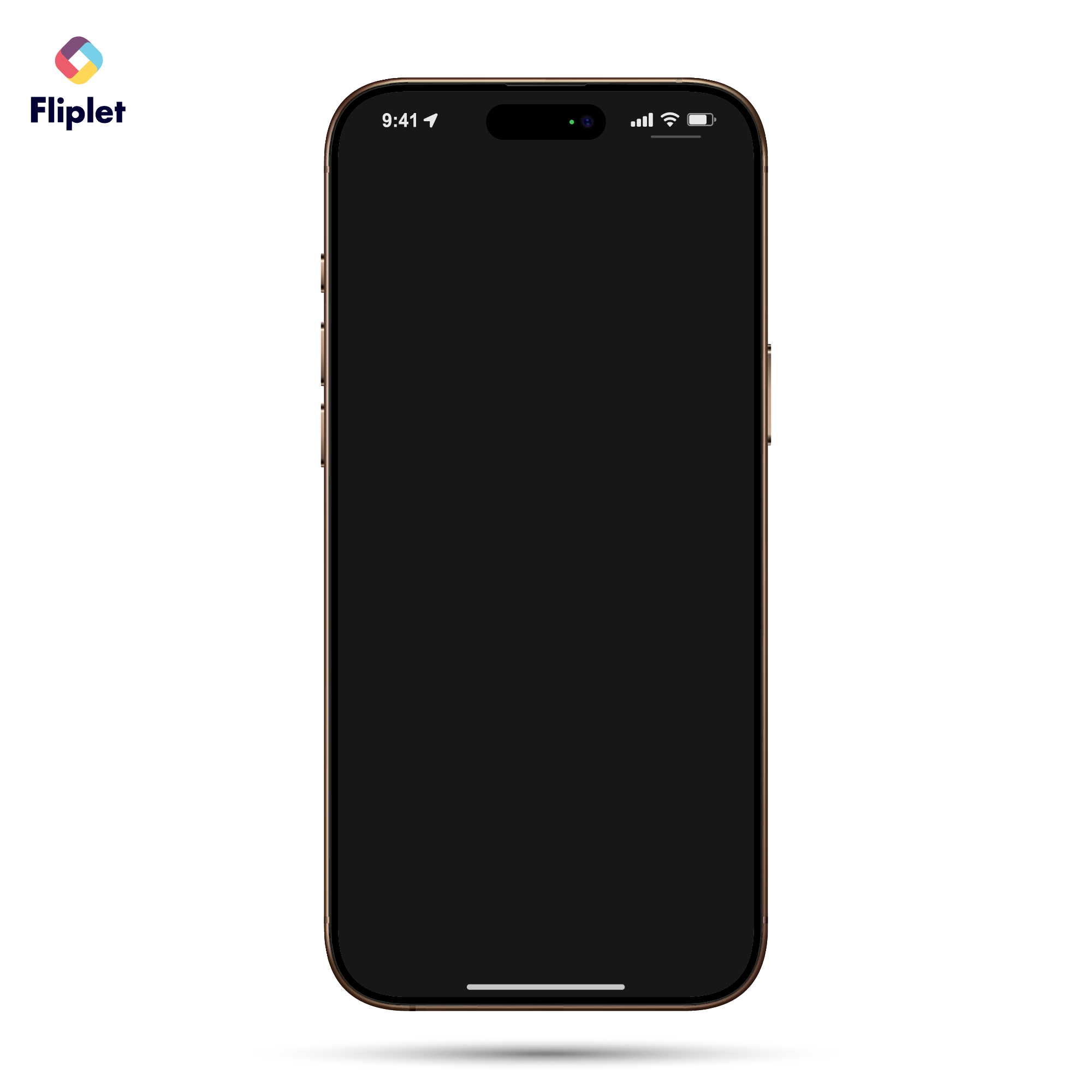
iPhone Device Mockup
Use this mockup to showcase your event app on a mobile screen in social posts, presentations, or emails.
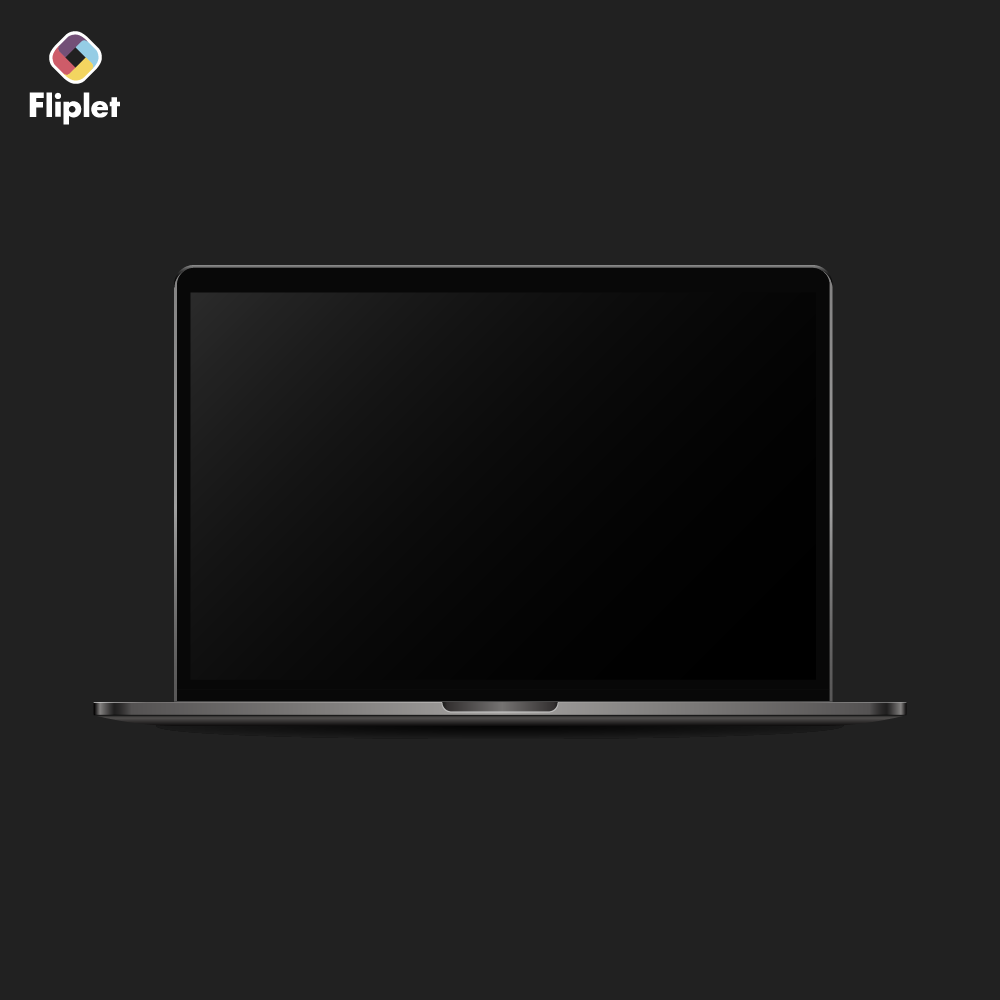
MacBook Mockup
Show your web or desktop view of the app in presentations or promo images.
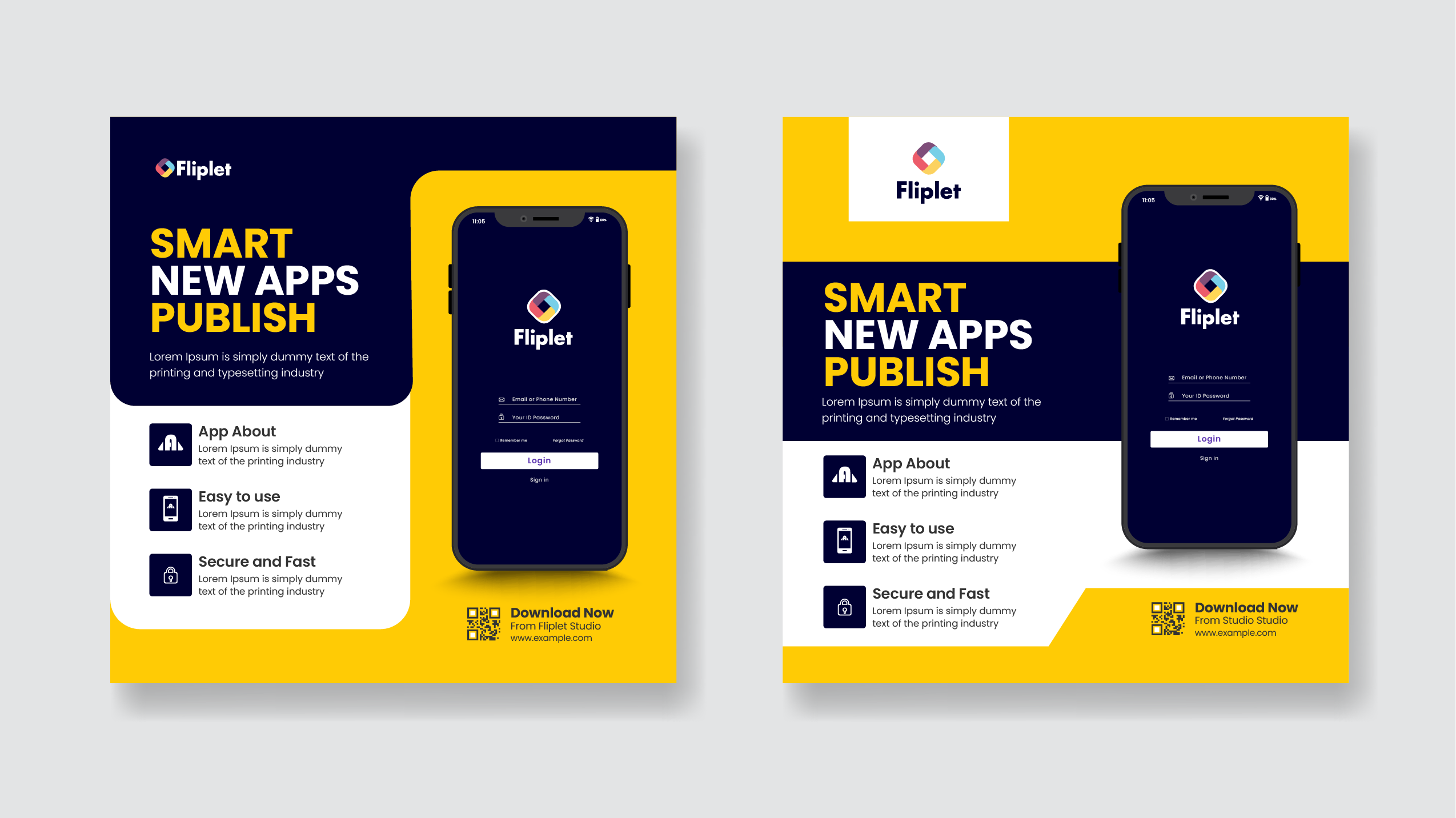
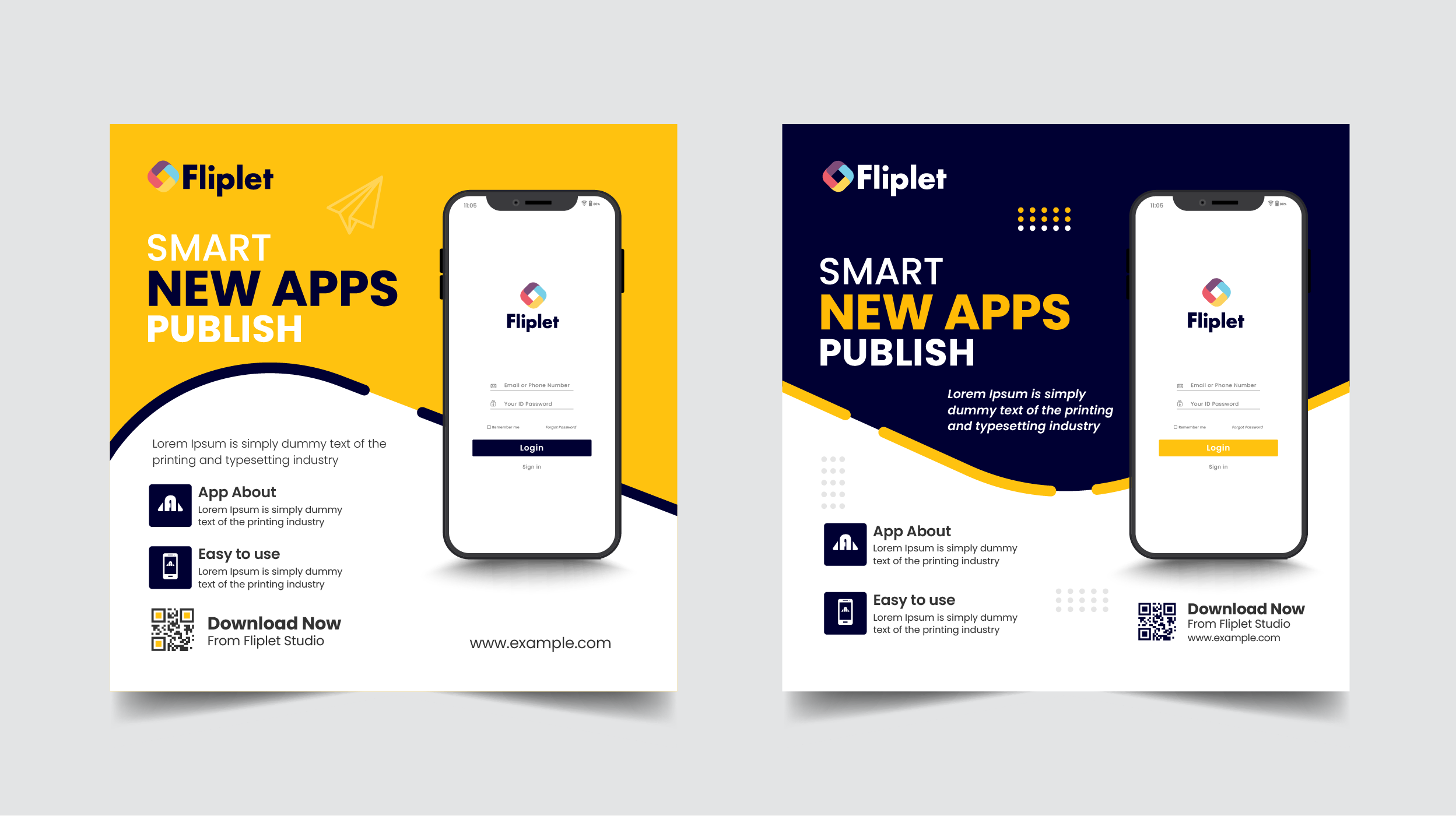
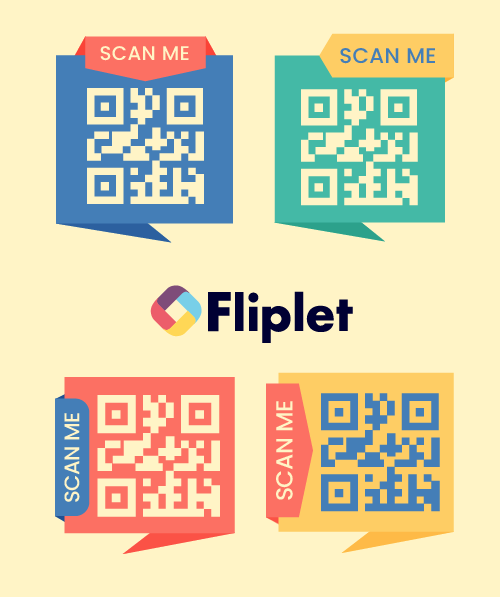
QR Code Frame 1
Templates for posters, slides, or signage. Include space for event name and “Scan to access the app.”
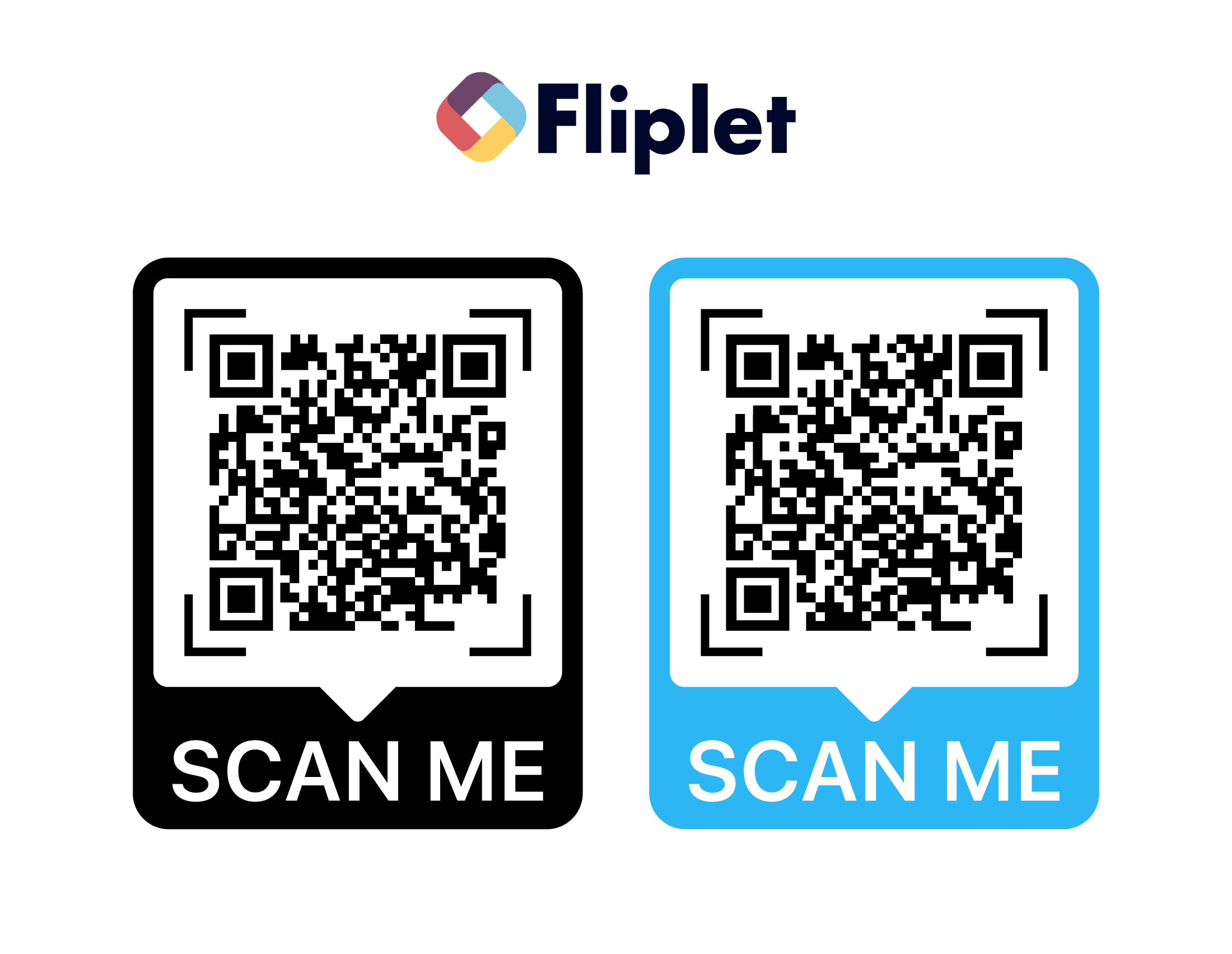
QR Code Frame 2
Templates for posters, slides, or signage. Include space for event name and “Scan to access the app.”
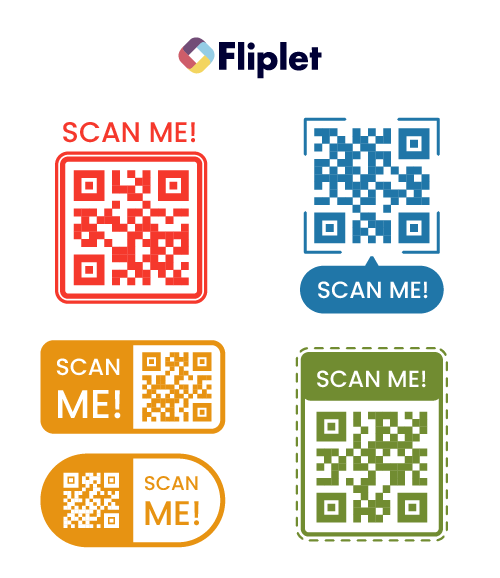
QR Code Frame 3
Templates for posters, slides, or signage. Include space for event name and “Scan to access the app.”
Download the Full Asset Bundle
Download all templates and mockups together in one ZIP file.
How to Edit the Files
All visuals are provided in EPS format. You can edit them using any of these tools:
- Canva – upload the EPS and replace text, QR codes, or screenshots.
- Adobe Illustrator – full control over layers, colors, and text.
- Figma or Photopea – import EPS files and make quick edits online.
When editing, replace placeholders like [Event Name], [App QR Code], and [App Store Links] with your own details, then export as PNG or JPG for social sharing, or PDF for printing.
Tip: Keep exports at 1080px or higher for digital use, or 300 DPI for print to ensure professional quality.
Related Articles