Access and manage event details, documents, and news updates.
This section covers how attendees view event information, browse documents, and read news, as well as how admins create and manage that content. Admin tools include AI-powered content and image generation for event information pages.
Contents
Manage Event Info
Role: Admin
The manage event info screen lets admins create and edit event information pages with AI-powered content assistance. You can generate professional event descriptions using AI text generation and create custom images using AI image generation, making it fast to produce polished event content.
- Create and edit event information pages with rich text content
- Use AI Content Generation to automatically write event descriptions from titles and key details
- Use AI Image Generation to create event-themed images from text prompts
- Preview generated content before publishing
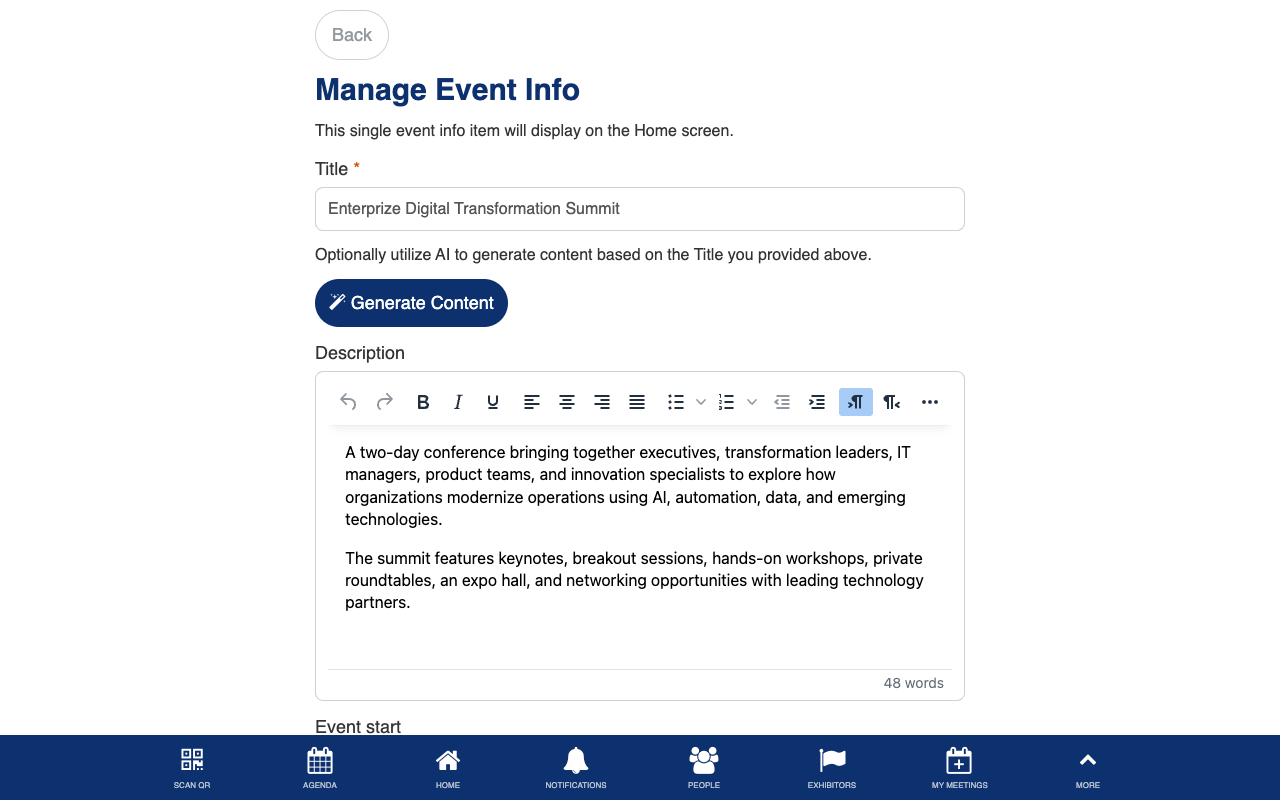
Custom AI-powered content and image generation for event information pages.
Documents
Role: All Users
The documents screen displays all event-related files and resources in a browsable list. You can view and download documents such as schedules, maps, guides, and other reference materials shared by the event organizers.
- Browse all available event documents
- Tap any document to view or download it
- Search and filter documents by name or category
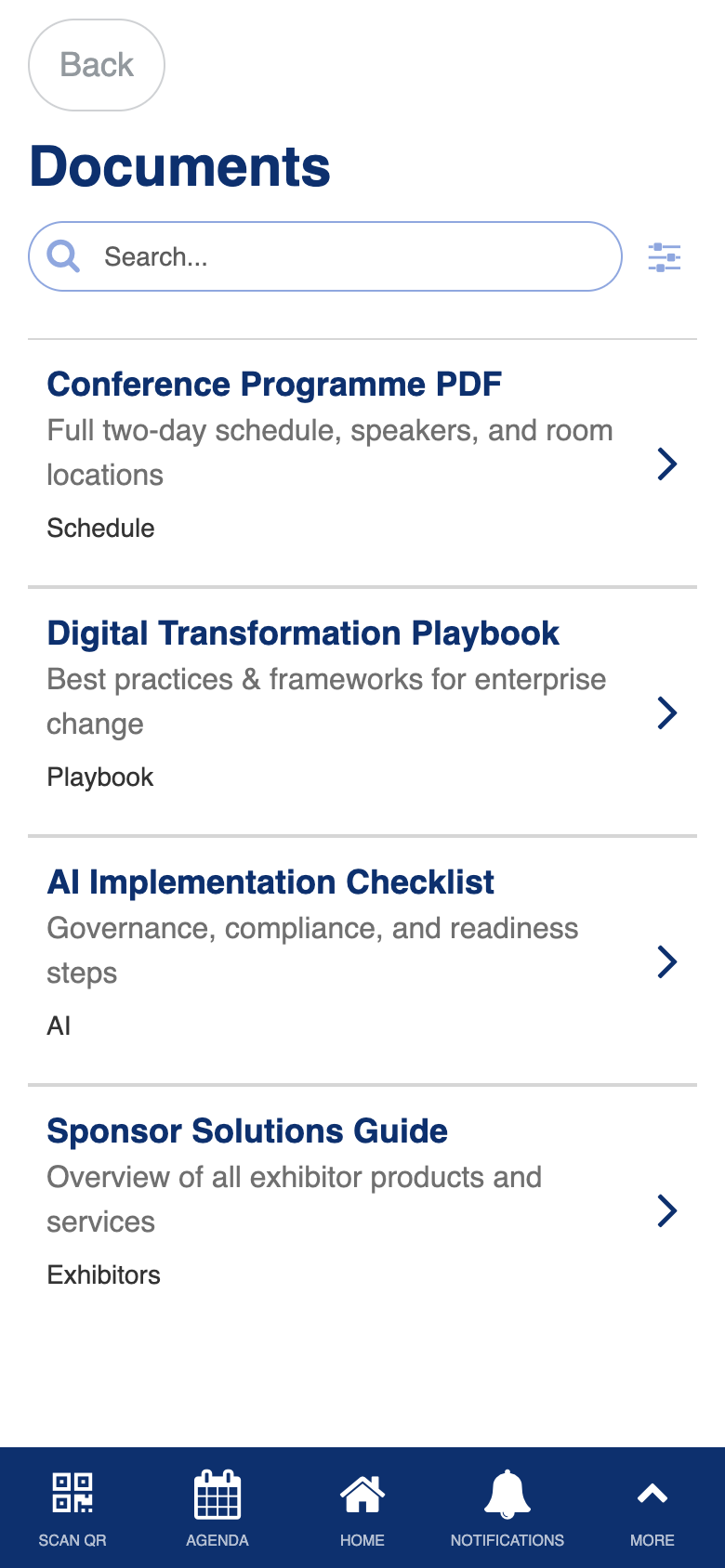
Uses the standard List from Data Source component.
Manage Documents
Role: Admin
The manage documents screen lets admins add, edit, and remove event documents. You can upload new files and update document titles and descriptions to keep the document library current.
- Add new documents by uploading files
- Edit document titles and descriptions
- Remove outdated documents from the library
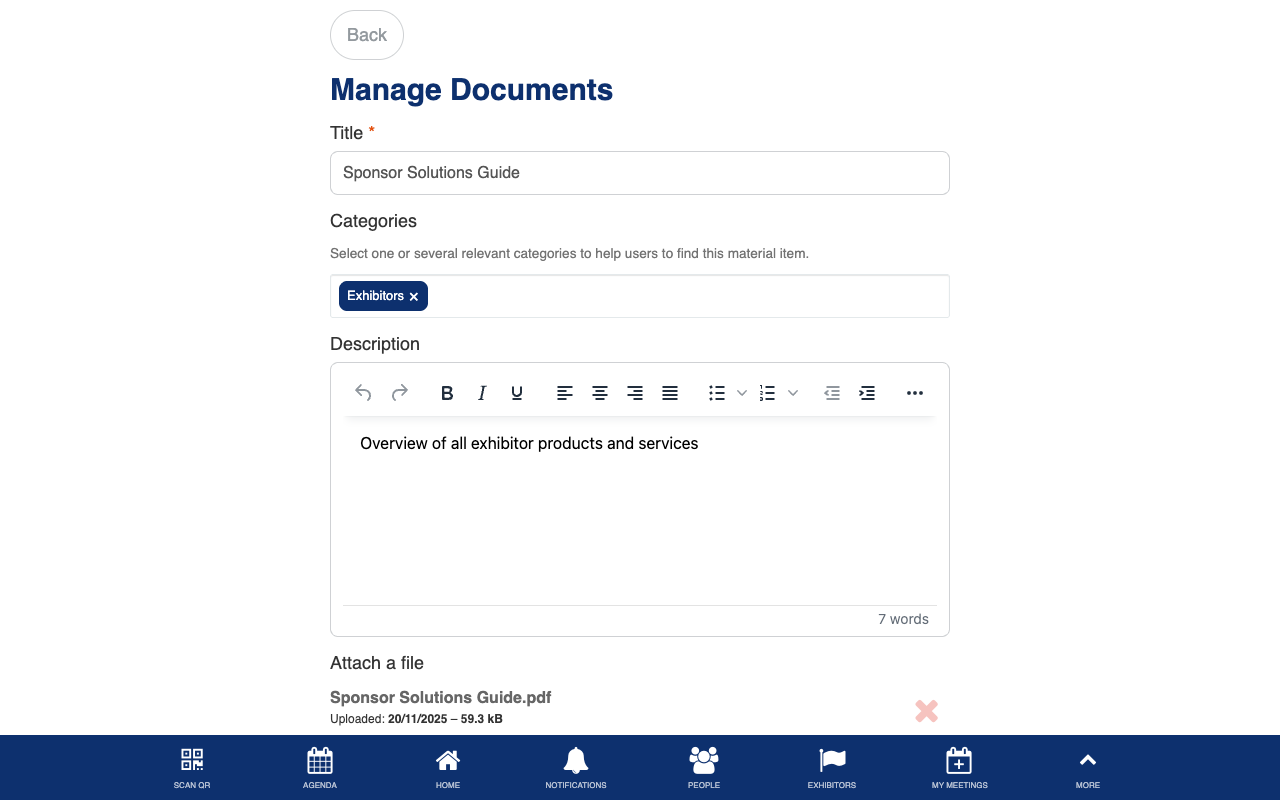
Uses the standard Form Builder component.
News Feed
Role: All Users
The news feed displays the latest event announcements, updates, and articles. You can browse news items chronologically and tap any item to read its full content, keeping you informed about event happenings in real time.
- Browse news articles and announcements sorted by date
- Tap any news item to read the full article
- Stay updated on event changes, highlights, and announcements
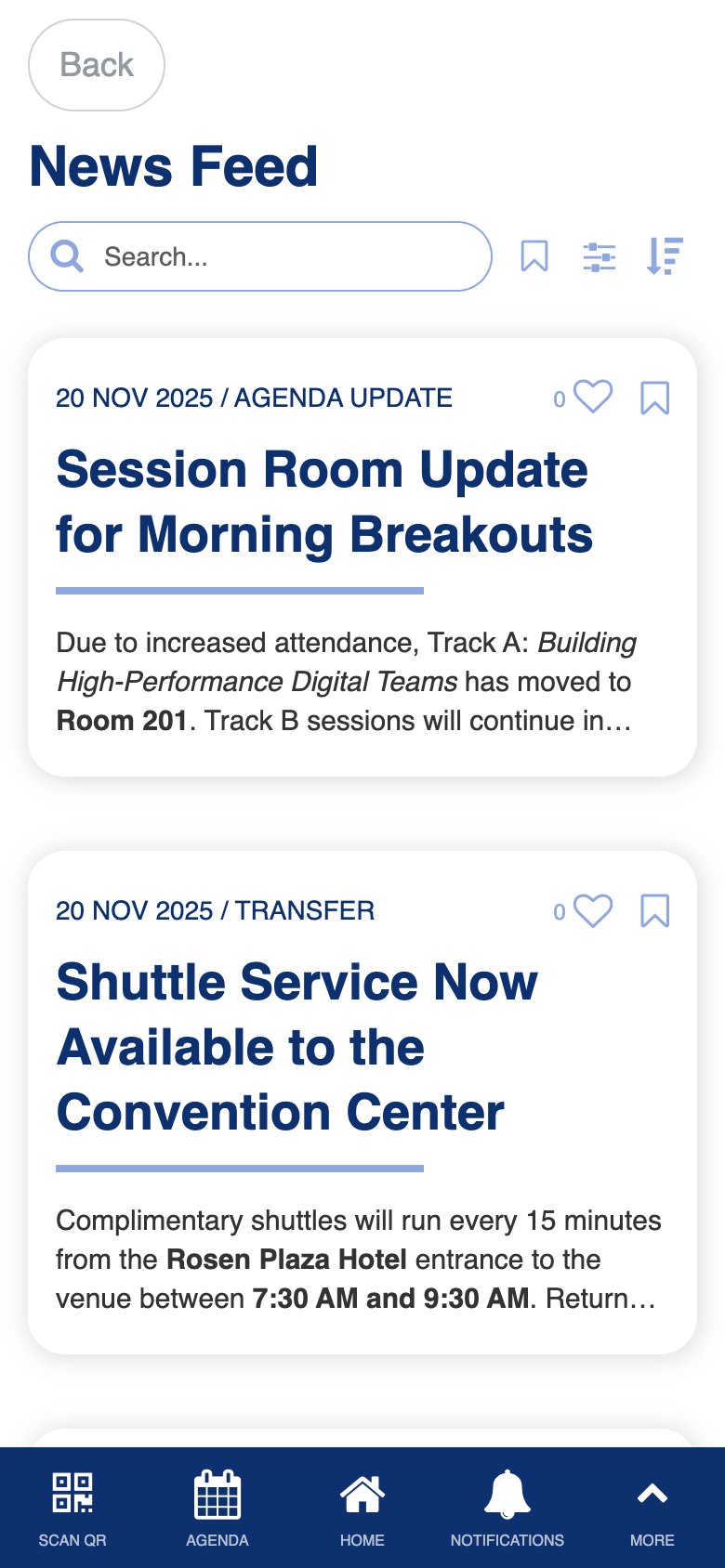
Uses the standard List from Data Source component.
Manage News Feed
Role: Admin
The manage news feed screen lets admins create, edit, and publish news articles and announcements. You can write content, add images, and control when news items appear in the feed.
- Create new news articles with titles, content, and images
- Edit existing articles to update information
- Manage the publication status of news items
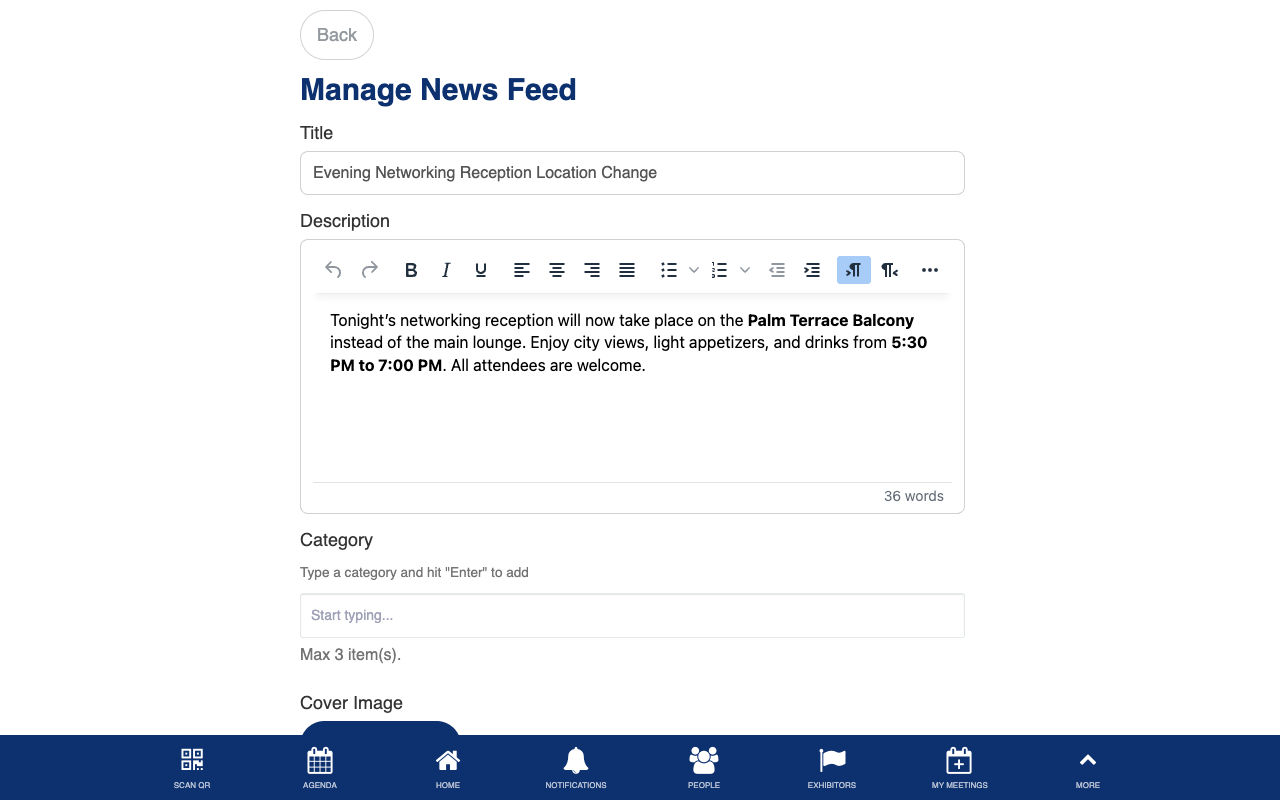
Uses the standard Form Builder component.