Manage your sessions, view feedback, and handle Q&A as a speaker.
This section covers the dedicated tools available to speakers. The speaker portal provides a centralized hub for managing sessions, reviewing audience feedback, and monitoring live Q&A, all filtered to the sessions you are presenting.
Contents
Speaker Portal
Role: Speaker
The speaker portal is your personal dashboard for managing everything related to your sessions. A session selector lets you choose which of your assigned sessions to work with, then the navigation menu provides quick access to session management, live polls, audience questions, and survey results. If you have no assigned sessions, a message lets you know.
- Select any of your assigned sessions from the dropdown to set the context
- Navigate to session management, polls, questions, and survey results for the selected session
- Each navigation item opens the relevant tool pre-filtered to your chosen session
- A clear message is shown if no sessions are assigned to you
- The dropdown is populated automatically from the agenda based on your speaker assignment
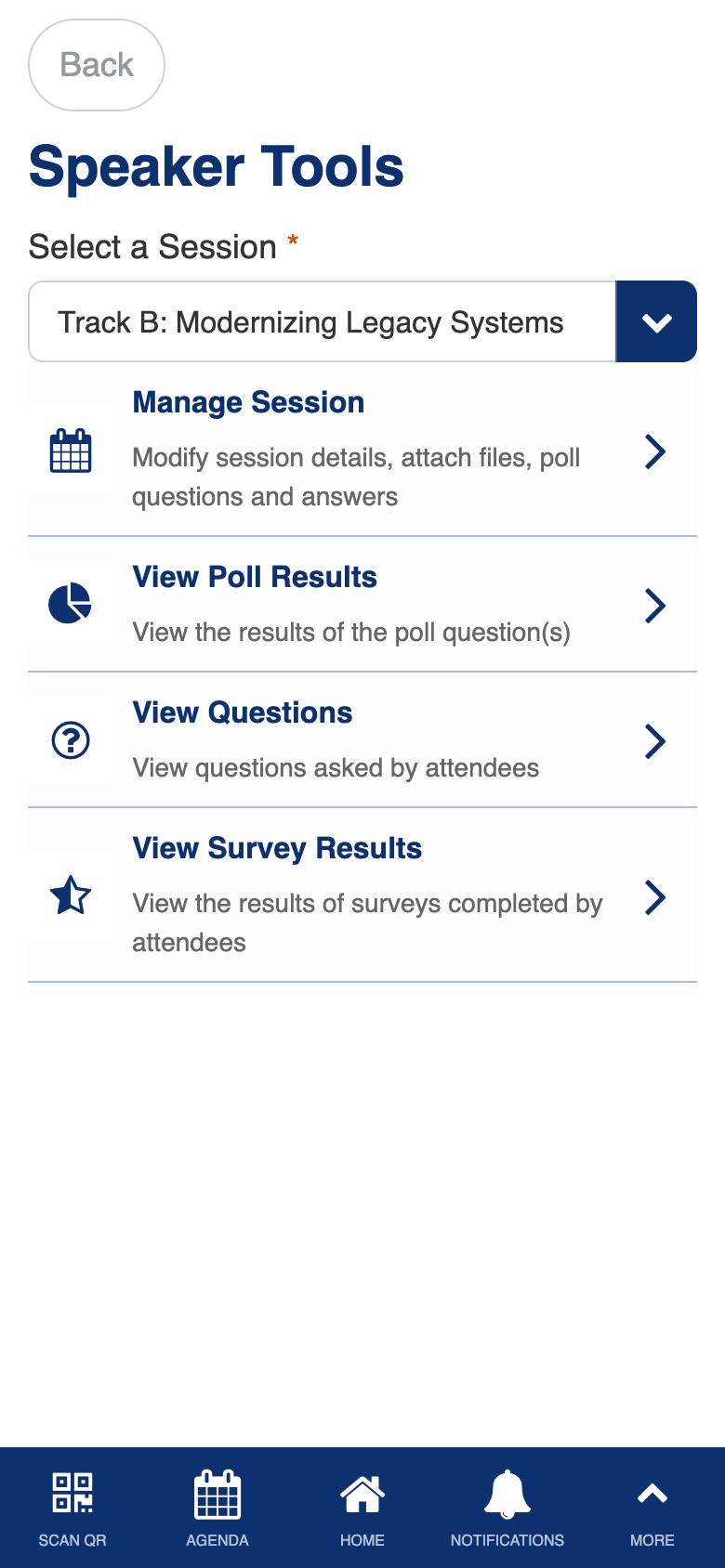
Custom session selector with context-aware navigation to speaker-specific tools.
Speaker — Manage Agenda
Role: Speaker
The speaker manage agenda screen shows your sessions with their full details. You can review session information, check the schedule, and verify speaker assignments for the sessions you are presenting. This is the speaker’s view of the agenda, filtered to show only your sessions.
- View all sessions assigned to you with titles, dates, times, and locations
- Review session details including descriptions and co-speaker assignments
- Verify your schedule at a glance across all event days
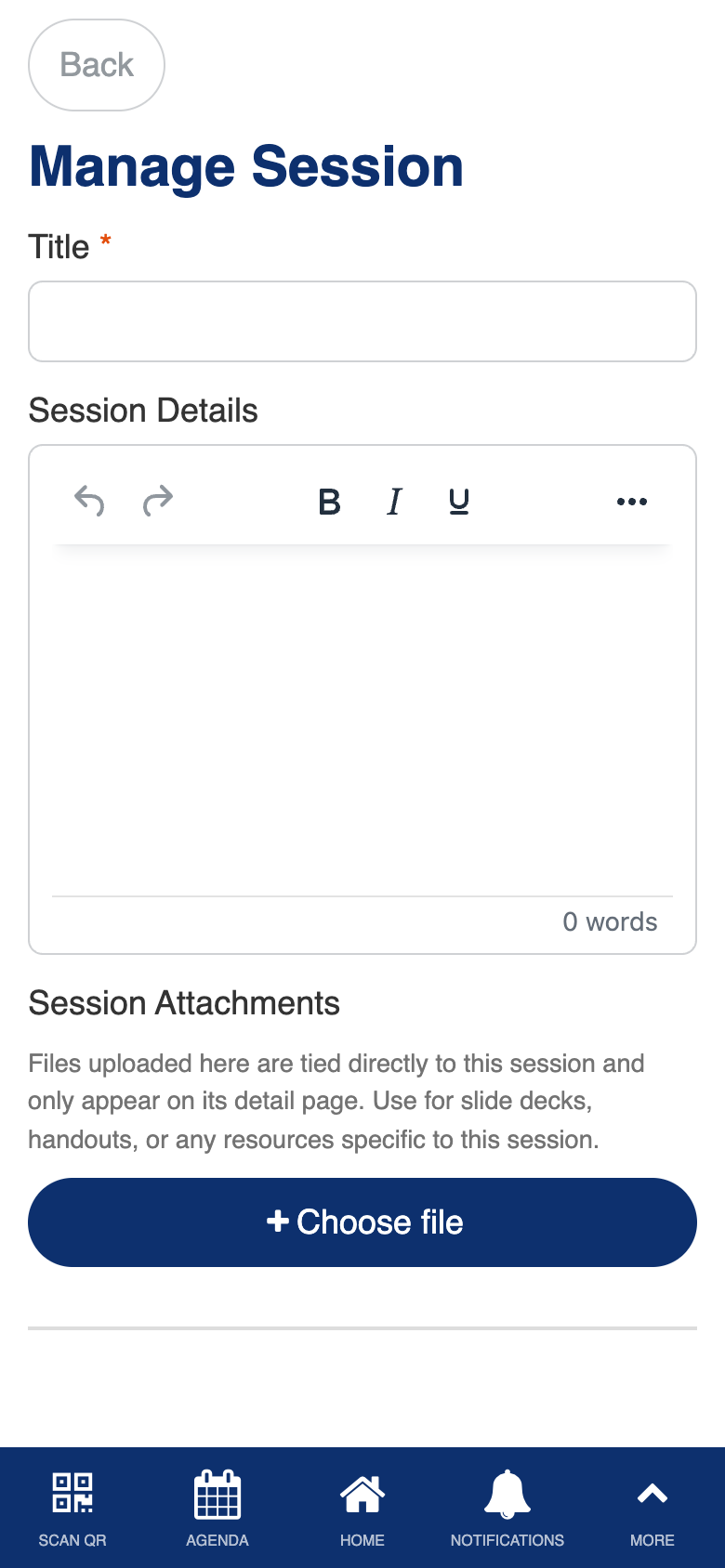
Uses the standard List from Data Source component, filtered to the speaker’s sessions.
Speaker — Session Survey Results
Role: Speaker
The session survey results screen shows the feedback submitted by attendees who attended your sessions. You can review individual responses, see ratings, and read comments to understand how your presentation was received and identify areas for improvement.
- View feedback submissions from attendees who attended your sessions
- Review individual ratings and written comments
- Understand audience reception and identify areas for improvement
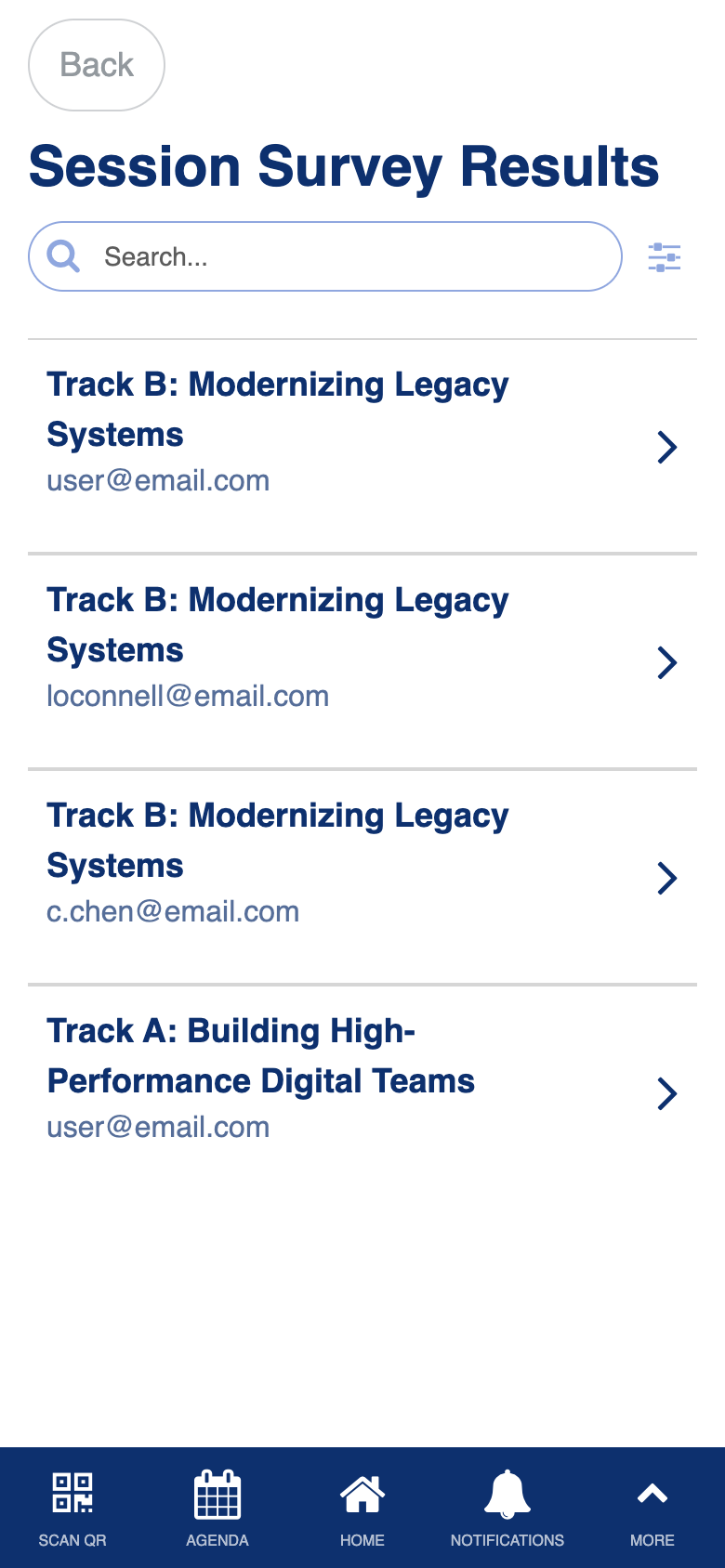
Uses the standard List from Data Source component, filtered to the speaker’s session feedback.
Speaker — Session Questions
Role: Speaker
The session questions screen shows all Q&A submissions from attendees during your sessions. You can review questions in real time during a live session, identify common themes, and prepare responses for audience interaction.
- View all questions submitted by attendees for your sessions
- Monitor questions in real time during live sessions
- Review past session questions for post-event follow-up
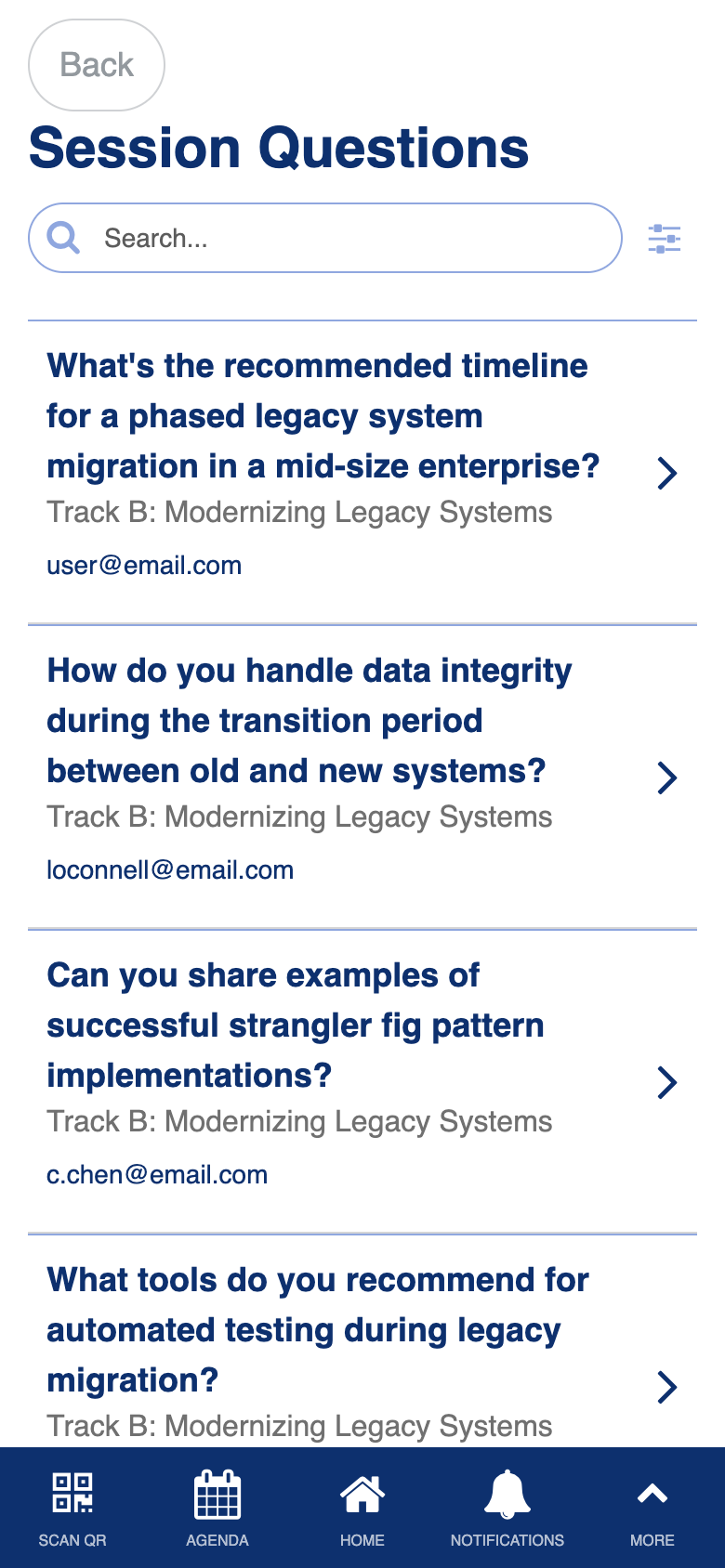
Uses the standard List from Data Source component, filtered to the speaker’s session questions.