Send a one-off email to all speakers, all reviewers, or a specific list of recipients.
The Send Communications screen lets you broadcast an ad-hoc message to the portal’s user base. Pick an audience, compose your subject and body, and the portal delivers the email to every recipient. This is for ad-hoc messages that sit outside the automatic decision emails described in Administering the Portal.
Contents
Send Communications
Role: Admin
The audience selector at the top of the form decides who receives the email. Choose All Speakers to email every user with the Speaker role, All Reviewers to email every user with the Reviewer role, or Emails to type in a specific list of addresses. The Emails field appears only when you pick that option, so the form stays focused.
- Pick an audience: All Speakers, All Reviewers, or Emails
- The Emails field only appears when Emails is selected
- Recipients are resolved from the portal’s user data each time you send (so a newly added speaker is automatically included in the next “All Speakers” broadcast)
- Invalid email addresses block the send with a clear validation message
- Sending stops with a notice if no recipients match (for example, no users currently have the Reviewer role)
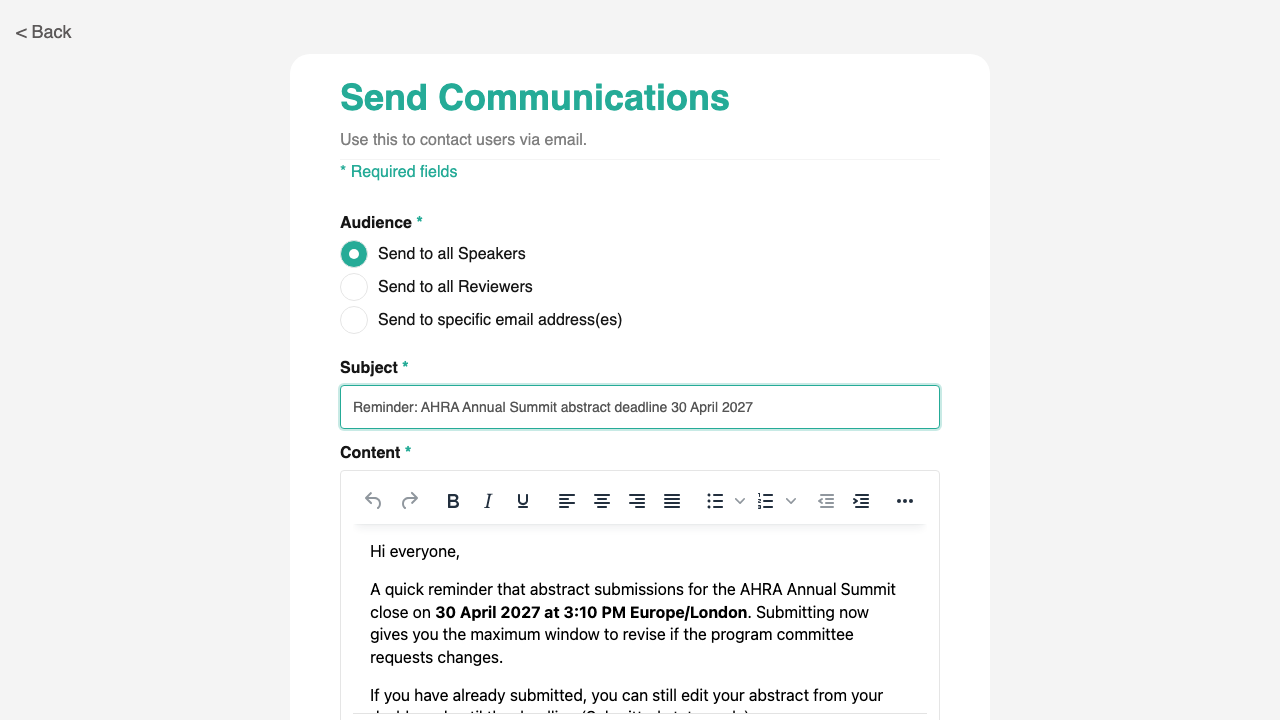
Uses the standard Form Builder component. Custom audience selector, conditional Emails field, and batch email send.
Composing subject + HTML body
Role: Admin
The subject and body fields work like a normal email composer. The subject is plain text. The body accepts rich text formatting so you can use headings, bold, lists, and links to format your message clearly. When you send, every recipient receives the same message individually (they do not see each other’s email addresses).
- Plain-text subject line
- Rich-text body with formatting, lists, and links
- Each recipient receives the email individually, not as a CC list
- Validation blocks sending if any address in the Emails list is malformed