Find your way into the portal: read the deadline, sign in, and land on the right dashboard for your role.
The Abstract Management portal opens to a welcome screen with the conference title, current submission deadline, and quick links for speakers, reviewers, and admins. Anyone can read the home page and start a submission without an account; logged-in users are routed straight to their role-appropriate dashboard.
Contents
Home / welcome page
Role: All users
The home screen is the entry point for every visitor. It shows the event title, the current submission deadline (in your local timezone), a notice for whether submissions are open or closed, and a FAQ accordion with the most common questions about word limits, figures, required elements, prior publication, and fees. Call-to-action buttons adapt to your sign-in state and role.
- Read the live submission deadline, displayed in your local timezone
- See a clear “Submissions open” or “Submissions closed” banner
- Start a new abstract submission with the Submit Abstract button (when submissions are open)
- Open your dashboard with the Review / Manage Abstracts button (admins, reviewers, and speakers each land on their own dashboard)
- Browse FAQs in the accordion for guidance on word counts, attachments, prior publication, and fees
- Use the contact panel to reach the organizing committee
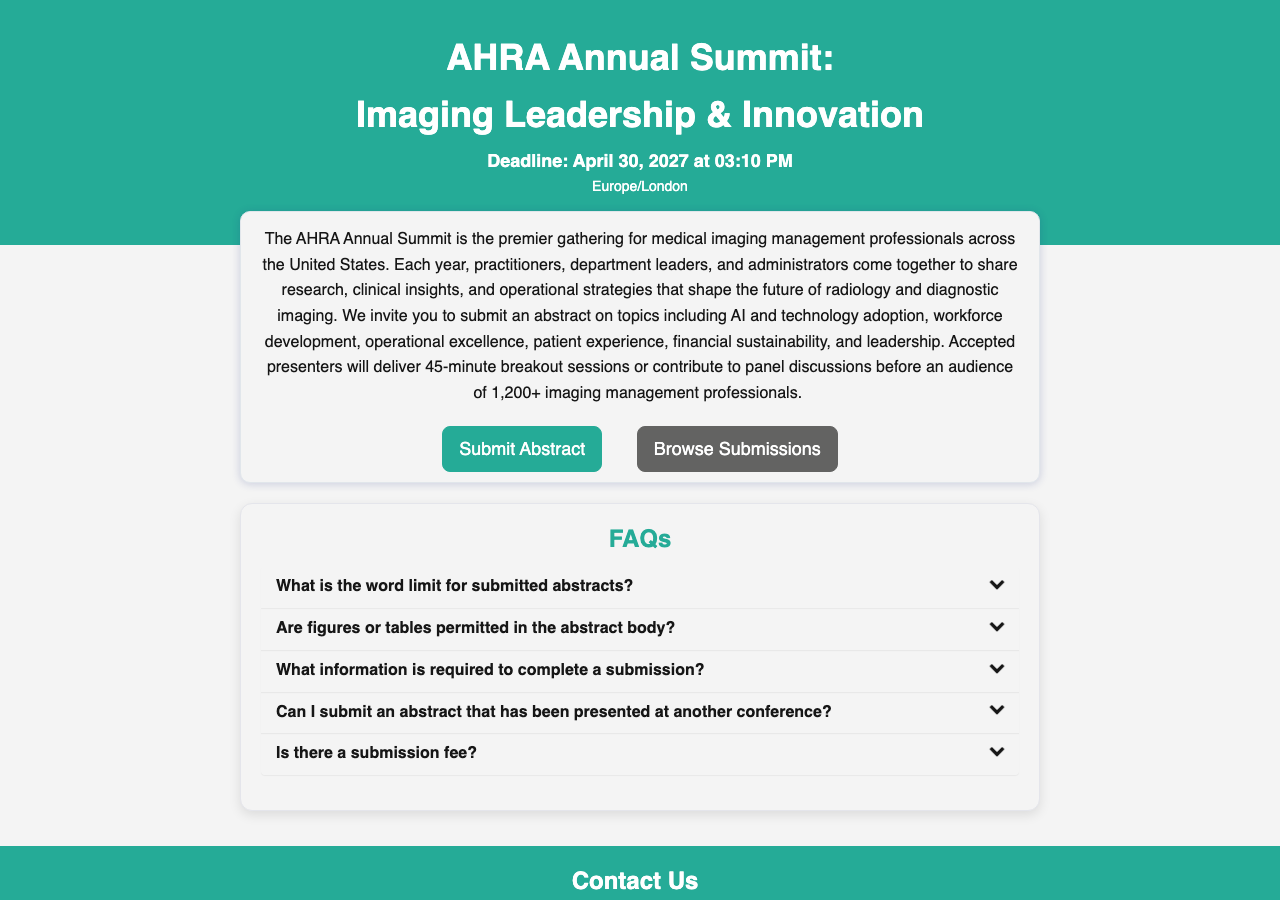
Uses the standard Accordion component for the FAQ section. Custom welcome banner with role-aware action buttons and a live deadline display.
Workflow: For the complete end-to-end speaker journey, see How to submit an abstract.
Logging in
Role: All users
Sign in with your email address. You receive a one-time PIN by email, enter it, and the portal authenticates you without a password. After signing in, you are sent to the Post Login router, which decides where you go next based on your role.
- No password to remember: a PIN is emailed each time you sign in
- Works for every role (Speaker, Reviewer, Admin)
- Full-screen layout focuses you on signing in
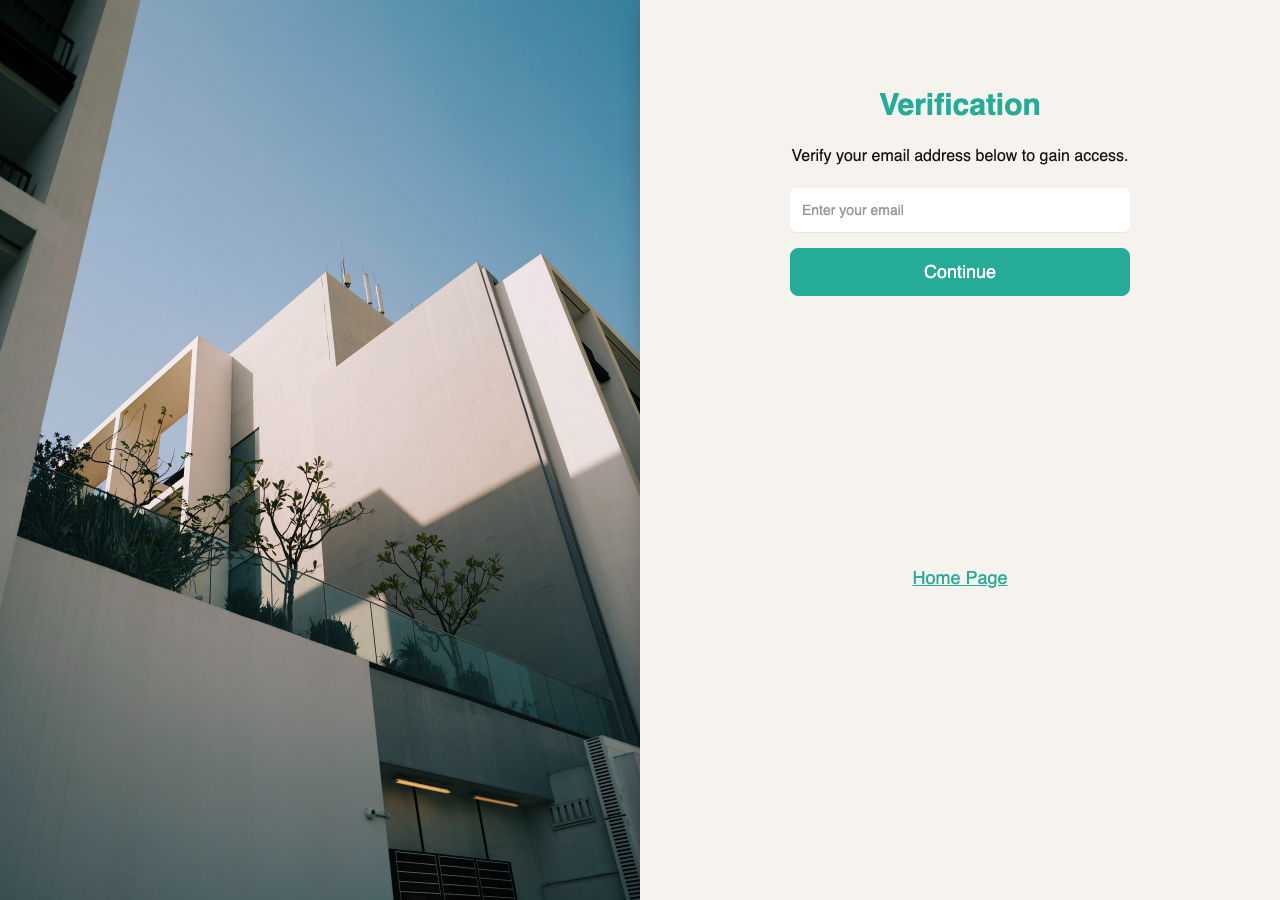
Uses the standard Login component (email validation). Configured with the Post Login screen as the success destination so role-based routing runs immediately after authentication.
Role-based redirection after login
Role: All users
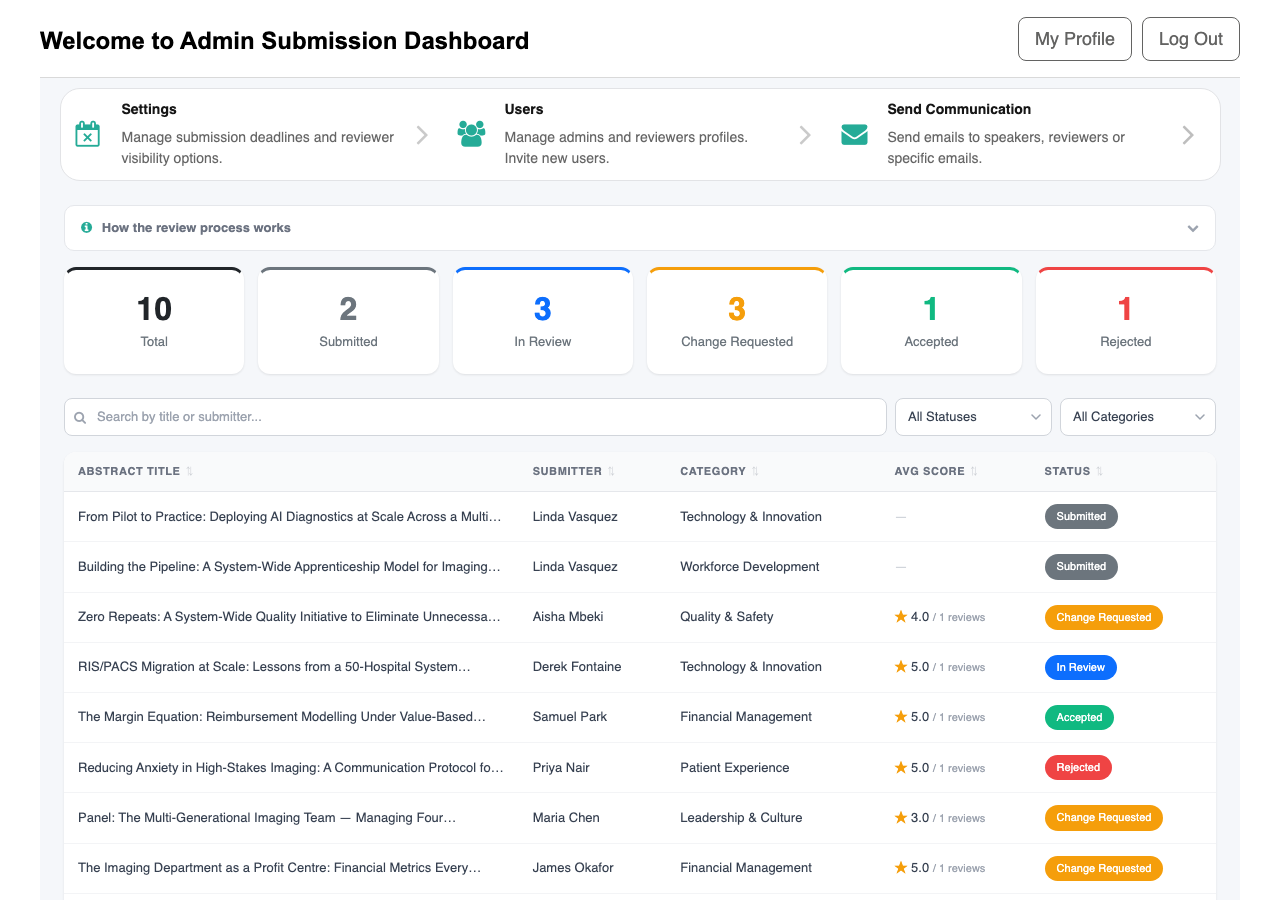
When you sign in, a behind-the-scenes router reads your role from your user record and sends you to the dashboard that fits your job in the portal. Admins land on the Admin Dashboard, reviewers land on the Reviewer Submission Dashboard filtered to Pending Review, and speakers land on the Speaker Submissions dashboard. If your account has multiple roles, the highest-privilege role wins (Admin beats Reviewer beats Speaker).
- Admin accounts route to the Admin Dashboard
- Reviewer accounts route to the Reviewer Submission Dashboard, pre-filtered to abstracts awaiting their review
- Speaker accounts route to the Speaker Submissions dashboard with their own abstracts
- Users without a recognised role return to the home page
Custom routing screen with no user interface. Reads your role on load and navigates to the correct dashboard before you see it.
Note: A single user record can hold more than one role (for example, a committee member who also presents). The routing rule above decides which dashboard opens first; you can navigate to your other dashboards from the home screen.