Earn awards, climb the leaderboard, and complete the scavenger hunt.
This section covers the app’s gamification features: achievement awards that reward participation across the app, and a QR-based scavenger hunt that challenges you to explore the venue. Admins manage award definitions and scavenger hunt questions.
Contents
- Awards
- Awards List
- Manage Awards
- Scavenger Hunt
- Scavenger Hunt Submission
- Scavenger Hunt Items
- Manage Scavenger Hunt
Awards
Role: All Users
The awards screen is the hub of the app’s gamification system. You can view your personal contributor and commenter scores, browse all available achievement badges to see which ones you have unlocked, and compete on a dual-category leaderboard. Awards are earned automatically by participating in app activities such as posting on the social wall, commenting, liking content, and completing forms.
- View your personal contributor score and commenter score at a glance
- Browse all achievement badges in a visual grid, with unlocked badges at full brightness and locked badges dimmed
- The badge accordion auto-expands when you have uncollected awards to draw your attention
- Tap any badge to see its name and how to earn it
- Switch between the Contributors and Commenters leaderboard tabs to see rankings in each category
- Tap any leaderboard entry to view that person’s profile
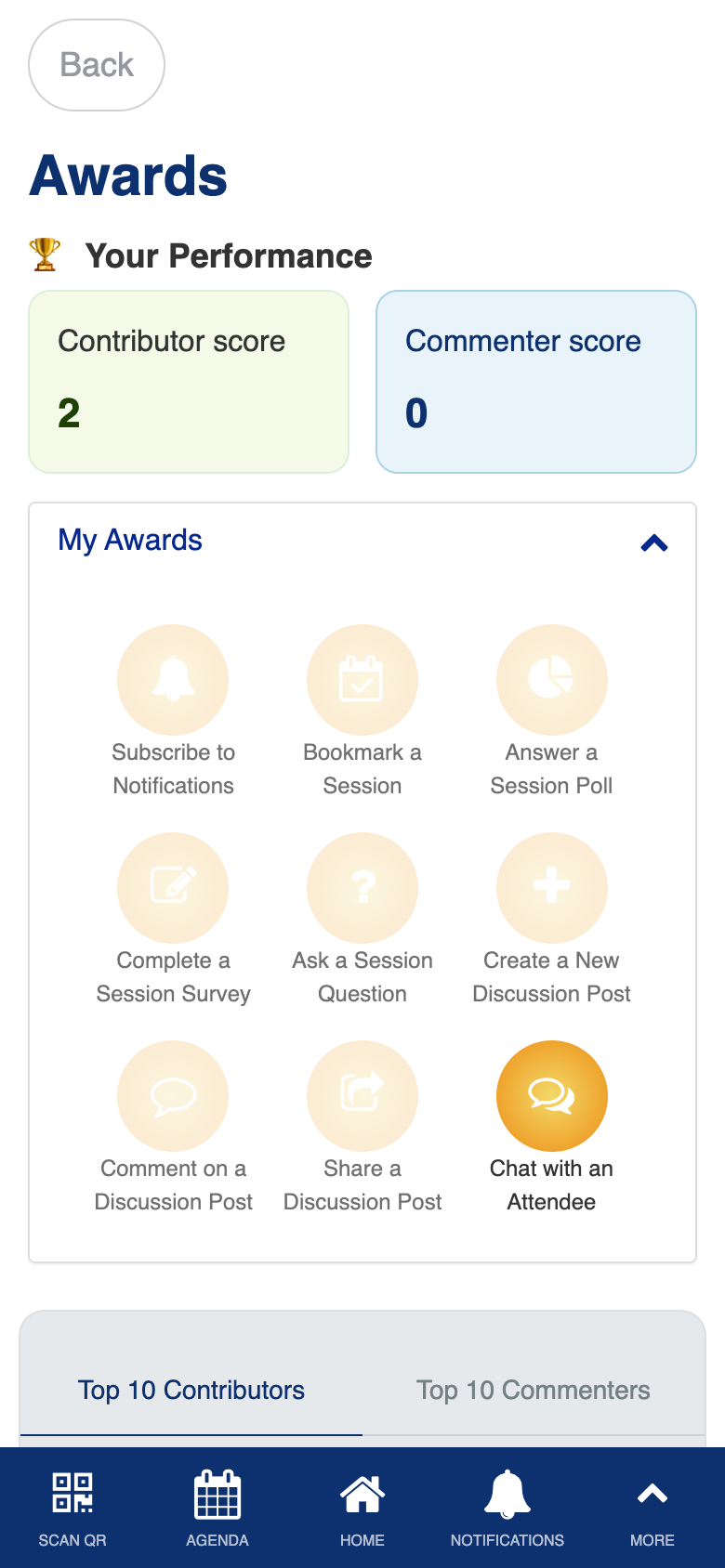
Custom gamification engine with dual leaderboards, achievement badge grid, and automatic scoring from app-wide activity.
Awards List
Role: Admin
The awards list screen gives admins a view of all configured awards with their badge icons, gradient colors, and criteria. Each list item shows a preview of how the badge looks to attendees, so you can verify the visual appearance before the event goes live.
- View all configured awards with visual badge previews showing gradient colors and icons
- See each award’s criteria and description in the detail view
- Navigate to the edit form for any award to make changes
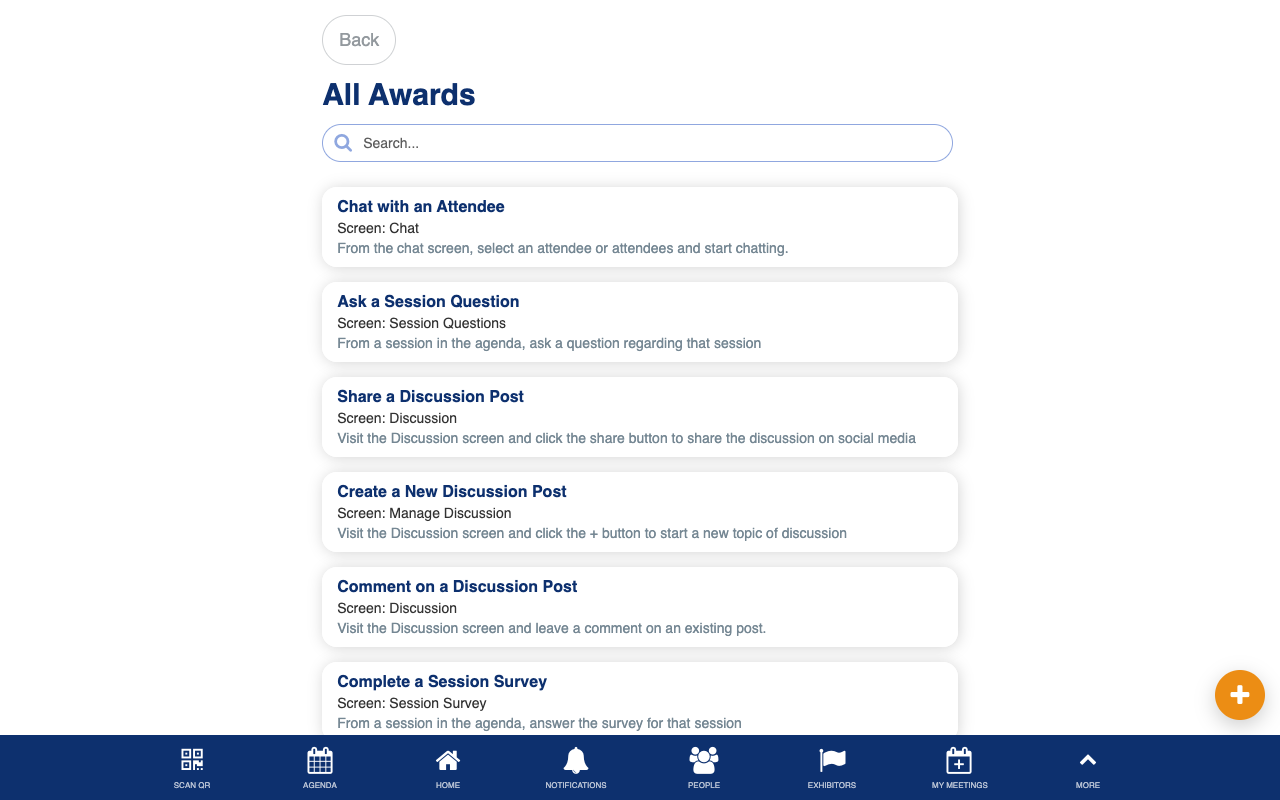
Uses the standard List from Data Source component. Custom badge icon rendering.
Manage Awards
Role: Admin
The manage awards screen lets admins create and edit award definitions for the gamification system. You specify which screen and user action triggers the award, and the system automatically generates a stable identifier. The screen name dropdown is populated with all app screens so you can connect awards to the correct triggers.
- Create new awards by specifying the trigger screen and action type
- Edit existing award definitions including icons, colors, and descriptions
- The screen name field is populated with all app screens automatically
- Award identifiers are auto-generated from the screen name and trigger for consistency
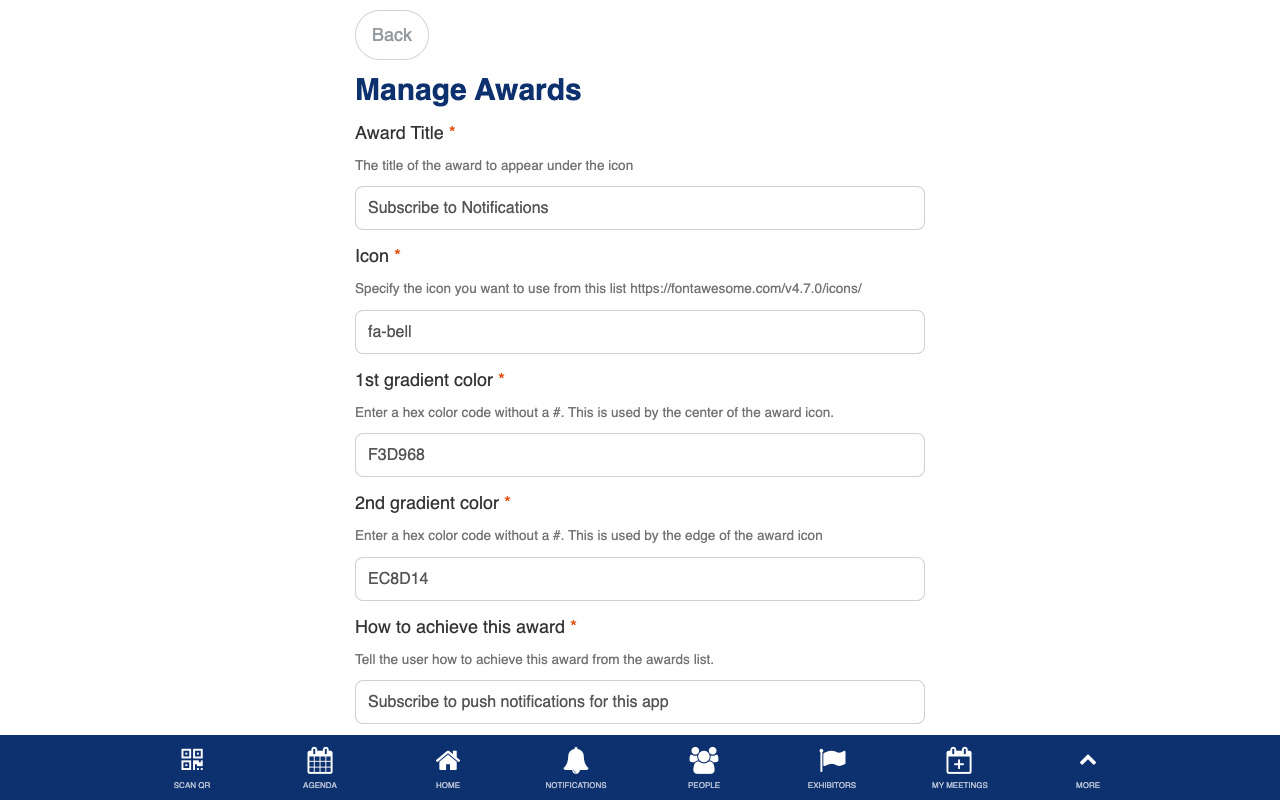
Custom award configuration with dynamic screen dropdown and auto-generated award identifiers.
Scavenger Hunt
Role: All Users
The scavenger hunt challenges you to find and scan QR codes placed around the venue. A progress stats card shows how many items you have found compared to the total, with an animated progress bar tracking your completion. Instructions are available in a collapsible accordion. When you find all items, a congratulations message celebrates your achievement.
- Read the hunt rules in a collapsible instructions accordion
- View your hunt progress with a visual stats card showing items found, total available, and remaining
- Watch the animated progress bar fill as you scan more items around the venue
- See a congratulations celebration when you complete the entire hunt
- Browse the list of items you have already found with their question text
- Tap Scan to open the QR scanner and find your next hunt item
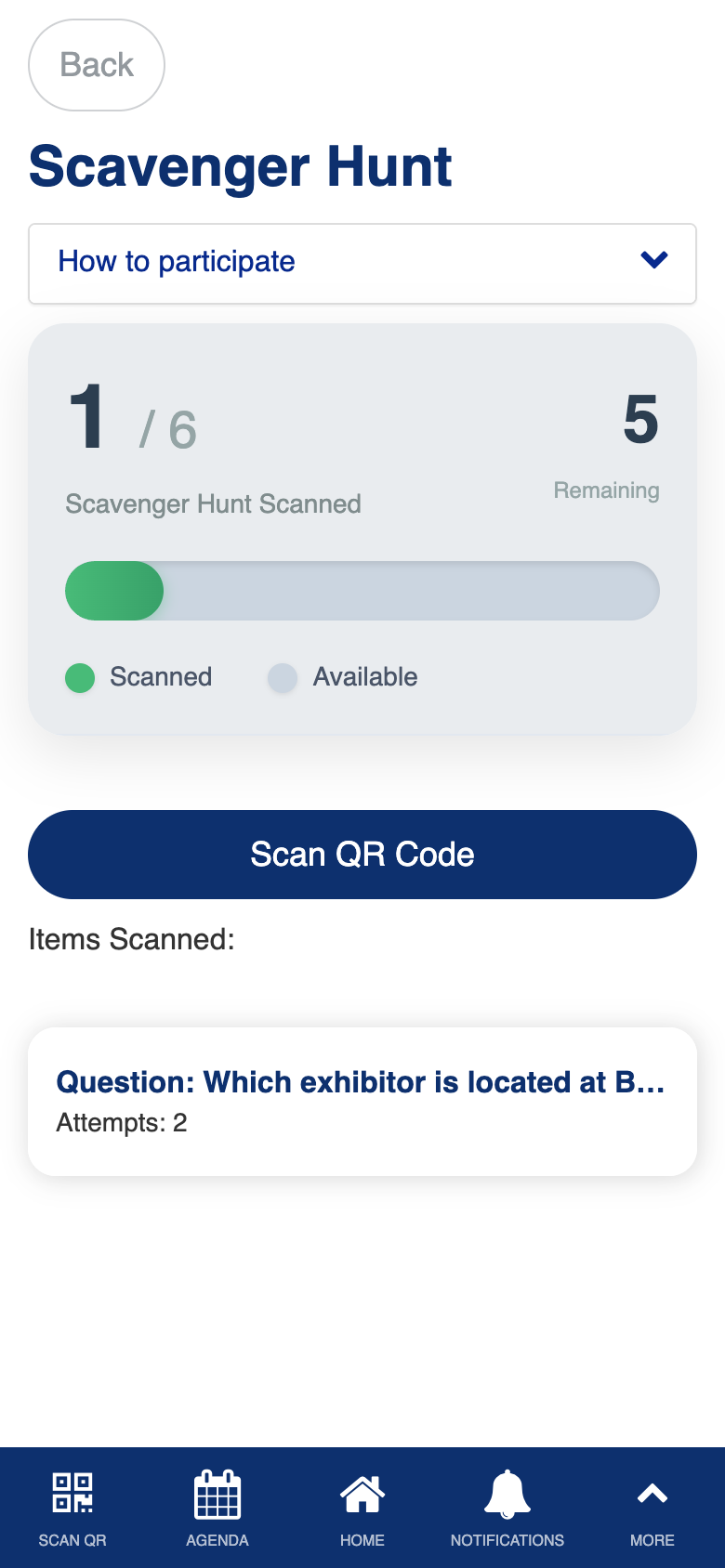
Custom progress tracking with animated stats card, completion celebration, and scanned items list.
Scavenger Hunt Submission
Role: All Users
After scanning a scavenger hunt QR code, this screen presents the trivia question for that item. Select your answer from the available options. A correct answer shows a celebratory success screen, while an incorrect answer gives you the chance to try again. Repeat scans of already-answered items are detected and acknowledged so you are not confused.
- Answer the trivia question presented after scanning a hunt QR code
- Select from multiple-choice answer options built dynamically from the question data
- See a success celebration when you answer correctly
- Try again if you select the wrong answer, with no penalty
- Already-answered items are detected and acknowledged on repeat scans
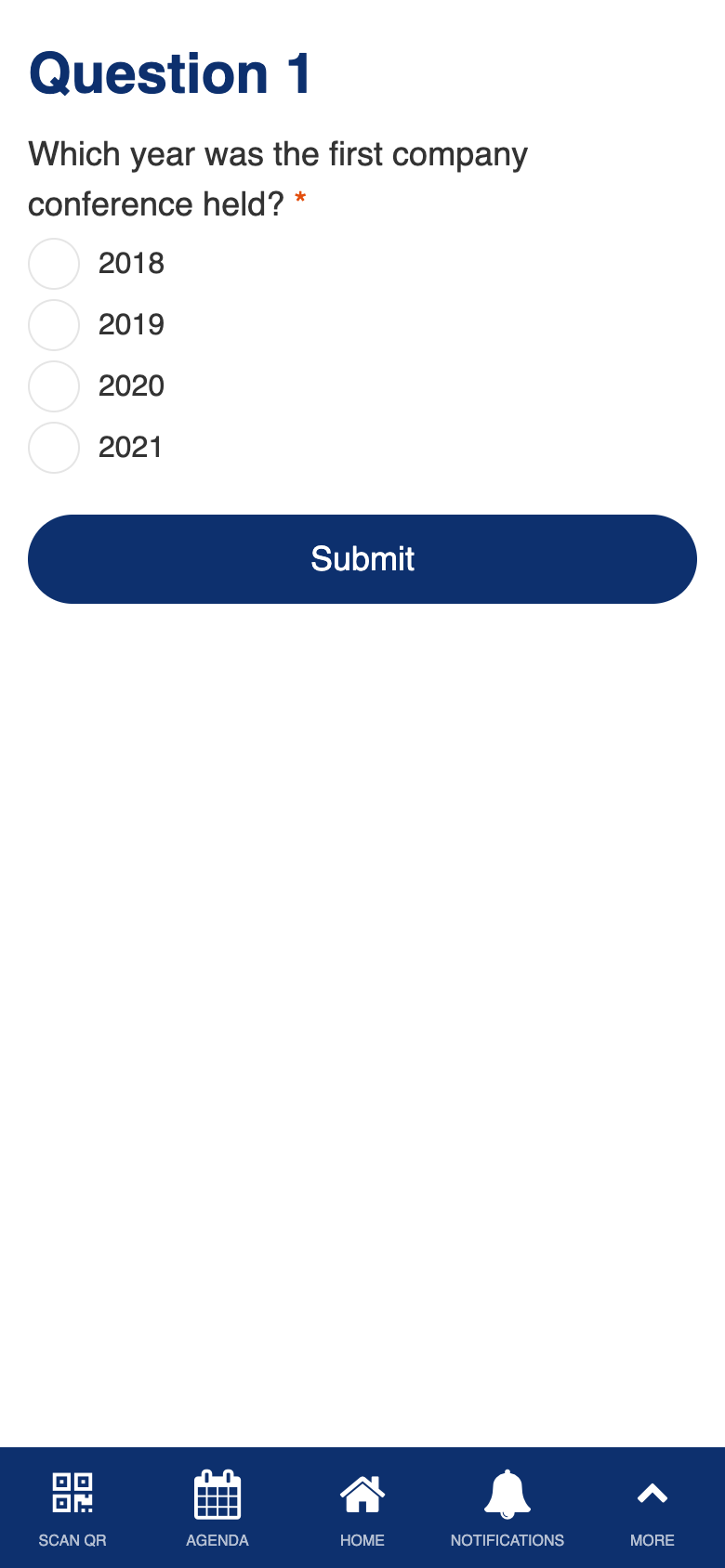
Custom dynamic form construction with answer validation, attempt tracking, and result modals.
Scavenger Hunt Items
Role: Admin
The scavenger hunt items screen shows all configured hunt questions in a list with their answers visible in the detail view. You can generate printable QR codes for individual items or bulk-generate a PDF of all QR codes at once, with options to download or email the PDF. Manual fallback codes are automatically created for every item.
- View all scavenger hunt questions with their answers displayed as a formatted list in the detail view
- Generate a printable QR code for any individual hunt item
- Bulk-generate QR codes for all items with a real-time progress indicator
- Download the QR code PDF for printing or email it to recipients
- Manual fallback codes are created automatically for every item
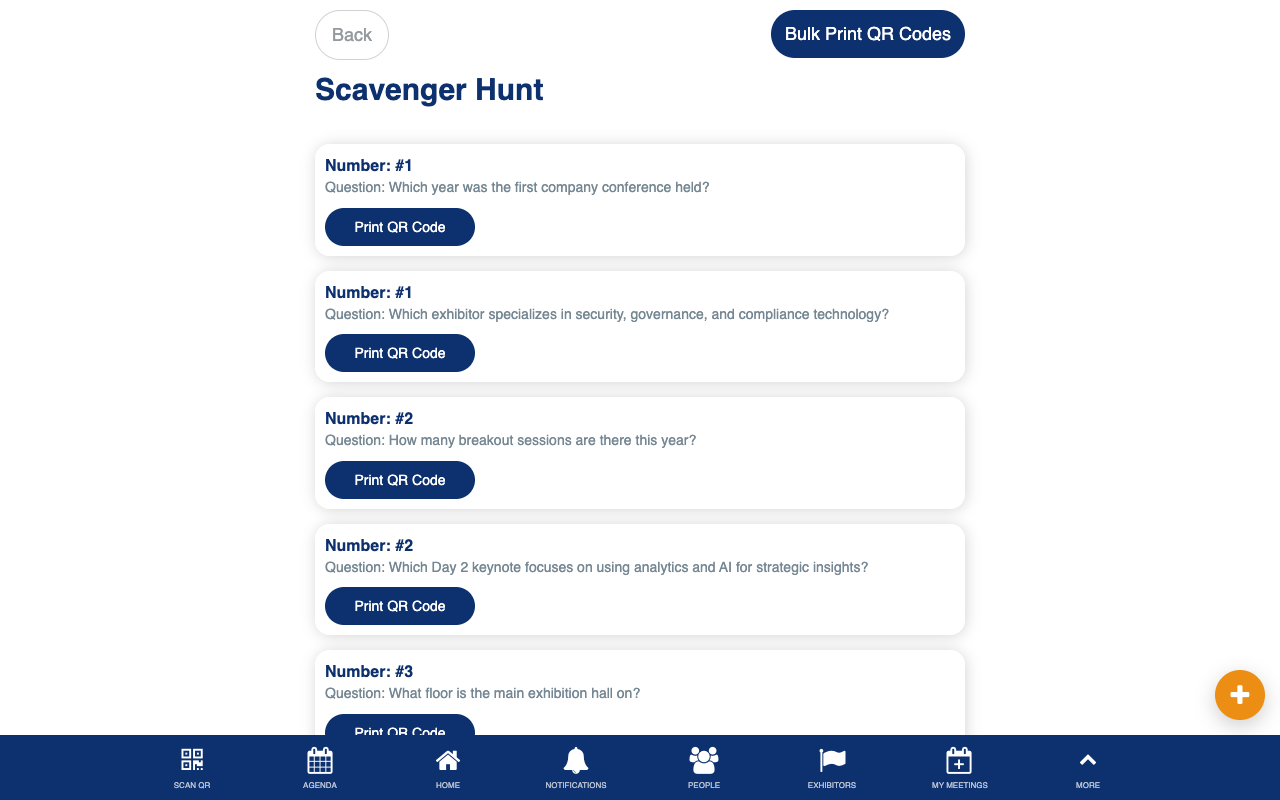
Custom bulk QR code generation with progress tracking, PDF export, email delivery, and automatic manual code creation.
Manage Scavenger Hunt
Role: Admin
The manage scavenger hunt screen lets admins create and edit individual hunt questions. Built-in validation ensures that answers are properly formatted, the correct answer matches one of the provided options, duplicate answers are prevented, and each item has a unique number. Manual QR codes are automatically generated when new items are created.
- Create new hunt items with a question, possible answers, correct answer, and item number
- Edit existing items to update questions or answers
- Multi-line answer validation ensures answers are provided as a list
- Correct answer validation confirms it matches one of the listed options
- Unique number validation prevents duplicate item numbers
- Manual QR codes are auto-generated on save
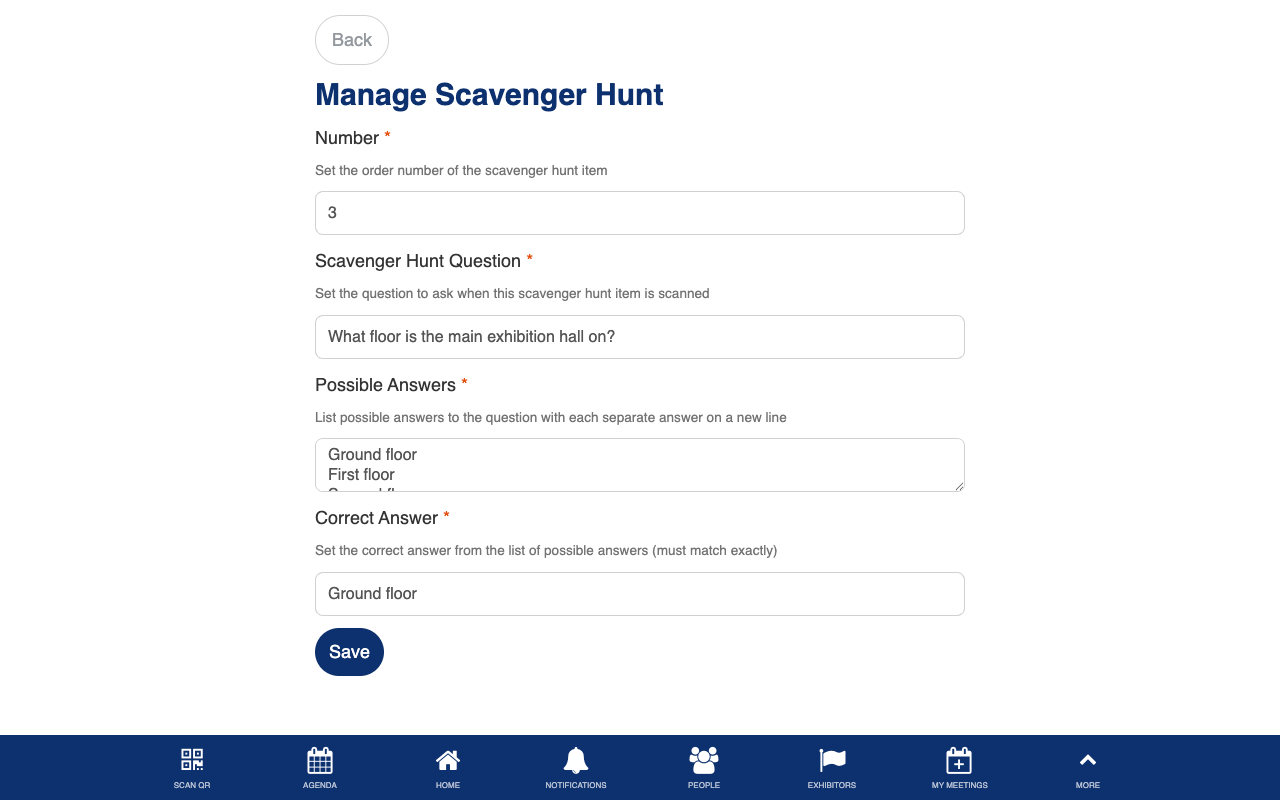
Custom form validation with answer matching, duplicate detection, and automatic QR code generation.