Check in to the event and sessions using QR codes, manual codes, or admin tools.
This section covers the full check-in experience for both attendees and admins. Attendees scan QR codes or enter manual codes to check in, while admins have a comprehensive dashboard for tracking attendance across the entire event and individual sessions.
Contents
Scan QR Code
Role: All Users
The scan QR code screen is a multi-purpose scanner that handles several QR code types throughout the app. When you scan a code, the app automatically detects what type it is and routes you to the right action: session check-in, exhibitor bingo stamp, scavenger hunt item, or user profile. Visual animations confirm whether the scan was successful, and a manual code entry option is available as a fallback.
- Scan any event QR code using your device camera
- The scanner automatically detects the QR code type and takes the right action
- Session check-in codes record your attendance instantly
- Exhibitor bingo codes stamp your visit to that exhibitor’s booth
- Scavenger hunt codes take you to the trivia question for that hunt item
- Success and failure animations provide clear visual feedback
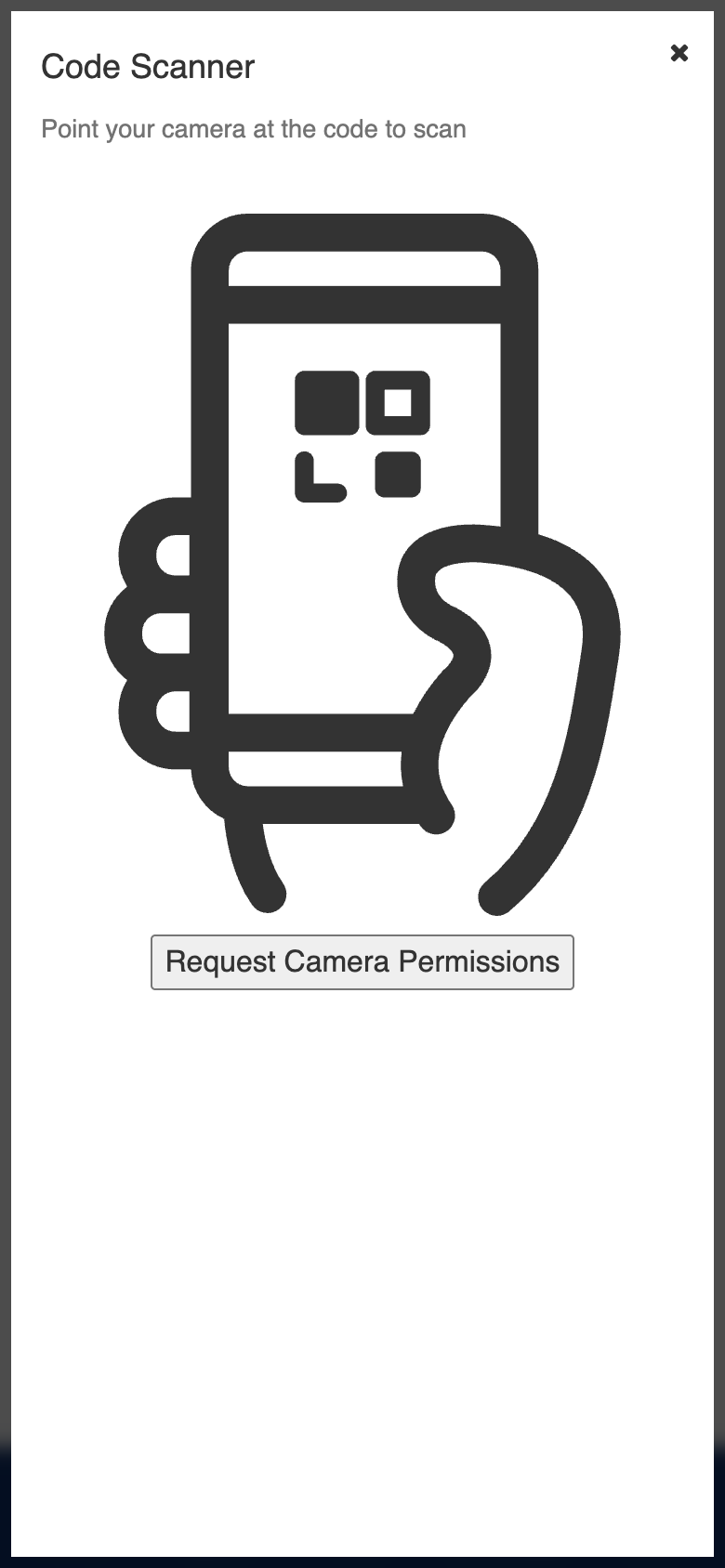
Custom multi-type QR detection with type-specific routing for check-in, bingo, scavenger hunt, and profiles.
Manual Code Form
Role: All Users
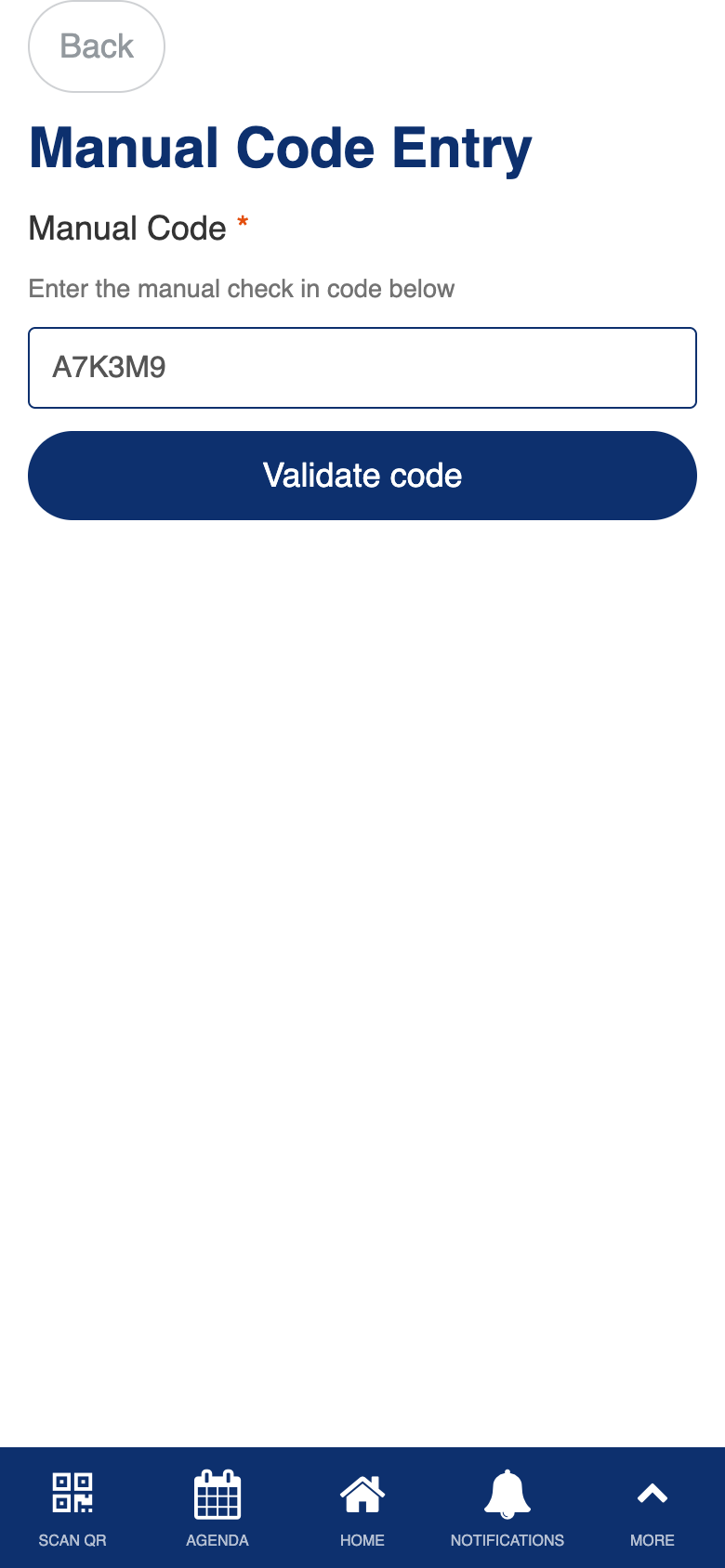
The manual code form is a fallback for situations where QR code scanning is not possible. You can type in the alphanumeric code displayed beneath any event QR code to perform the same action as scanning it.
- Enter the manual code shown below any event QR code
- The code is validated and the corresponding action is triggered
- Use this when your camera is unavailable or a QR code is damaged
Check-In
Role: Admin
The admin check-in dashboard provides a comprehensive view of event and session attendance. You can switch between event-level and session-level check-in views, browse attendee lists filtered by check-in status, and manually check in or check out individual attendees. Live attendance counts keep you informed of participation levels throughout the event.
- Switch between event-level check-in and individual session check-in views
- Filter attendee lists by status: pending, checked in, or all attendees
- Check in or check out individual attendees with a single tap
- View live attendance counts and participation statistics
- Search for specific attendees by name or email
- Track attendance duration with check-in and check-out timestamps
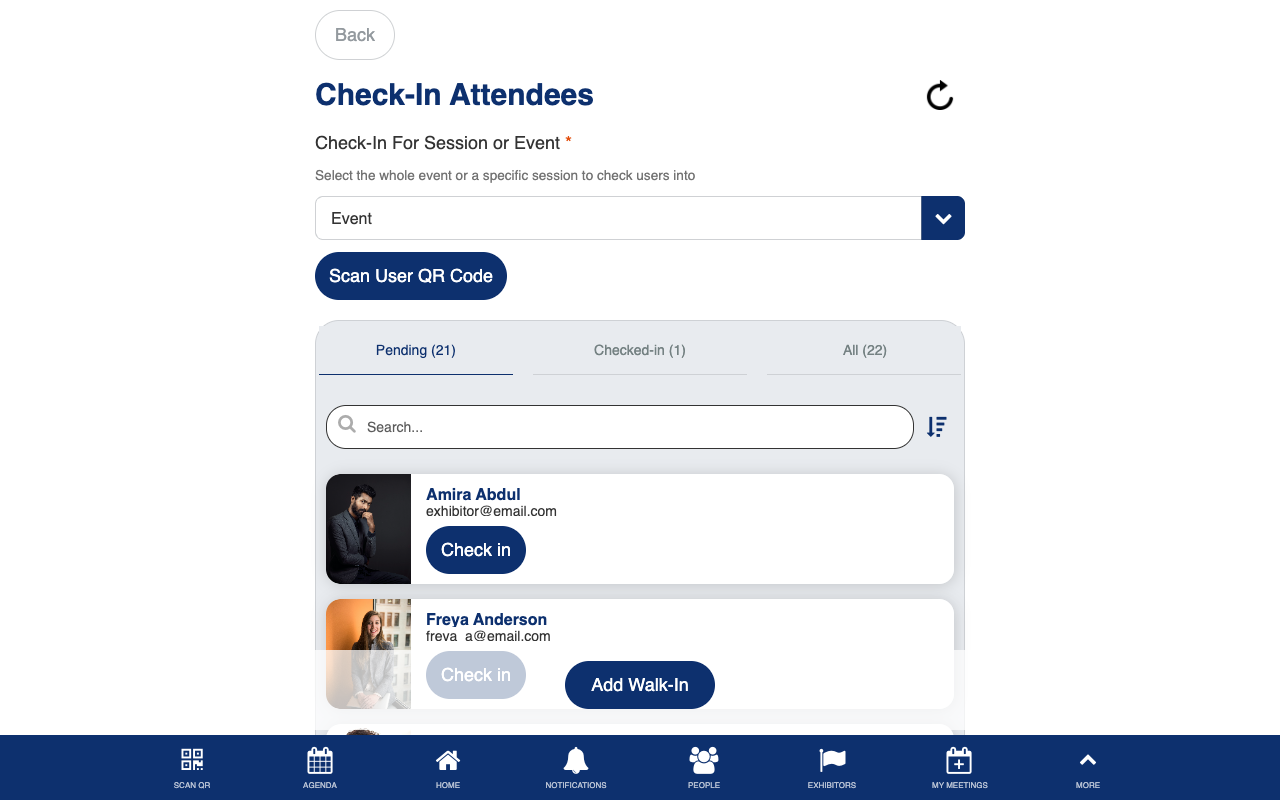
Custom dual-mode check-in (event and session level) with tabbed filtering and live attendance counts.
Add Walk-In
Role: Admin
The add walk-in screen lets admins register attendees who arrive at the event without a prior registration. You can enter the walk-in’s details and add them to the event, with duplicate email detection to prevent creating duplicate accounts for people who may already be registered.
- Enter walk-in attendee details (name, email, company)
- Duplicate email detection warns you if the person is already registered
- The new attendee is added to the user list and can log in immediately
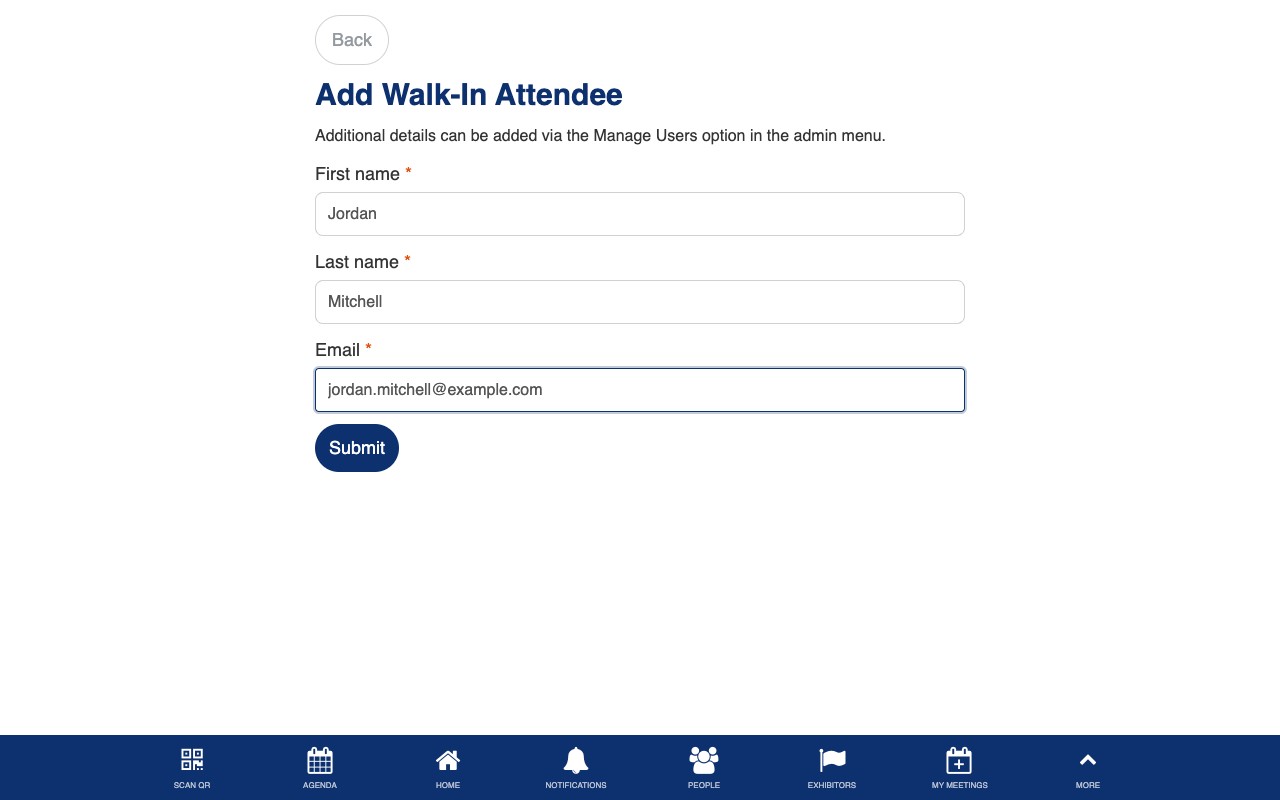
Uses the standard Form Builder component. Custom duplicate detection.