Configure SEO for your project
SEO (search engine optimization) controls whether people can find your app through Google, other search engines and AI tools. The SEO panel lets you turn discoverability on, write the title and summary that appear in search results, and choose which pages stay private. AI can fill in mos
Contents
- Open the SEO settings
- Overview: turn on Searchable and check your setup
- Pages: titles, summaries and visibility
- Set up with AI
- Files: what’s visible to search engines
- Advanced: robots.txt and sitemap
- Publish your changes
Open the SEO settings
- Open your app in Fliplet Studio.
- Click Settings in the left toolbar.
- Select the SEO tab.
The SEO panel has four sections: Overview, Pages, Files and Advanced. Each section has its own Save button, so you can save one section without affecting your unsaved work in another.
Overview: turn on Searchable and check your setup
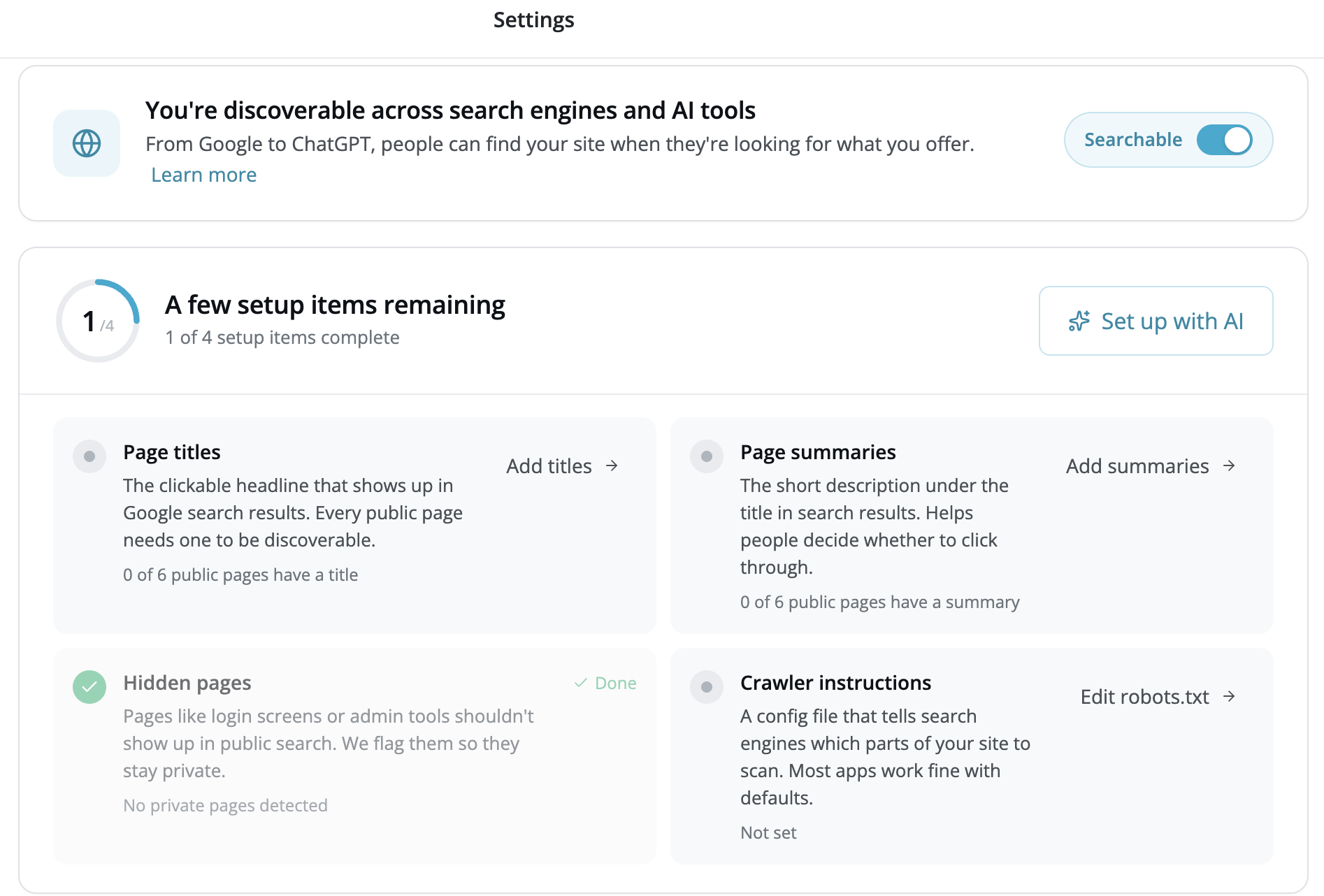
The Overview section is where you decide whether your app is discoverable at all, and it shows you how complete your SEO setup is.
The Searchable toggle
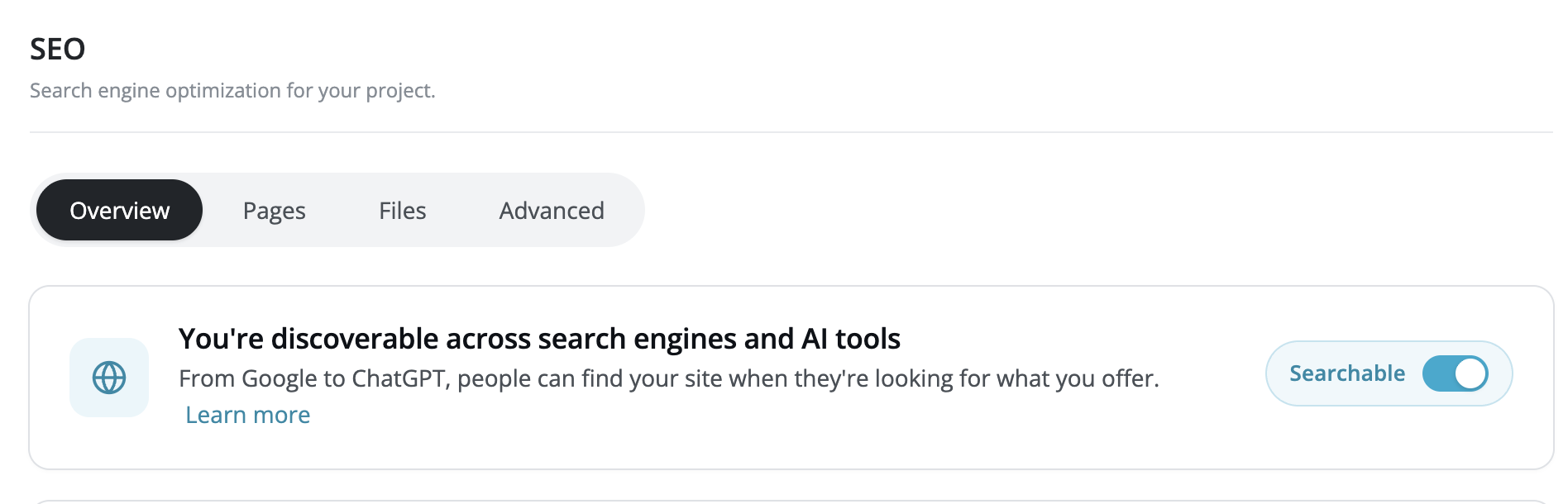
The master Searchable toggle is the on/off switch for your whole app:
- Searchable (on): your app appears in Google and other search engines, and AI tools can find it. Fliplet serves a
robots.txtfile and a sitemap automatically. - Hidden (off): people searching Google or asking AI tools won’t find your app. Page titles and summaries stay hidden, and the per-page Visible toggles are disabled until you turn Searchable back on.
Tip: Leave the app Hidden while you’re still building. Turn on Searchable when you’re ready to be found.
The setup checklist
Below the toggle, a progress ring shows how many setup steps you’ve completed (for example, 2/4). The checklist covers the things every discoverable app needs, such as giving your pages titles and summaries and hiding any private pages from search. Each incomplete item has a button that takes you straight to where you can fix it.
When every step is done, the ring fills in and your setup is complete.
After making changes here, click Save at the bottom of the Overview section.
Pages: titles, summaries and visibility
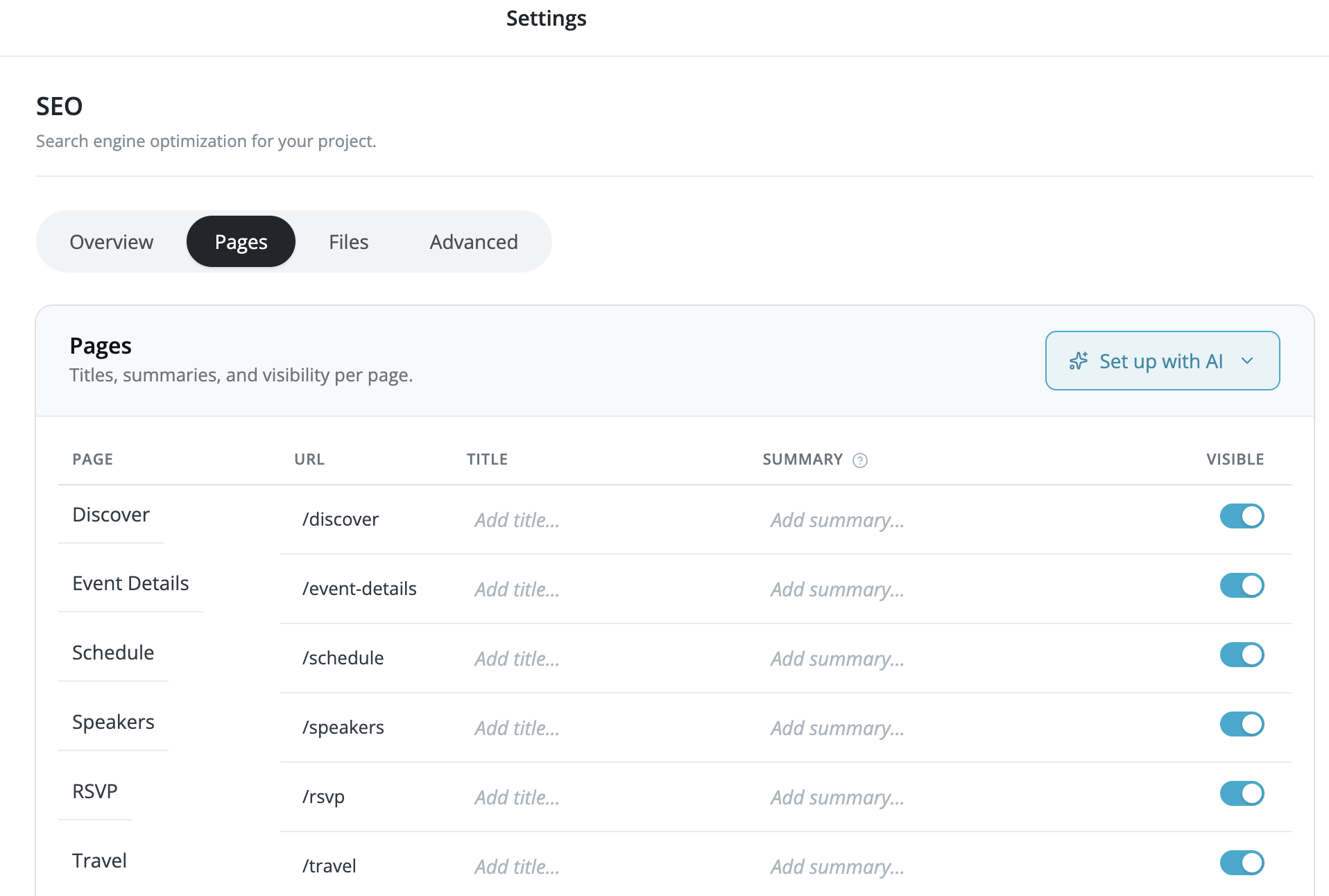
The Pages section lists every page in your app in a table. For each page you can set:
- URL: the web address for the page. Click the cell to edit it. The address must start with a slash (for example,
/pricing) and must be unique. - Title: the headline that appears in search results. Keep it to 40 characters or fewer.
- Summary: the description shown under the title in Google’s search results. Keep it to 160 characters or fewer.
- Visible: whether the page appears in search results. Turn this off for private pages such as logins, dashboards and admin tools.
To edit a title, summary or URL, click the cell and type. Press Enter or click away to confirm.
Note: The Visible toggles only work when the app-level Searchable toggle on the Overview section is on. If your toggles are greyed out, turn on Searchable first.
When you’re done, click Save at the bottom of the Pages section.
Set up with AI
Writing a title and summary for every page takes time. AI can do it for you based on what’s actually on each page.
You can start AI setup in two places:
-
- From the Overview section: click Set up with AI next to the setup checklist to fill in everything that’s missing across your visible pages.
- From the Pages section: click Set up with AI above the table and choose one of two options:
- Complete missing visible pages: fills in empty titles and summaries on visible pages only, leaving anything you’ve already written untouched.
- Review all visible pages: suggests edits across every visible page, including ones that already have a title and summary.
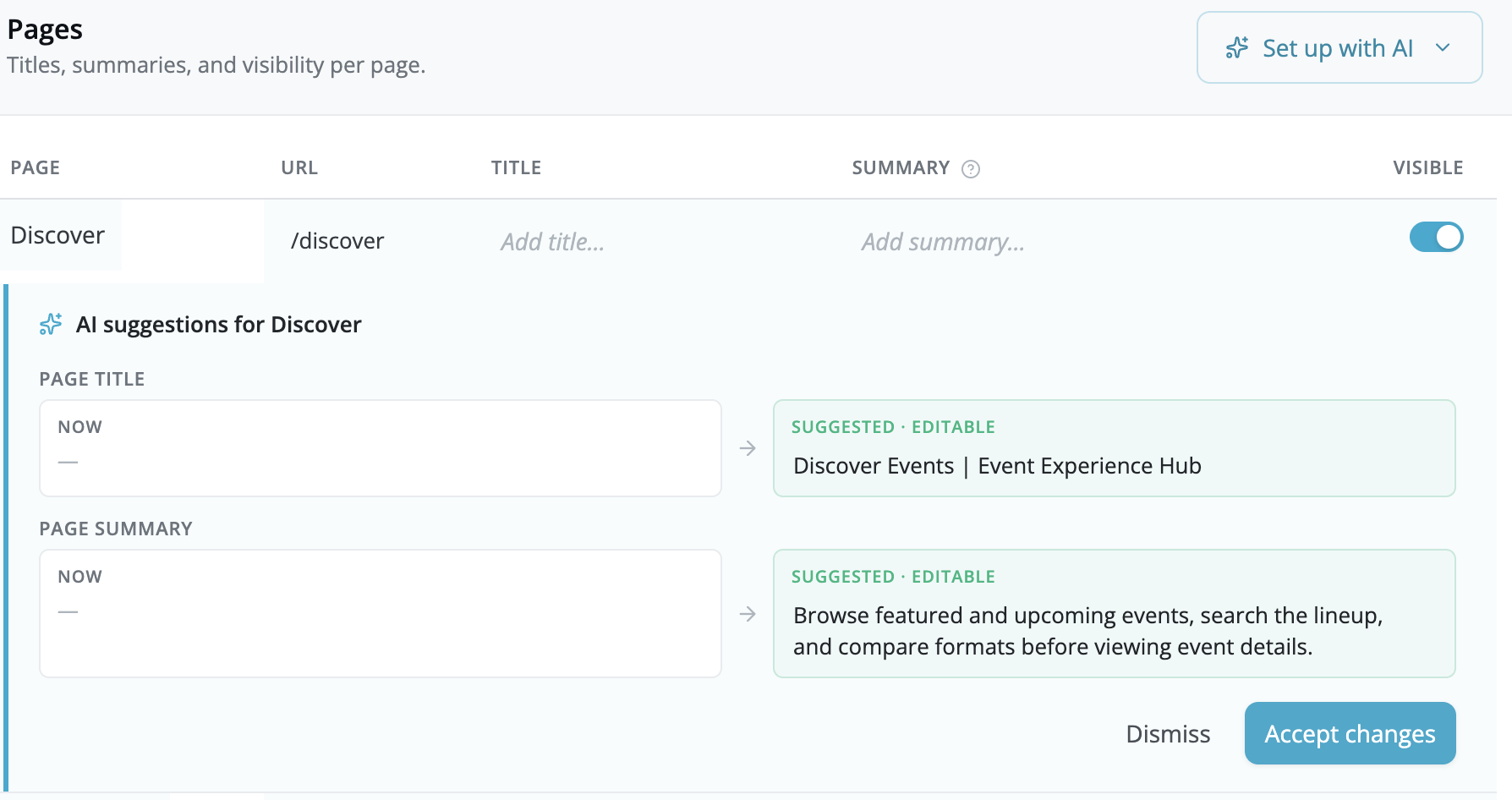
AI suggestions don’t apply automatically. Each page shows a side-by-side comparison of the current text and the suggested text. The suggestions are editable, so you can tweak the wording before accepting. For each page you can:
-
- Accept changes to apply the suggestion for that page.
- Dismiss to keep your current text.
If several pages have suggestions waiting, use Accept all changes or Dismiss all to handle them in one click. Remember to click Save on the Pages section afterward to keep the changes.
Files: what’s visible to search engines
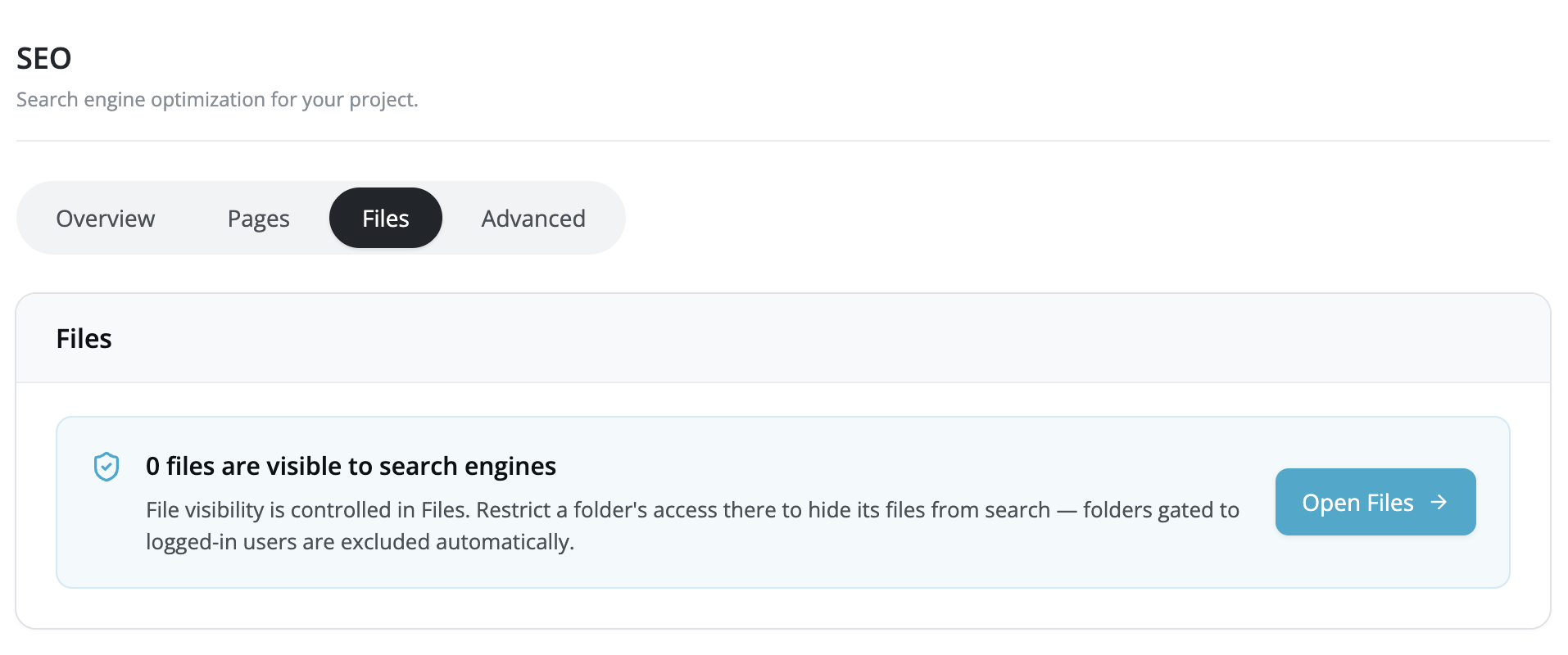
The Files section shows how many of your app’s files (such as images and documents) are visible to search engines. This is a read-only summary.
You control file visibility in the Files manager, not here. To hide a folder’s files from search, restrict that folder’s access in the File manager. Folders that are restricted to logged-in users are excluded from search automatically.
Click Open Files to go to the Files manager and adjust access. The count updates when you return.
Advanced: robots.txt and sitemap
The Advanced section is for advanced users. Most people don’t need to change anything here.
Crawler instructions (robots.txt)
A robots.txt file tells search engines which pages they’re allowed to crawl. Fliplet manages this for you based on your Visible toggles, so you rarely need to edit it by hand. To make custom changes, click Edit robots.txt, update the text and click Save.
Sitemap URL
A sitemap helps search engines discover all your pages. Fliplet generates one for you. Your sitemap URL appears here once you publish your app. Use the copy button to copy the address, or open it in a new tab to check it. You can submit this URL to search engines such as Google to help them find every page.
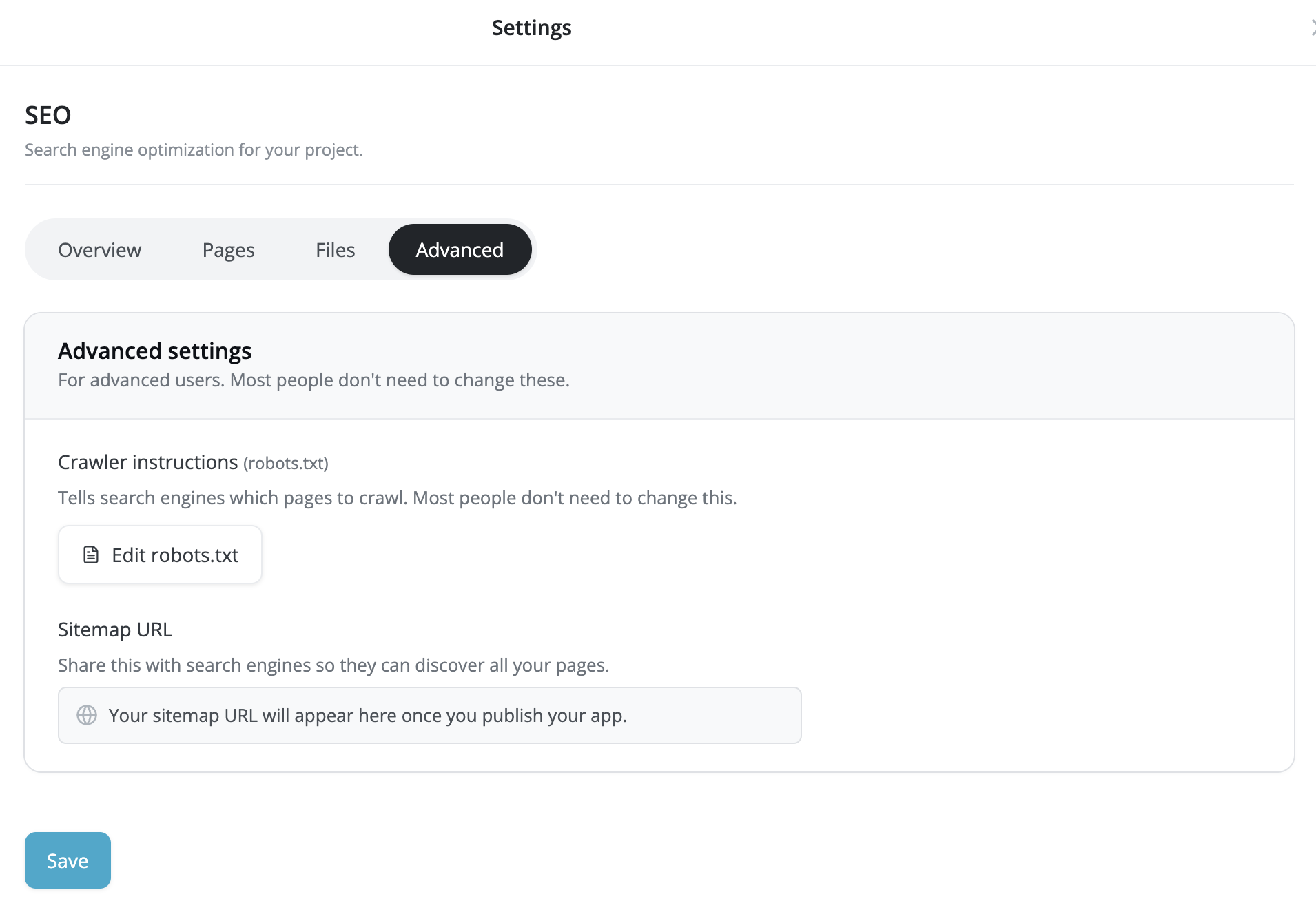
After making changes, click Save at the bottom of the Advanced section.
Publish your changes
Saving in the SEO panel stores your settings. For them to take effect on your live app, publish your app as usual. Until you publish, your sitemap URL won’t be available and your changes won’t appear in search results.
Custom email domain
Managing files and folders