Features
Two-factor authentication offers the following features:
- Fliplet users can enforce an additional security layer for their account
- Information is protected through added security.
Get Started
To enforce two-factor authentication you’ll need to:
- Be an admin of your organization and open the Organization Dashboard
- Enable two-factor authentication
Step 1 – Be an admin of your organization and open the Organization Dashboard
Note: At this time, only organization admins can enforce two-factor authentication on Studio Accounts.
- Login to Fliplet Studio.
- In the top right corner of your device screen, click on My account and select “Manage organization”.
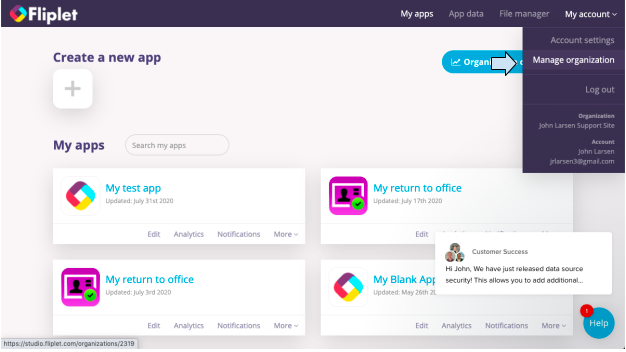
Step 2 – Enable two-factor authentication
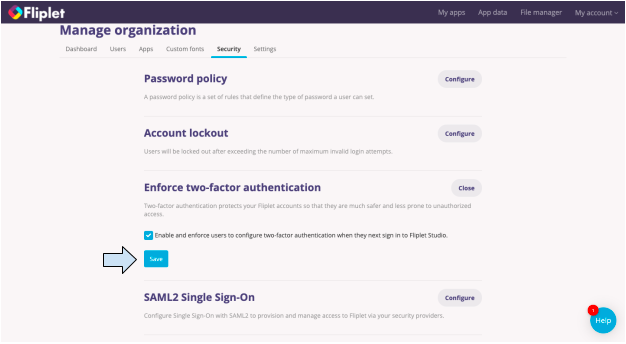
- Under Manage organization click on the “Security” tab.
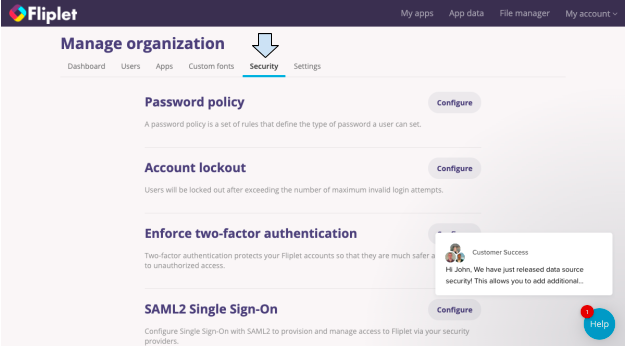
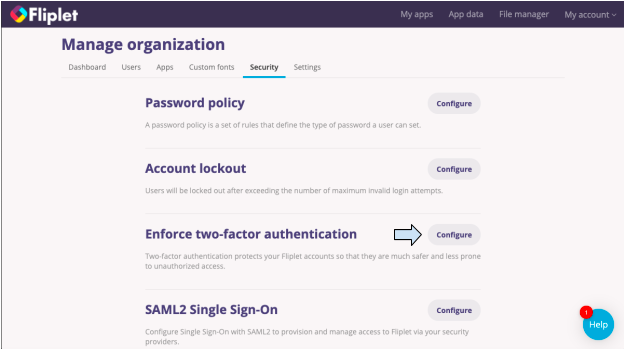
- Next to Enforce two-factor authentication click on the “Configure” button.
- Check the box next to Enable and enforce users to configure two-factor authentication when they next sign in to Fliplet Studio.
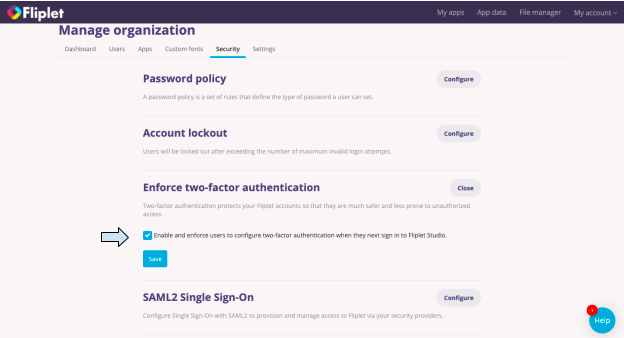
- Click on the blue “Save” button.
User Authentication Process
The next time you sign in to Fliplet Studio you will be prompted to enable two-factor authentication through a menu box that looks like this:
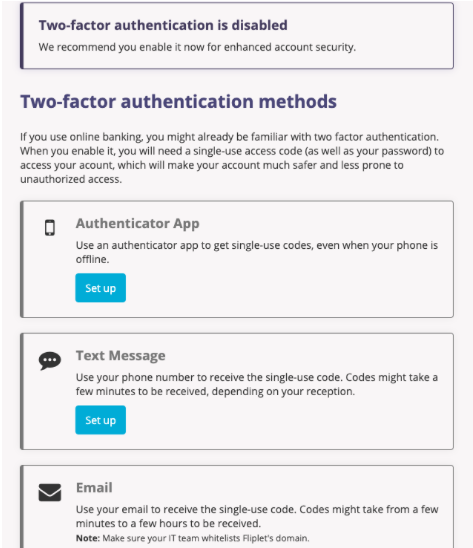
- Select which option works best for you and follow the on-screen instructions to enable.
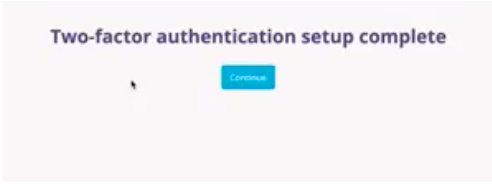
- When you have successfully set up two-factor authentication, you will receive this message.
Related Articles
Was this article helpful?
YesNo