Everything you need to get into the event app for the first time.
This section covers the initial experience of launching the app, from the onboarding walkthrough through login, registration, and arriving at your personalized home screen. Whether you are an attendee, speaker, exhibitor, or admin, this is where your journey begins.
Contents
Onboarding
Role: All Users
The onboarding walkthrough introduces the app’s core features when you open it for the first time. Four swipeable slides highlight the event hub, session management, networking capabilities, and check-in features so you know what the app offers before you sign in.
- Swipe through four introduction slides at your own pace
- Tap Get Started to proceed to the login screen
- Skip the walkthrough if you prefer to jump straight in
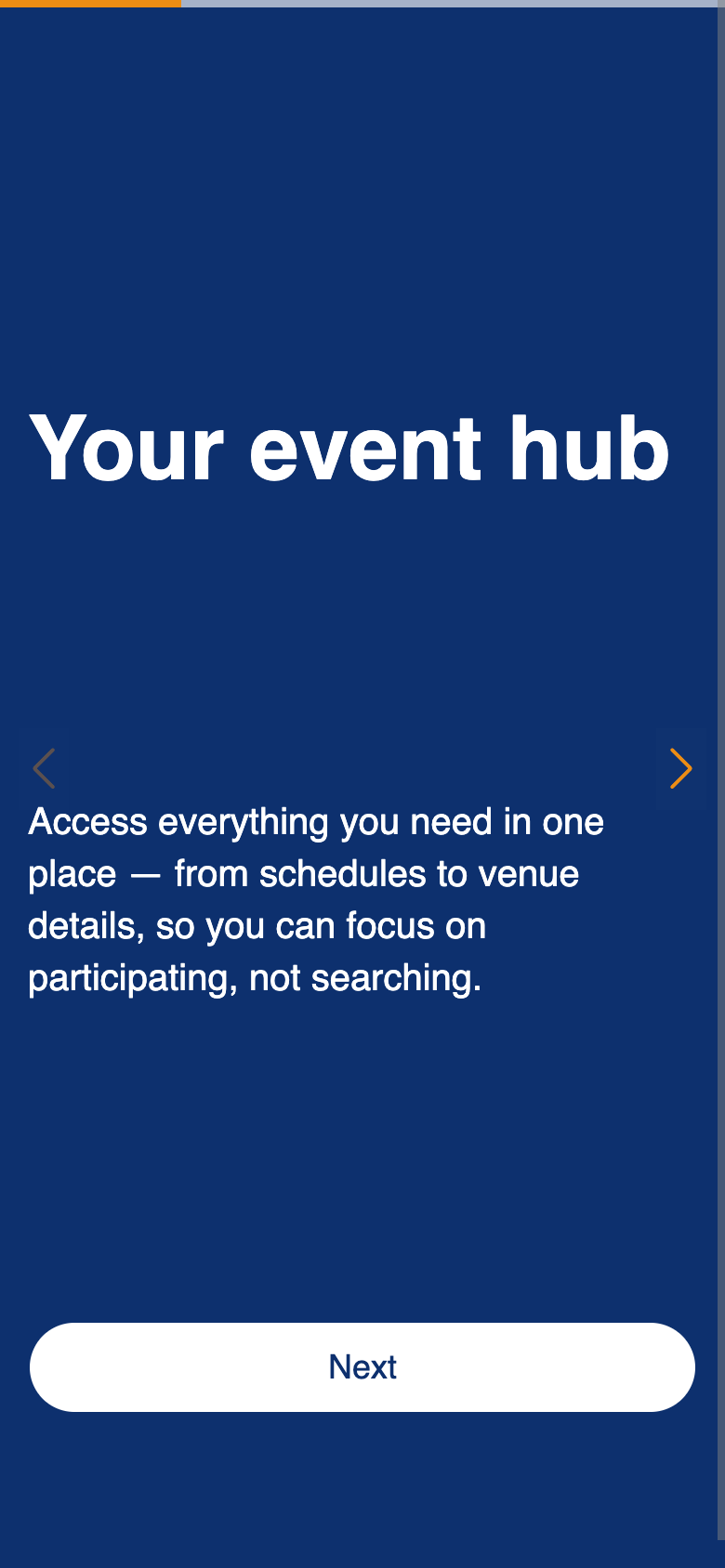
Uses the standard Slider Container component.
Login
Role: All Users
The login screen authenticates you using your registered email and password. After signing in, the app checks whether you have accepted the event’s privacy policy. If you have not yet accepted it, you are directed to the privacy policy screen before reaching the home screen.
- Enter your email address and password to sign in
- First-time users are automatically directed to the privacy policy after login
- Returning users who have already accepted the policy go straight to the home screen
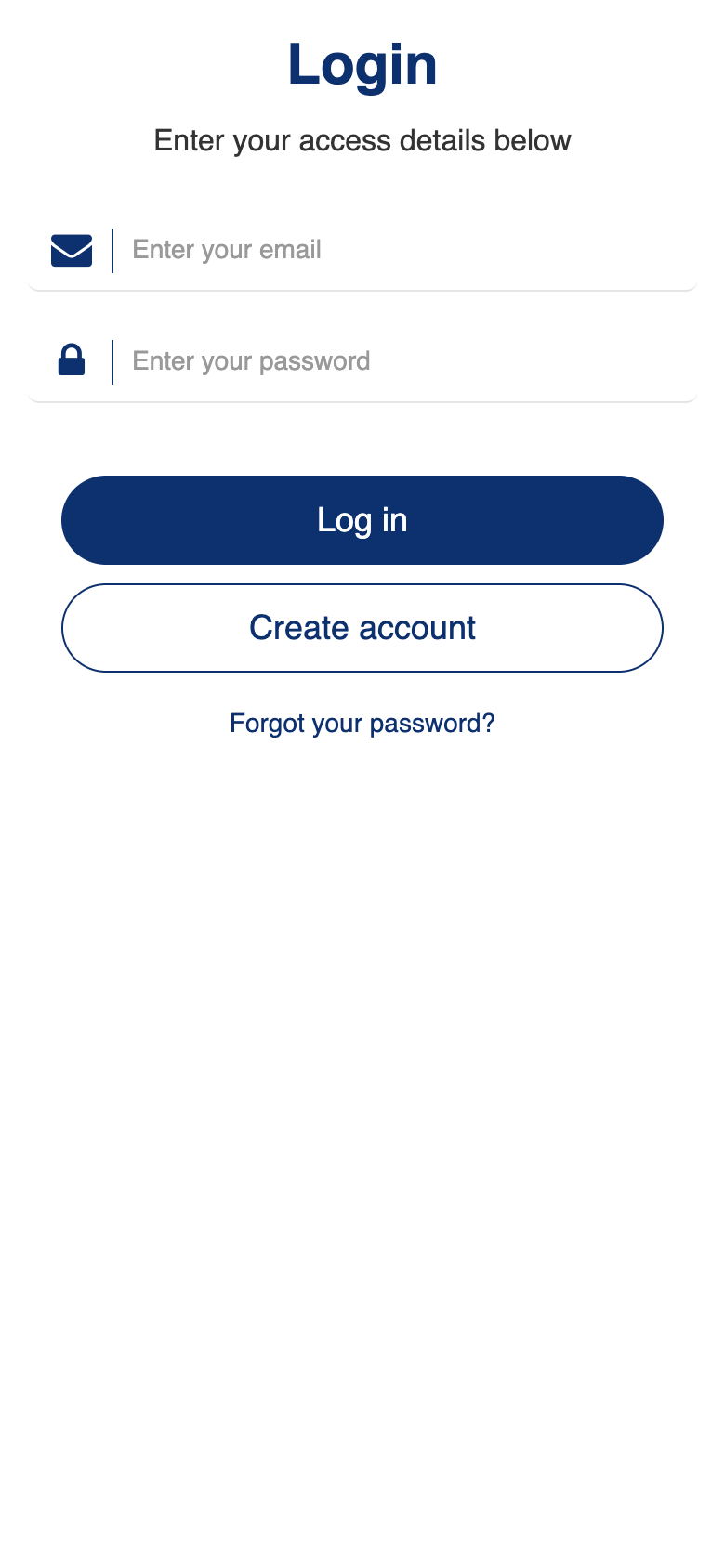
Uses the standard Login component. Custom privacy policy redirect.
Registration
Role: All Users
The registration screen lets new users create their event profile by filling in personal and professional details. An AI-powered bio generation feature creates a professional biography from your profile information, saving you time during sign-up.
- Fill in your name, email, job title, company, and other profile fields
- Tap Generate Bio to have an AI-written professional biography created from your details
- Duplicate email addresses are detected before submission to prevent duplicate accounts
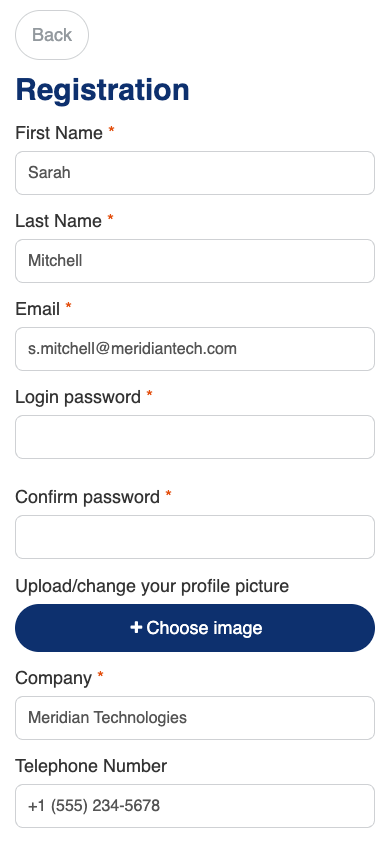
Custom AI bio generation creates professional biographies from your profile data.
Privacy Policy
Role: All Users
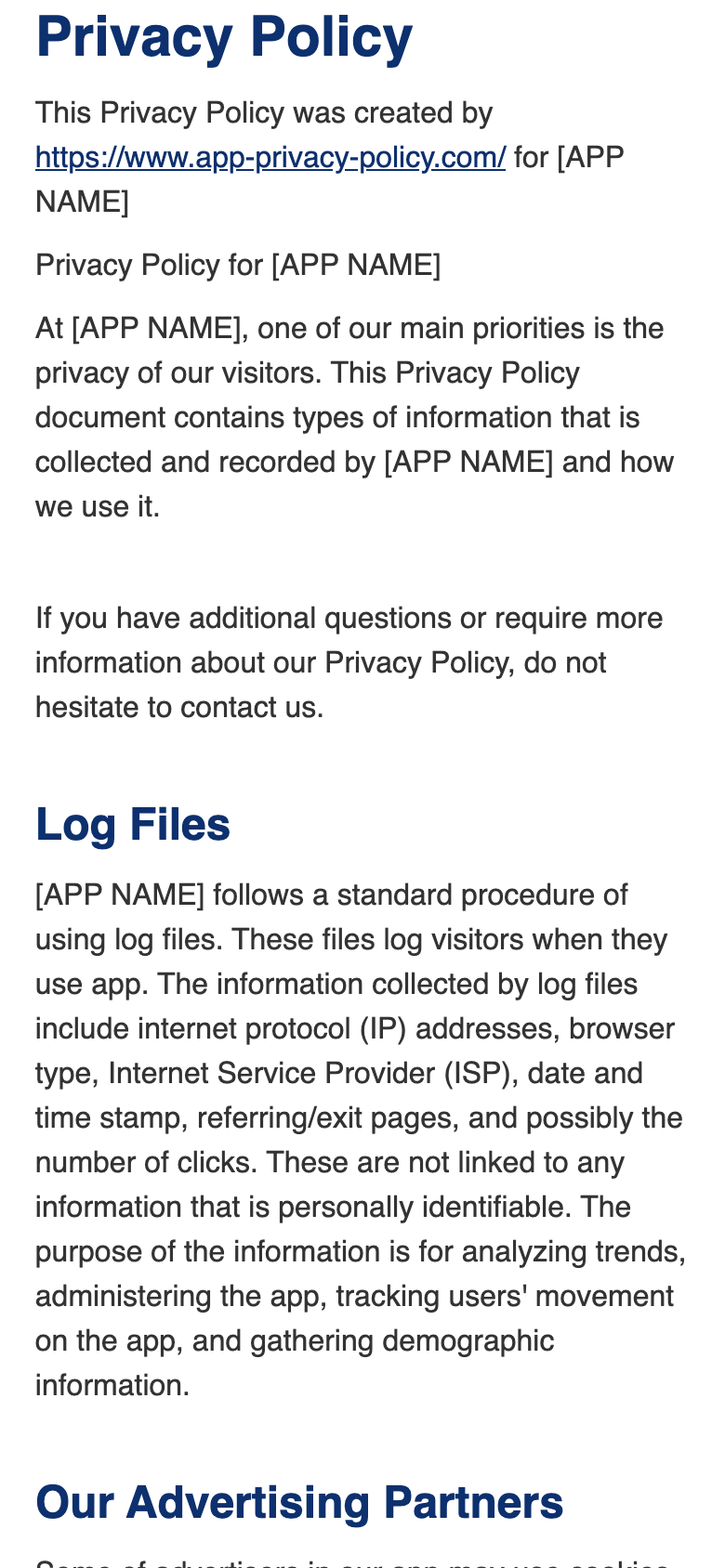
The privacy policy screen displays the event’s data handling and privacy terms. You must accept the policy before you can access the rest of the app. This screen appears automatically after your first login if you have not yet accepted.
- Read the full privacy policy text
- Tap Accept to agree and proceed to the home screen
Home
Role: All Users
The home screen is your personalized dashboard and the central hub for navigating the entire app. It greets you by name, shows your upcoming sessions with timezone-adjusted times, displays the latest news, and provides quick access to every major feature through a navigation menu. Role-specific buttons appear based on your account type.
- View a personalized greeting with your first name
- Browse your next five upcoming sessions, automatically filtered to your personalized agenda and adjusted to your timezone
- Read the latest news feed items without leaving the home screen
- Navigate to any feature through the thumbnail menu (Agenda, Meetings, Exhibitors, and more)
- Access role-specific areas: admins see the Admin Menu, speakers see Speaker Tools, and exhibitors see Exhibitor Tools and Scan Lead
- A profile confirmation prompt appears if you have not yet reviewed your profile after registration
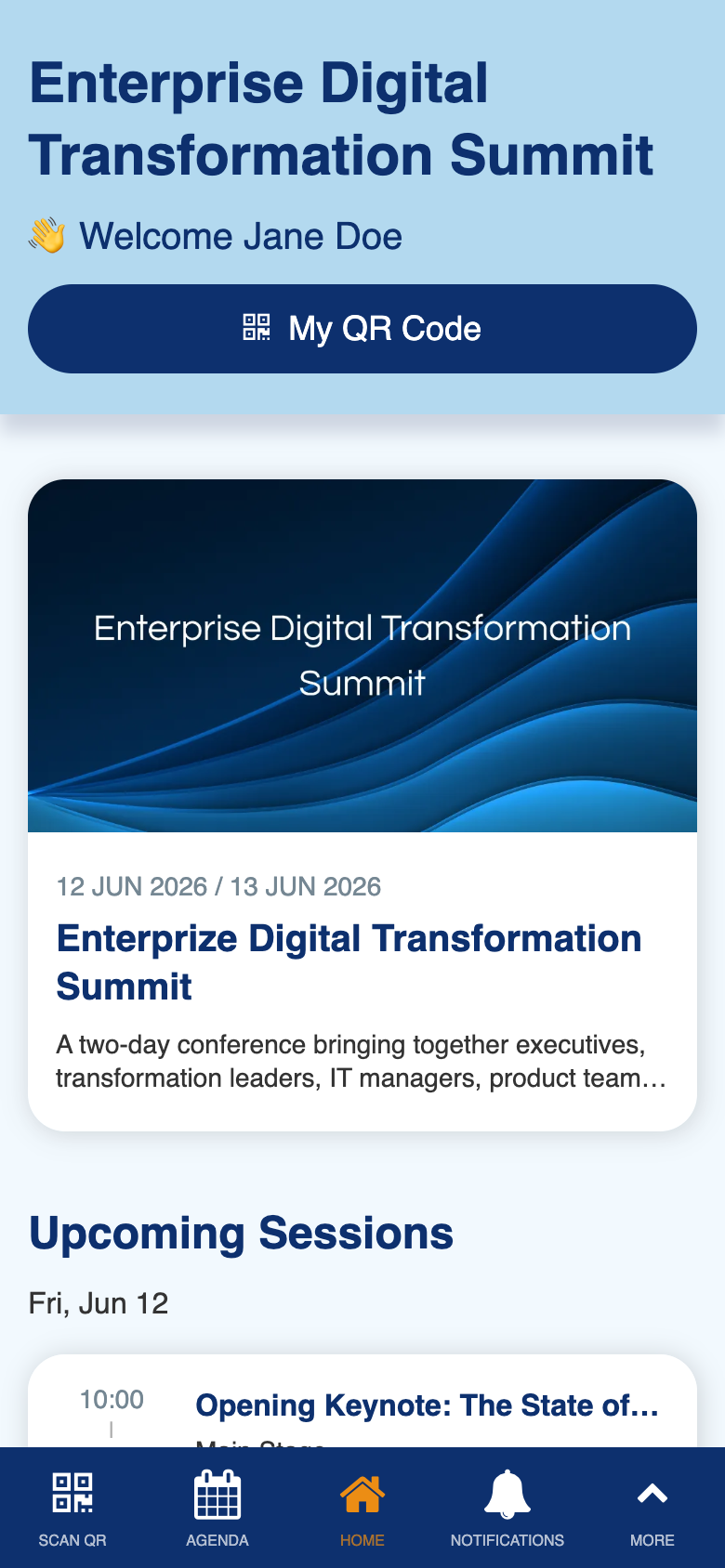
Custom personalized dashboard with role-based navigation, upcoming session filtering, and timezone conversion.