Browse every portal user and assign or change their roles.
The User List shows everyone with access to the portal: speakers, reviewers, and admins. Click any user to open their record and update their details or change their role assignments. A single user can hold more than one role, so committee members who also present can use the same account.
Contents
Admin User List
Role: Admin
The User List is a sortable list of every user account on the portal, showing each user’s name and assigned roles. Click a row to open that user’s record in the Manage User screen.
- Browse every portal user in one list
- See each user’s assigned roles at a glance
- Click a row to open the user’s record for editing
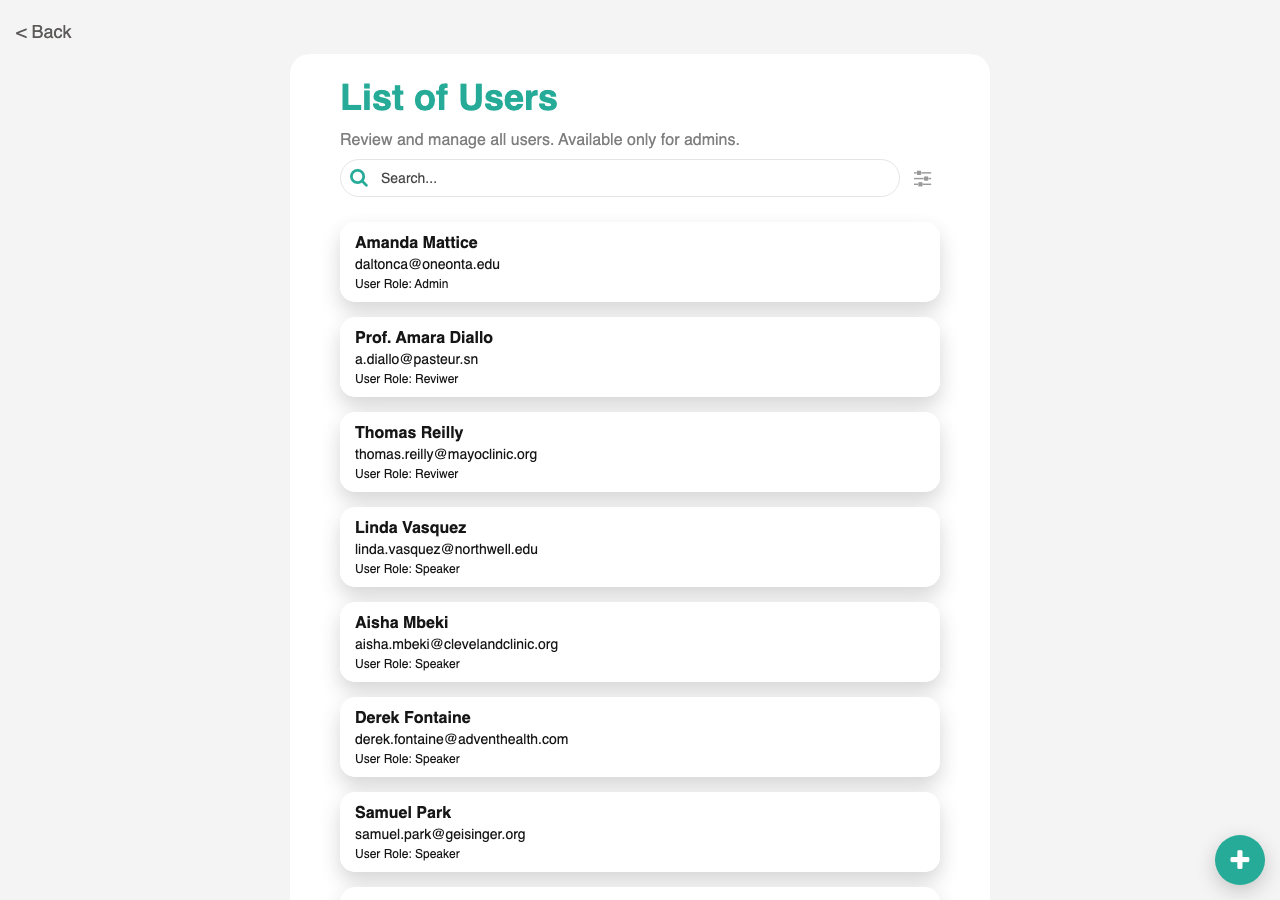
Uses the standard List from Data Source component. Configured to drill through to the Admin Manage User screen on row click.
Admin Manage User
Role: Admin
The Manage User screen is where you edit a single user’s profile and roles. The form lets you update standard profile fields (name, organization, job title, email) and use a multi-select to assign any combination of Speaker, Reviewer, and Admin roles. Save the form to apply the changes.
- Edit profile fields: name, organization, job title, email, LinkedIn, bio
- Assign roles using a multi-select (tick any combination of Speaker, Reviewer, Admin)
- Save to apply changes immediately
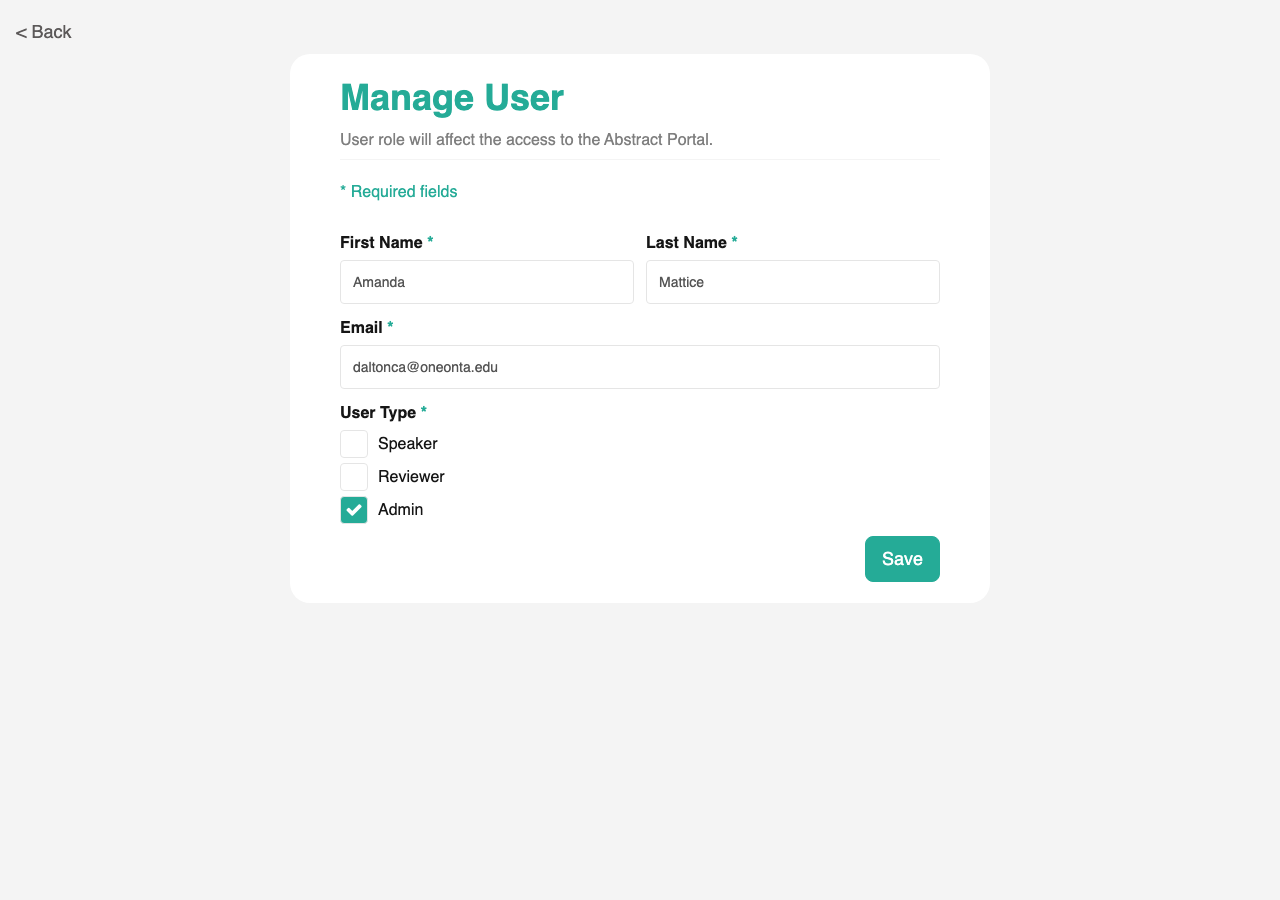
Uses the standard Form Builder component. Custom multi-role selector that supports any combination of Speaker, Reviewer, and Admin on the same account.
Multi-role assignment
Role: Admin
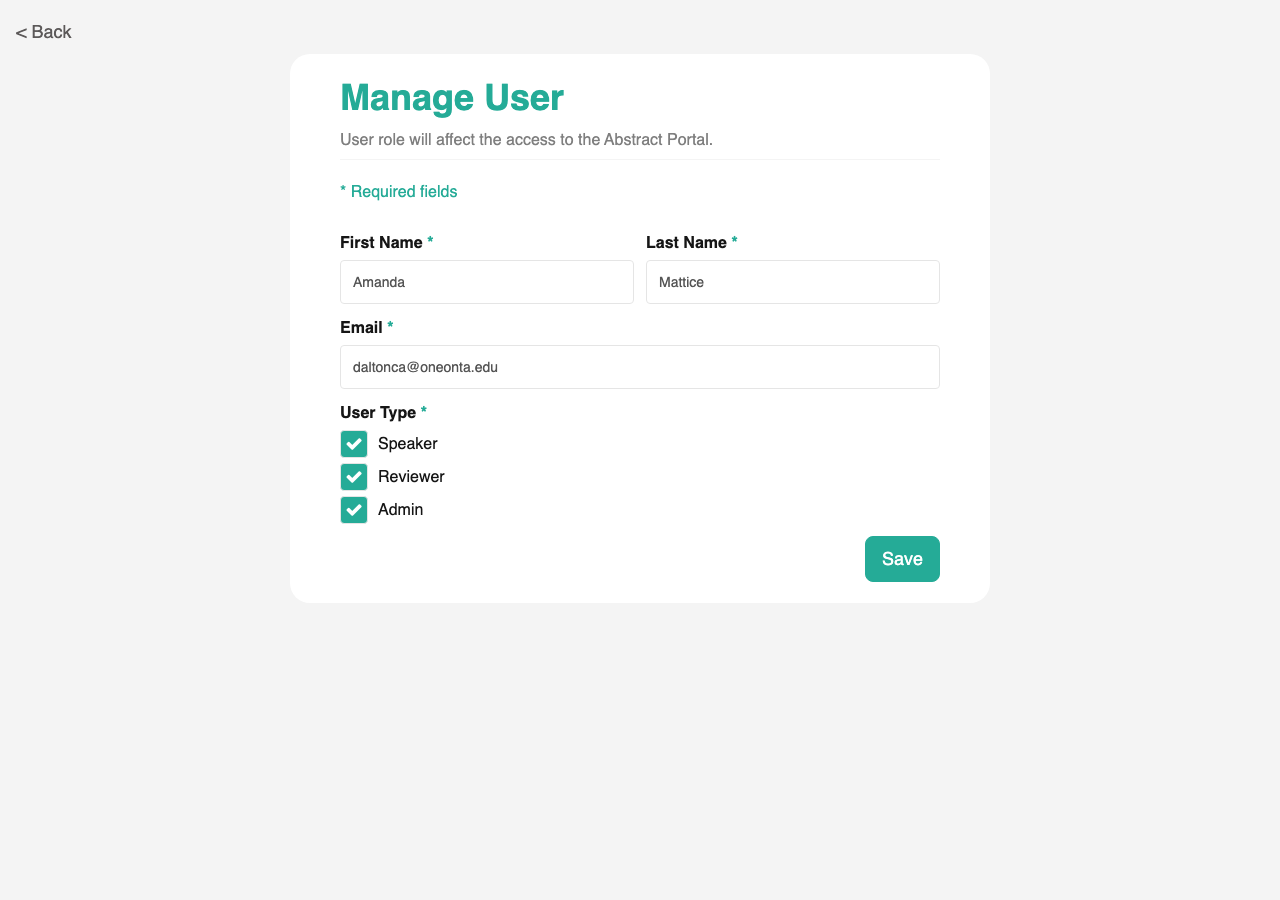
A single portal user can hold more than one role at the same time. For example, a committee member who is also presenting can be both Admin and Speaker on the same account: there is no need to manage two separate logins. Roles are entered as a multi-select on the Manage User form, so picking more than one means ticking each option.
- Tick more than one role on the multi-select to assign multiple roles
- The same account can be Speaker + Reviewer, Reviewer + Admin, or any other combination
- When the user signs in, they land on the dashboard for their highest-privilege role (Admin beats Reviewer beats Speaker)
- The user can navigate to their other dashboards from the home page
Note: Reviewer assignments stored as
Reviwer(typo) in legacy data may not match new role checks. If reviewers report that their dashboard does not appear after sign-in, open their Manage User record and re-save the roles to normalise the value.